If you're getting fewer leads than you expected, or not enough good leads, check three things: your service radius, your categories and your plan. Leads come from jobs posted in your categories, within your service radius. Insights shows what's working, and reviews help homeowners choose you. If you'd rather stop, you can cancel your Premium plan from Billing.
If You Have a Basic Listing
A Basic listing can't respond to leads. When you open a lead, the button reads Respond and takes you to the plan page. Upgrade to Premium to send responses to homeowners.
Widen Your Service Radius
Leads come from jobs posted within your service radius, so a wider radius brings more jobs within reach. You can set it anywhere from 15 km to 150 km.
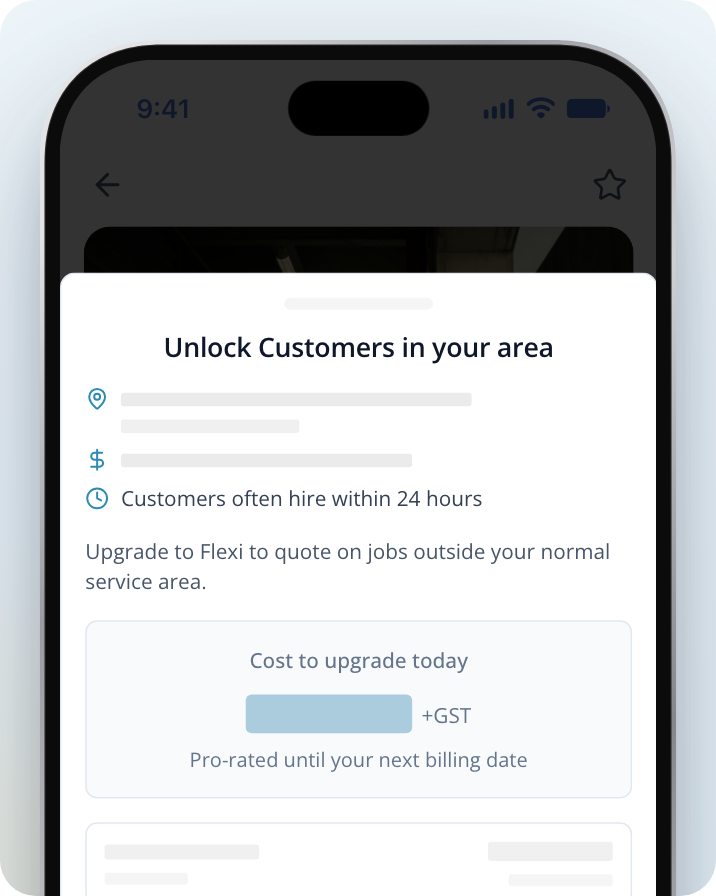
On some Premium plans, you can only respond to jobs within 25 km of your listing's location. If your radius is wider than that, you'll still get leads from further away, but when you select Respond, Unlock Customers in your area opens with "Upgrade to Flexi to quote on jobs outside your normal service area." Select Upgrade now to upgrade and go back to the lead. If our team set up your account manually, contact us to upgrade instead.
Open your listing
Go to Listings and select the name of the listing you want to change.
Open Categories & Location
Select Categories & Location (on a phone, tap Services).
Edit your radius
Under Listing Location, next to Radius, click on Edit.
Set a new radius
Drag the Service area radius slider. The map shows the area you'll cover.
Save
Click on Save.
Check Your Categories
Leads come from jobs in the categories on your listing. Make sure they match the work you want.
- Add categories for other work you do, so you can match with a wider range of jobs.
- Remove categories for work you don't want, so you get fewer leads that aren't a good fit.
On some Premium plans, you can only respond to leads in your plan's one target category. Leads in your other categories still come through, but when you select Respond, Unlock Customers in your area opens with "Upgrade to Flexi to quote on jobs across all your categories."
Open Categories & Location
Go to Listings, select your listing, then select Categories & Location (on a phone, tap Services).
Update your categories
In the Categories section, add or remove categories and save your changes.
See What's Working in Insights
If you have a Premium listing, Insights shows how your listing is performing. On a computer, select Insights in the top bar. On a phone or in the app, tap Menu and select Insights. For your first few weeks, Insights shows a Get set up checklist instead. The full page appears once you finish the checklist or after 21 days, whichever comes first.
These cards help most when leads are low:
- Jobs within reach shows how many jobs in your categories were posted in your area, and how many more a wider radius would have reached.
- Where your jobs come from shows which categories your jobs come from.
- Completed work shows your most recent finished jobs and their ratings, once your listing has some.
- Response rate and How fast you reply show how often and how quickly you respond to leads.
- Jobs you looked at but didn't respond to lists leads you opened without responding.
Help Homeowners Choose You
When homeowners compare responses, they look at your listing. A complete listing with reviews helps them decide. Your profile strength in Insights shows what's missing from your listing.
Ask for Reviews
If you have a Premium listing, you can ask homeowners for reviews from Insights. This becomes available once Insights moves past the Get set up checklist.
Open Insights
Go to Insights and scroll to Reputation (on a phone, tap the Reviews tab).
Open Request reviews
Click on Request reviews.
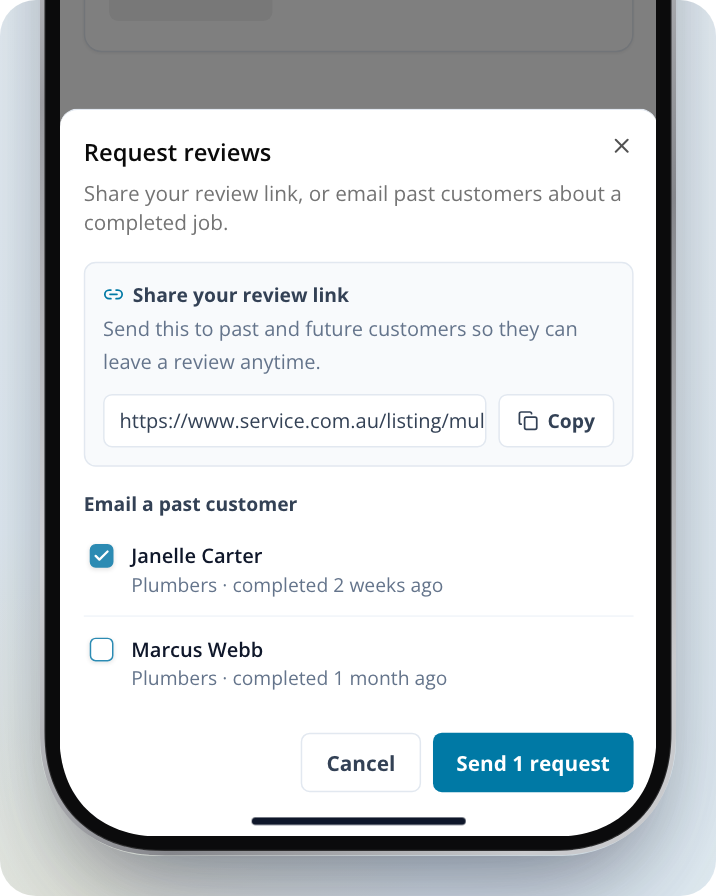
Share your review link
Under Share your review link, copy the link and send it to past and future homeowners.
Email a past homeowner
Under Email a past customer, tick the completed jobs you want to ask about, then click on Send 1 request (or Send 2 requests, and so on). Until you tick a job, the button reads Select jobs to send. For more on this, see How to Request a Customer Review.
Get Enquiries From Your Own Website or Socials
Booking forms let homeowners send you a job from your own website, your Facebook page or anywhere else you share a link. Their details, job info and photos come to your Inbox, and only you receive them.
Open Booking forms
Click on the menu icon in the top right corner and select Booking forms. On a phone or in the app, tap Menu, then Booking forms.
Build your form
Click on Build my booking form and follow the prompts.
If You Want to Cancel
You can cancel a Premium plan yourself.
Open Billing
Click on the menu icon in the top right corner and select Billing. On a phone or in the app, tap Menu, then Billing.
Cancel your plan
Click on Cancel Plan and follow the prompts.
If your Billing page shows Account managed manually, our team set up your plan. Contact us to cancel it.
You can also contact us if the leads you're getting don't match your categories and area, or if you'd like help choosing the right plan.
Need Assistance?
If you have questions, contact us at support@service.com.au or call 1300 523 787. Our team is here to help!