Use the Jobs section in your account to review new leads, send a message to the homeowner, and unlock their contact details for follow-up.
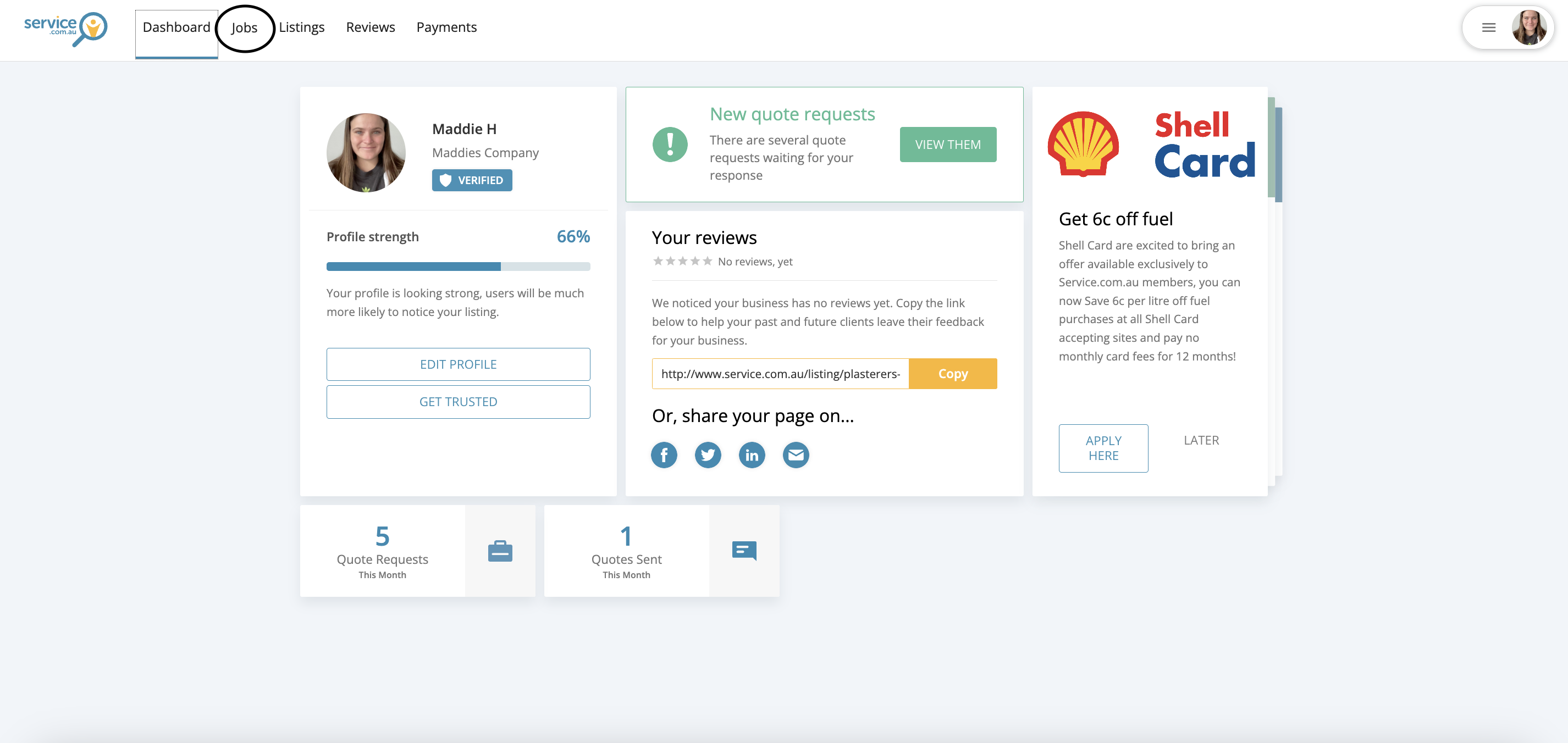
Open Jobs
Log in to your account dashboard and click on Jobs to view your available leads.
Select a lead
Select the job you want to respond to and review the details to make sure it matches your services.
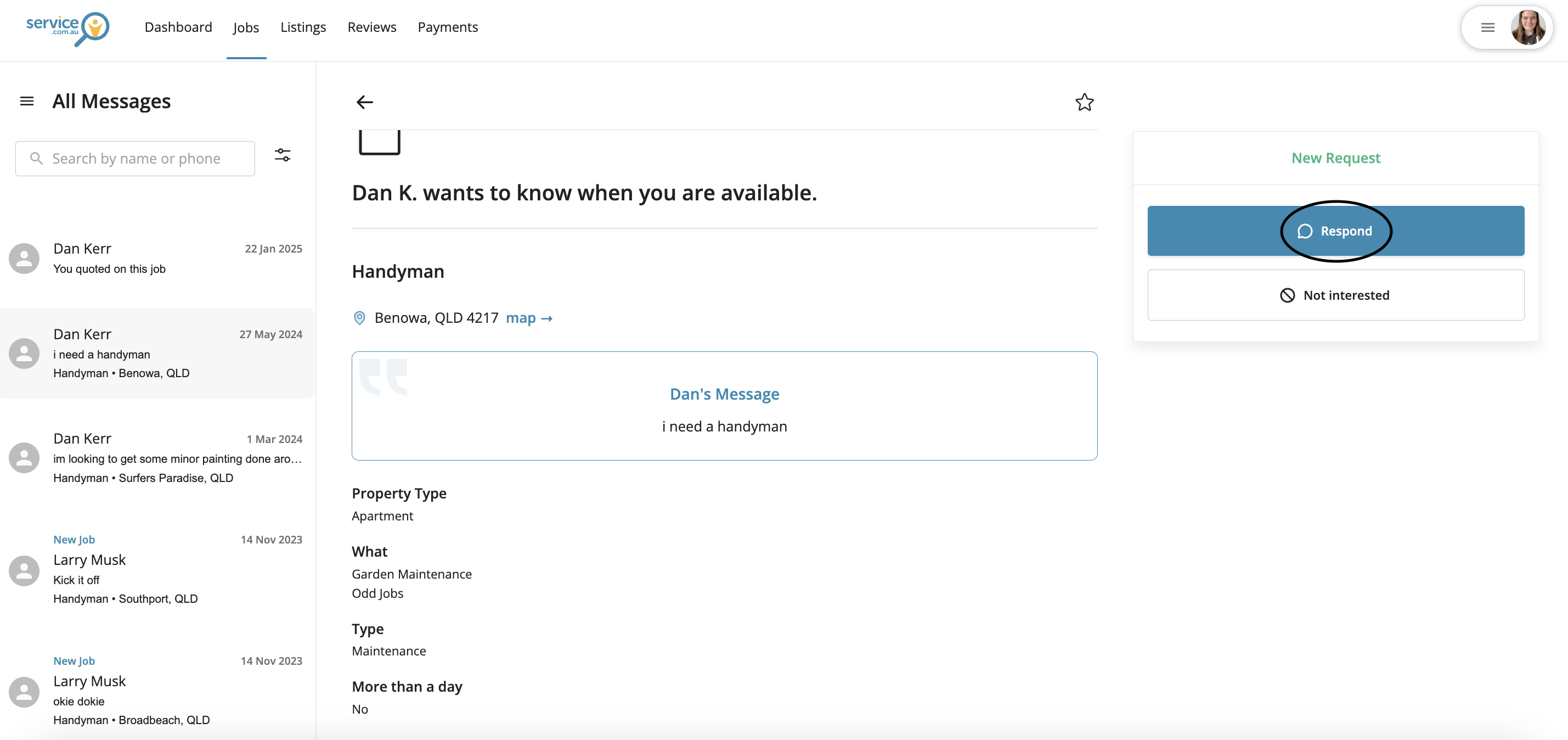
Start your response
Click on Respond to open the response form.
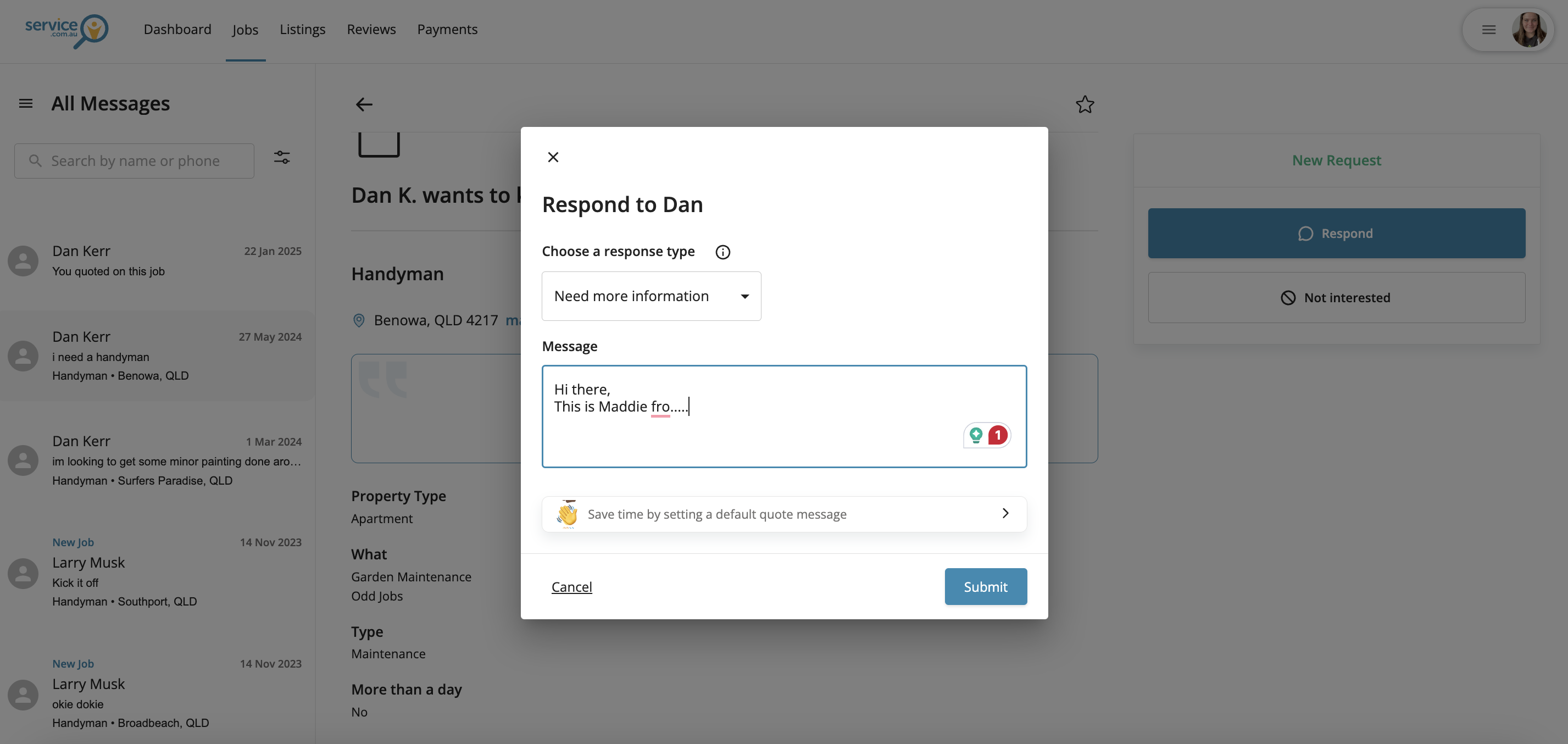
Write your message
Enter your message to the homeowner. You can also ask questions if you need more information before quoting.
Add pricing if needed
Enter an Hourly Rate or Fixed Price if you are ready to quote. You can leave these fields blank if you need more details first.
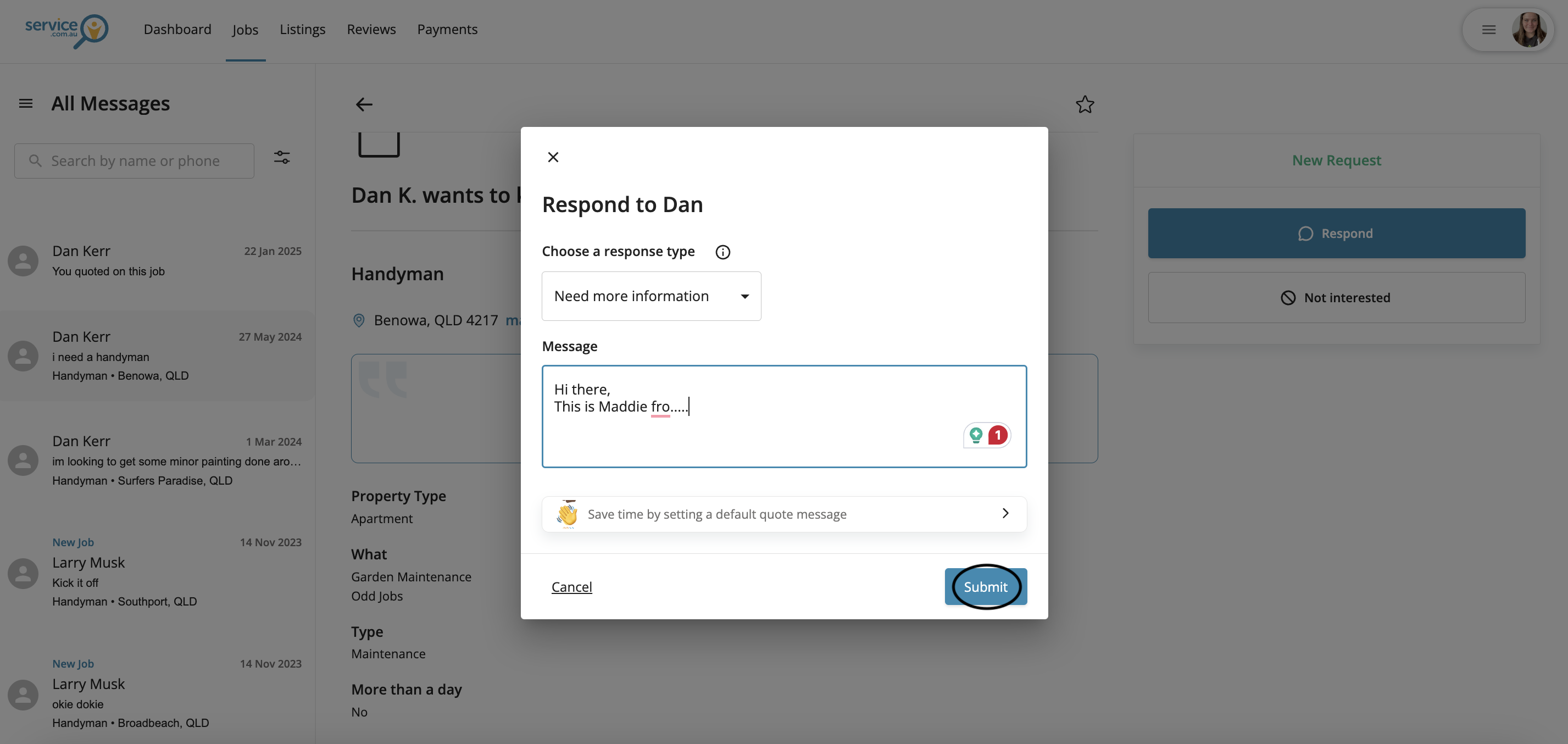
Submit your response
Click on Submit to send your response.
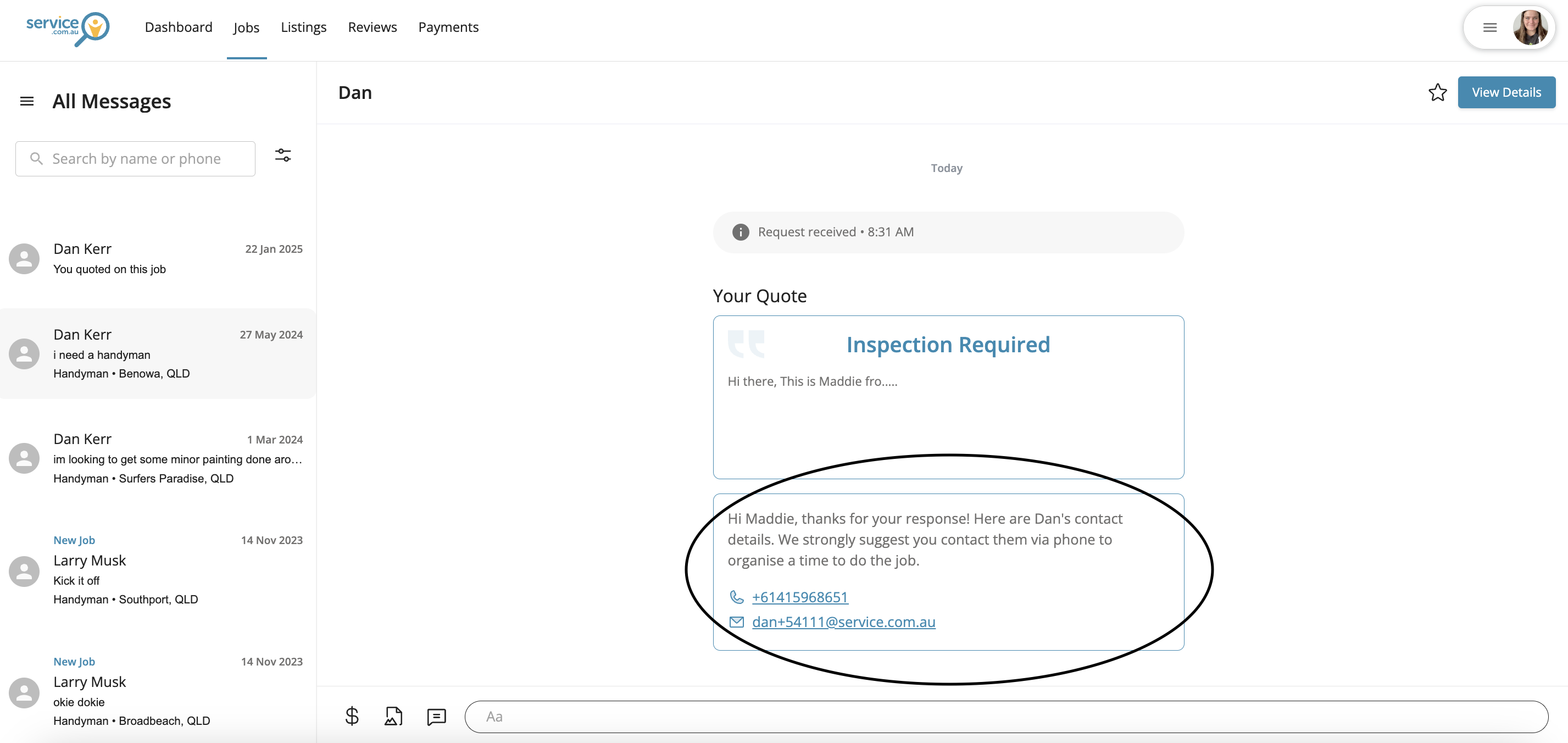
View the homeowner's contact details
After you submit your response, the homeowner’s phone number and email address become available so you can follow up directly.
Tips for better responses
- Respond quickly to improve your chances of winning the job.
- Keep your message clear and mention the job details so the homeowner knows you have read their request.
- Ask questions if you need more information before giving a final price.
- Follow up directly once the contact details are available.