When a homeowner gives you the go-ahead, mark the job as hired. When the work is finished, mark it as completed. You do both from the job's page in Jobs.
Mark a job as hired
Open the job
Go to Jobs and select the job you've been hired for.
Select I've been hired
If you've sent an estimate or a quote, the job page shows a Follow up on the estimate or Follow up on the quote card. Click on I've been hired.
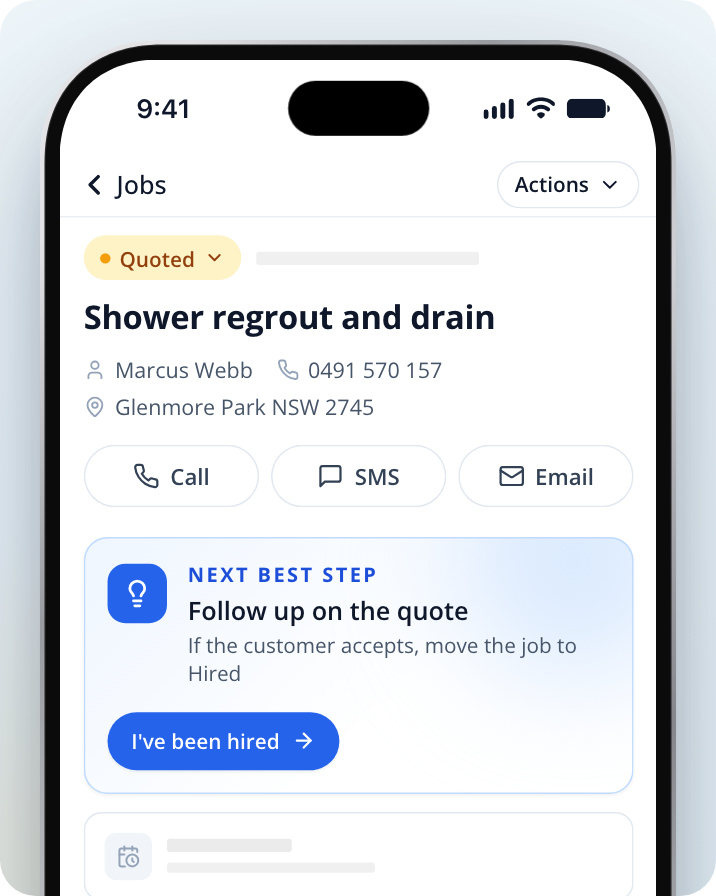
If the card doesn't show that button, click on Actions, then Set job status, then Hired.
Enter the agreed price and date
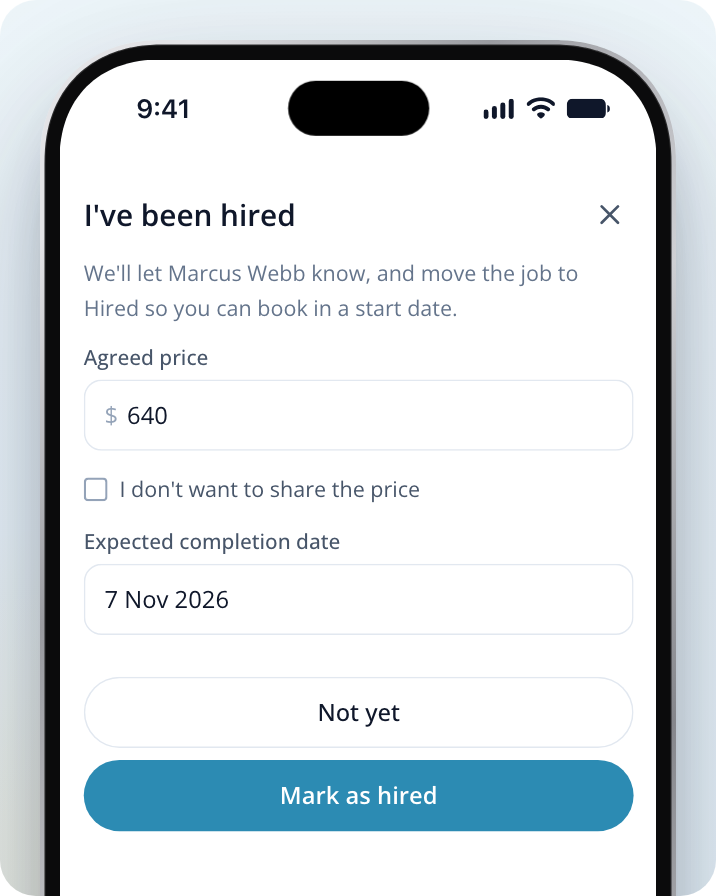
Check or enter the Agreed price. If you'd rather not share it, tick I don't want to share the price.
Choose an Expected completion date. It must be between today and two years from now.
Confirm
Click on Mark as hired. If the job came from a Service.com.au lead, we let the homeowner know. If you added the job yourself, nobody else is notified.
The job moves to Hired. The job page then asks you to book in the work with Schedule job.
From the "Still in the running?" email
A few days after you respond to a lead, we may email you asking if you're still in the running for the job. If you've already got the job, click on Let us know next to "Got the job?". This opens the job, where you can select I've been hired and follow the steps above.
Mark a job as completed
Open the job
Go to Jobs and select the job.
Select Mark complete
When the job is In progress, the job page shows a Complete the work card. Click on Mark complete.
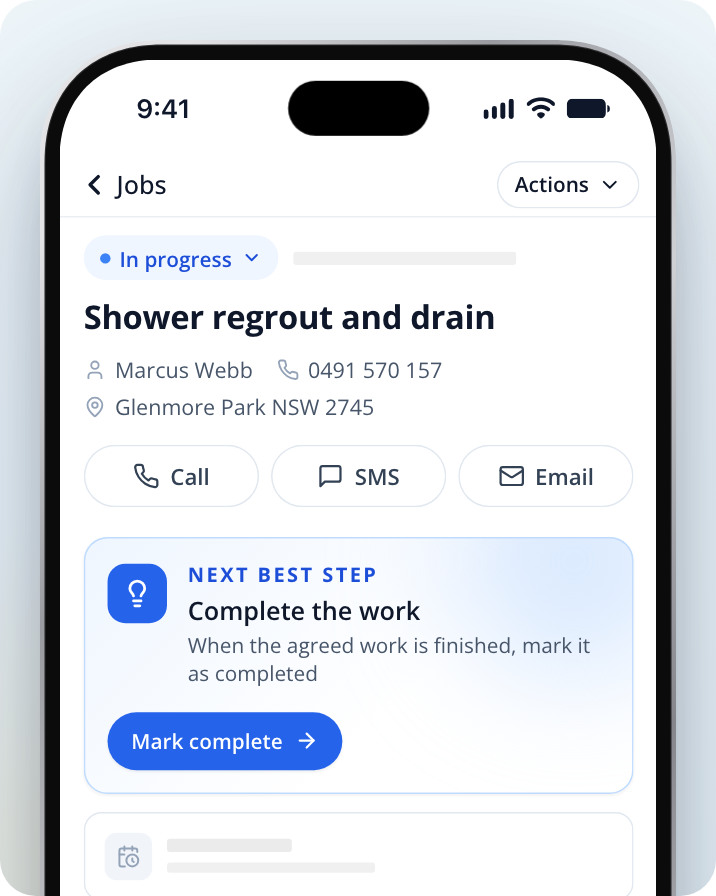
A job only shows this card once it's In progress. After Mark as hired the card is Book in the work (Schedule job), then Start the job (Start job). If you finished the work without scheduling or starting it here, and the job is still Hired or Scheduled, click on Actions, then Set job status, then Work completed. This works whatever the job's current status.
If the homeowner has told us the work is done, the job page may show Review the customer update with a Record completion button. Click on Record completion to open the same form.
Enter the final price and date
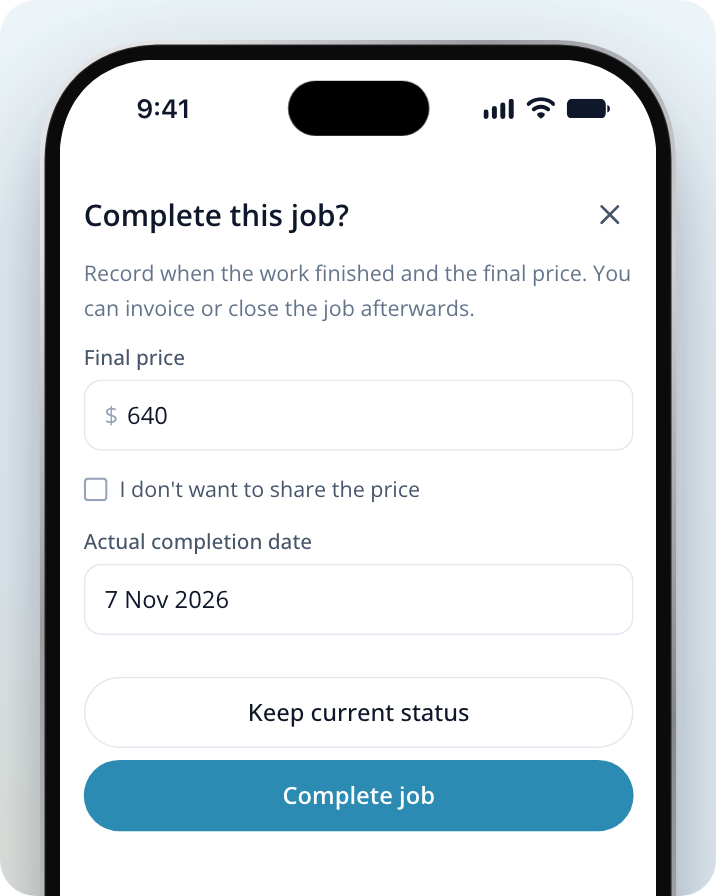
Check or enter the Final price, or tick I don't want to share the price.
Choose the Actual completion date. It must be today or earlier.
Confirm
Click on Complete job. The job moves to Work completed, and you can invoice it or close it afterwards.
Why it's worth marking jobs completed
- Completed jobs show in the Completed work card on Insights, along with any reviews they've received.
- From Request reviews on Insights, you can email past homeowners about a job you've completed to ask for a review.
If you didn't get the job
If a job in Jobs won't go ahead, click on Actions, then Cancel job. Enter a Reason and click on Cancel job to confirm. Any unfinished visits are cancelled too.
If you want to pass on a lead you haven't responded to yet, decline it instead. If you choose Other as your reason, add a note to explain.