A booking form is your own set of questions that people fill in before you quote. You can share it by link, QR code, your website or your Service.com.au listing. Their answers come to your Inbox, under Direct enquiries, and are never sent to anyone else.
You can build and preview a booking form on any plan. To share it, you need Toolbox.
Build a booking form
Open Booking forms
On a computer, click on Toolbox in the top bar and select Booking forms, or click on the menu icon in the top right corner, then select Booking forms. On a phone, open Menu and tap Booking forms.
Start a new form
Click on New form. If you haven't made a form yet, start from the Booking forms page.
Say what your form should ask
Under What should your form ask?, enter what you need to know to quote, or list the exact questions you want. You can also select one of the ready-made forms under Or start with one of ours.
Preview your form
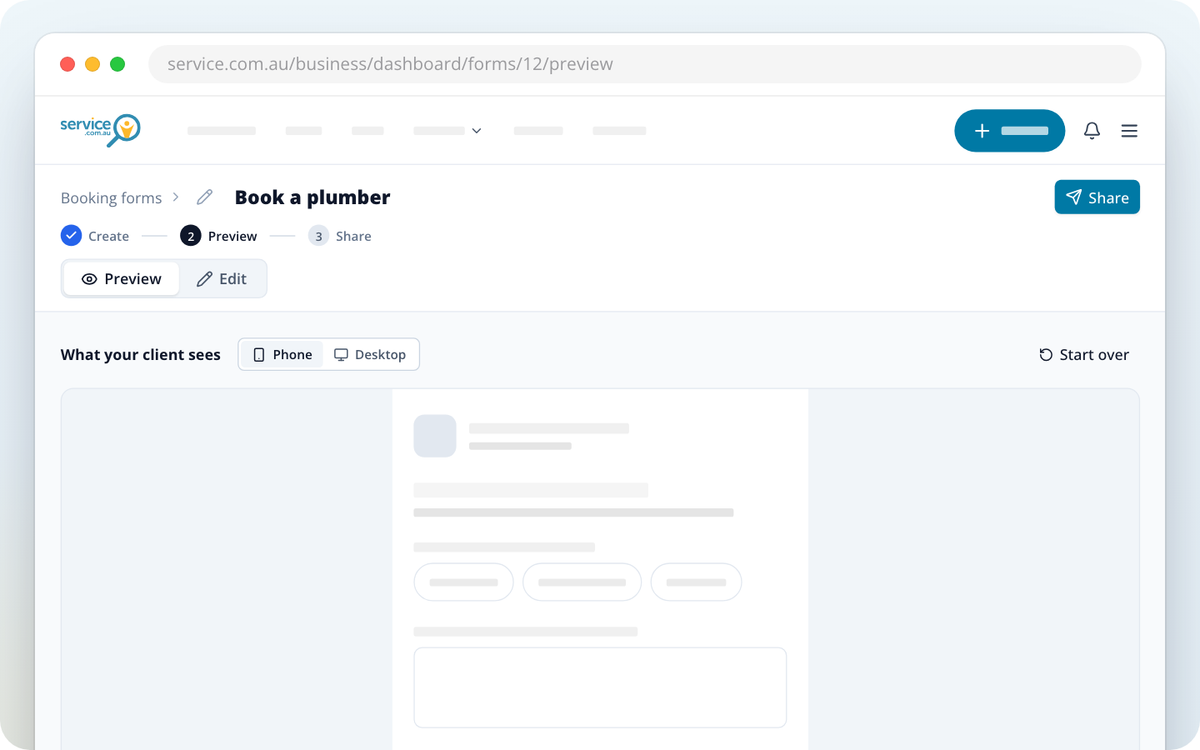
Click on Preview my form. Your form opens under What your client sees, so you can see the whole thing before you change anything. Use the Phone / Desktop switch to see it at each size.
Change the questions
Select Edit to add, remove or reword questions. To rename the form, click on its name at the top of the page and type a new one. Select Preview to see it again.
If you have more than one listing, the form shows which business it goes out under. You can switch the business from the form until you share it.
Share your booking form
The first time you click Share, the form is published. After that, Share takes you to the sharing options.
Click on Share
Click on Share at the top of the form. You need at least one question before you can share it.
Choose where to put it
Your form's link and its Copy button sit at the top of the page. Below them, under Where do you want it?, select one of the options:
- Share a link: click on Copy (at the top, or in the panel that opens) and paste the link into a text, an email, a quote or your Facebook and Instagram pages.
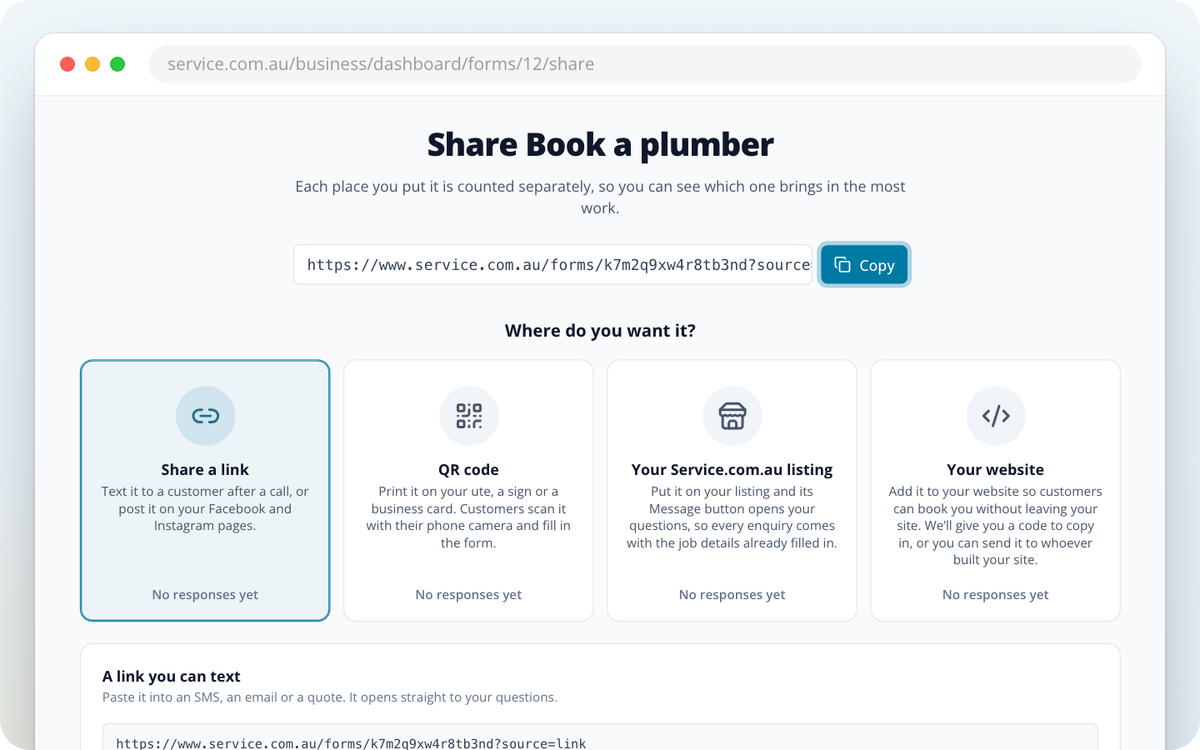
- QR code: click on Download for print to put it on your ute, a sign or a business card.
- Your website: click on Copy to copy the code, then add it to your website or send it to whoever looks after your website.
- Your Service.com.au listing: click on Use this form here, and the Message button on your listing opens your questions instead of a blank message.
Check where answers come from
Each place you put your form is counted separately, so you can see which one brings in the most work.
Each listing can show one booking form at a time. To remove it from your listing, open Your Service.com.au listing and click on Take it off.
If you change the questions on a form that's already live, click on Publish changes to update it.
Do you need Toolbox for booking forms?
You can build, edit and preview booking forms on any plan. Toolbox is needed to publish and share a form. If you click Share without Toolbox, you'll see the option to add Toolbox first.
Turning an enquiry into a job also needs Toolbox. Without it, Make this a job opens Track this enquiry as a job instead.
If your Toolbox stops, your live forms close and stop taking answers.
Where enquiries arrive
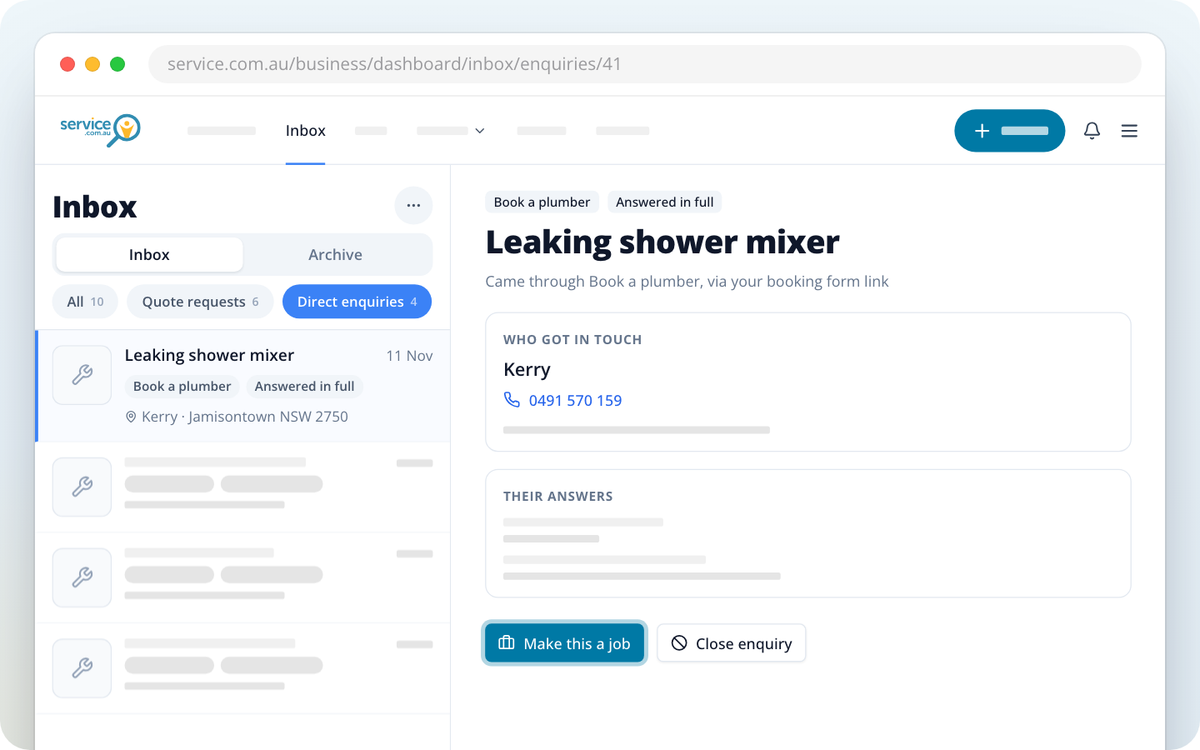
When someone fills in your booking form, their answers arrive in your Inbox, under Direct enquiries. Only you see them. They are never sent to other businesses.
Turn an enquiry into a job
Open the enquiry
In your Inbox, select Direct enquiries and click on the enquiry.
Click on Make this a job
Click on Make this a job. Add this as a job opens with their details already filled in.
Add the job
Check the details, then click on Add job. The new job opens.
If you don't want to take an enquiry on, click on Close enquiry. If you close one by mistake, click on Undo on the message that appears.
Need Assistance?
If you have questions, contact us at support@service.com.au or call 1300 523 787. Our team is here to help!