To decline a lead that isn't right for you, open it and select Not interested. To report a lead that's already been filled, or a homeowner whose phone number doesn't work, contact us.
Declining a lead that isn't right for you
Open the lead
Go to your Inbox and select the lead you want to decline.
Select Not interested
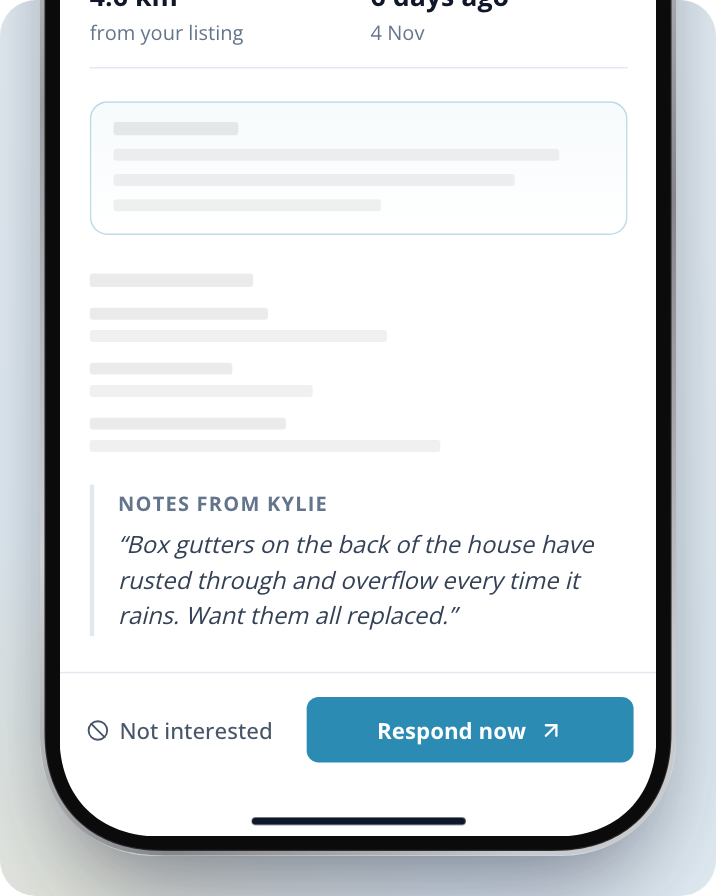
Click on Not interested at the bottom of the lead. On a phone, this opens as its own page instead of a pop-up.
Choose a reason
Tick one or more reasons: Too far away, Too busy right now, Not my type of work, Job too small, Job too big, Not enough information or Other. Then click on Next.
Add a note
On the Anything else? screen, add a note under Notes (optional) if you want to. If you ticked Other, the field reads Notes and you need to fill it in.
Decline the job
Click on Decline Job. The lead leaves your Inbox and moves to Archive.
Your reasons and note are saved with the lead and help us send you leads that suit you better.
Reporting a lead that's already filled
Once the homeowner hires a business, the lead leaves your Inbox and you can't respond to it. While the hired business is still doing the job, opening the lead shows This request has been closed. After the homeowner marks the job done, the lead shows no message and no buttons.
To report a lead that's already filled, contact us and tell us which job it is. Declining a lead with Not interested doesn't report it. Your reasons and note are saved with the lead to improve your matches, but they don't go to our team.
If a homeowner's phone number doesn't work
Contact us and tell us which job it is.
If you've already responded to the lead, you can also message the homeowner. In Jobs, open the job and go to Messages. You can only message a homeowner after you've responded to their lead.
Seeing which leads are still open
Your Inbox shows the quote requests you haven't responded to that are still open, and your open direct enquiries. Use the views at the top of the list to filter it: All, Quote requests or Direct enquiries.
Quote requests you've responded to are in Jobs, with their conversation. A direct enquiry stays in your Inbox until you close it or make it into a job.
Archive holds the leads you've declined or archived. Leads also move there when the homeowner closes the job, or when the job closes automatically three weeks after it was posted because nobody was hired.
Clearing old leads from your Inbox
Start selecting
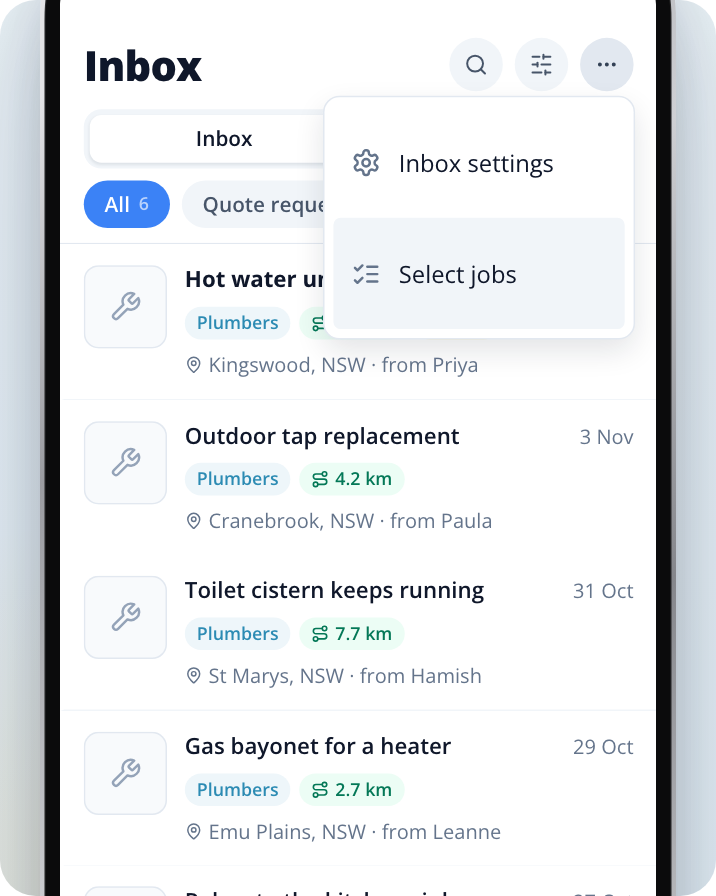
In your Inbox, click on the ••• button at the top of the list and select Select jobs.
Pick the leads
Tick the leads you want to clear. Any direct enquiries you tick are closed when you archive them.
Archive them
Click on Archive in the bar under the list. The button shows how many leads you've picked, for example Archive 3.
Give a reason or skip
Under Why are you passing on these?, tick a reason and click on the Archive button again, or click on Skip to archive them without one. If you tick Other, fill in Notes first.
If you archive leads by mistake, click on Undo in the message that appears.
Moving a lead back to your Inbox
Open Archive
In your Inbox, select Archive at the top of the list.
Open the lead
Select the lead you archived.
Move it back
Click on Move back to Inbox.
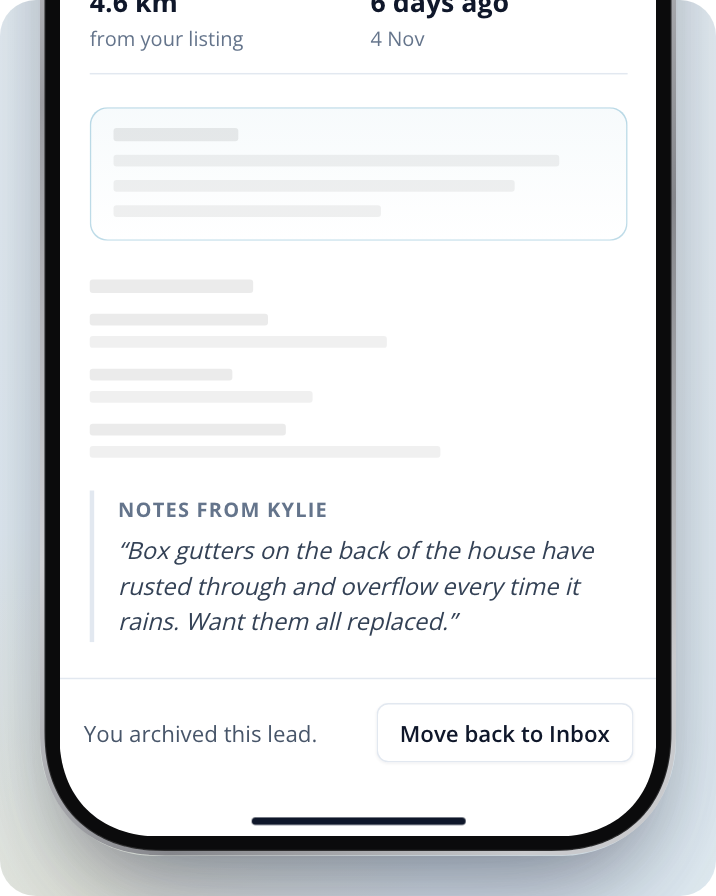
You can only move back a lead you declined or archived yourself. A lead that closed because of the homeowner stays in Archive.
Why a job you quoted on may be closed
A job you've responded to can close even if you haven't heard back. The usual reasons are:
- The homeowner marked the job done with another business.
- The homeowner closed the job, for example because they found someone somewhere else, did it themselves or posted the wrong details.
- The job closed automatically three weeks after it was posted because nobody had been hired.
In Jobs, open the job to see what happened in its activity, for example Another business was selected or Customer closed the request.
If the job was already under way when it closed, you'll see Review the customer update. Select Keep job open if you're still working with the homeowner, or Close and archive if you're not.
Need Assistance?
If you have questions, contact us at support@service.com.au or call 1300 523 787. Our team is here to help!