A response with no price still counts. It means the tradie wants to talk about the job, or see it, before giving you a price. A tradie's first response is often a message or a rough estimate, and a quote with a price you can accept usually comes later.
What each response means
Each response on your job shows a label that tells you where that tradie is up to. Responses are listed by what needs your attention first, so a response with no price may be further down the list.
- Quote received: A firm price you can accept or turn down. Accepting means you're going ahead with this tradie.
- Estimated price: A rough figure or a price range. It's an estimate, not a firm price, and it can change once they've seen the job.
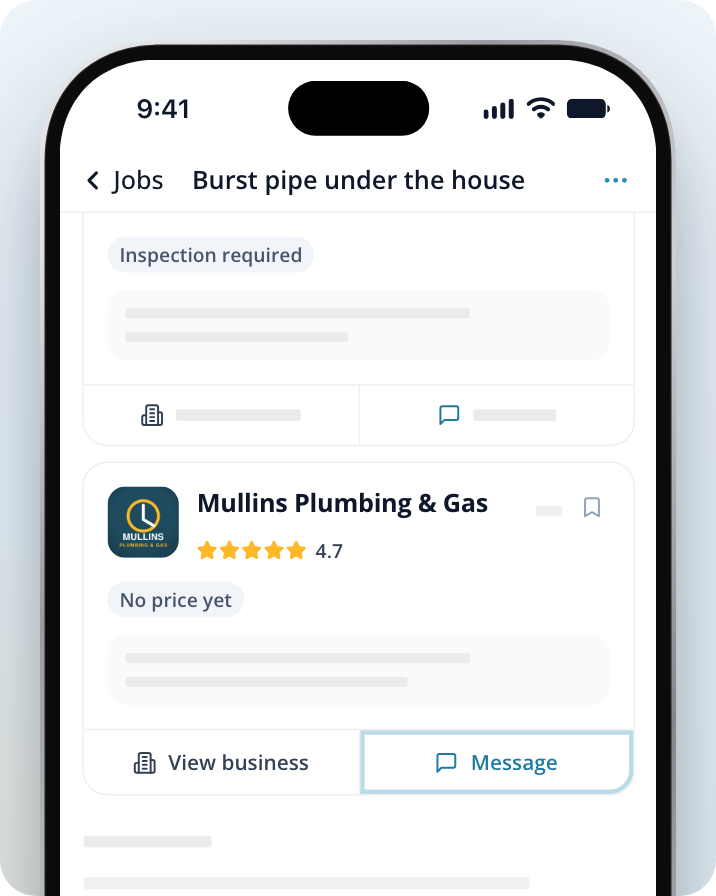
- Inspection required: The tradie would like to see the job before giving you a price.
- No price yet: The tradie has replied but hasn't given a price in this response.
Only a Quote received response lets you accept or decline a price. You can't accept an estimate or a response marked Inspection required, but you can message the tradie about it.
Why a tradie might not give a price straight away
Some jobs are hard to price from a description alone. The tradie may need to see the site, check access or understand exactly what you want. Answering their questions, sending photos or arranging a visit helps them give you a price that won't change later.
How to ask a tradie for a price
Open your job
Go to Jobs and select the job the responses are for.
Message the tradie
On the tradie's response, select Message. This opens your conversation with them.
Send your question
Enter your question in the Type a message... box and send it. Ask what they need from you to give a price, such as photos, measurements or a time to visit.
How to send photos to a tradie who responded
You can send photos straight to one tradie in your conversation, or add them to the job so every tradie matched to it can see them.
Send photos to one tradie
Open the conversation
On the tradie's response, select Message.
Attach your photos
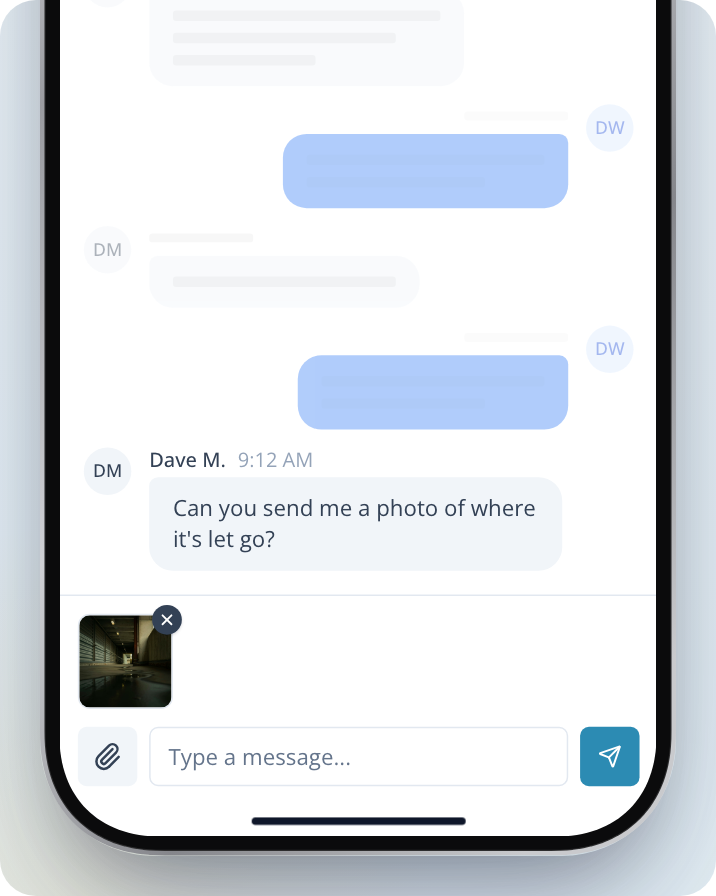
Select the paperclip icon beside the Type a message... box and choose the photos you want to send.
Send them
Add a message if you like, then select the send button.
Add photos to your job
Open the job options
On your job, select the three dots at the top of the screen.
Update the job
Select Update job details.
Add your photos
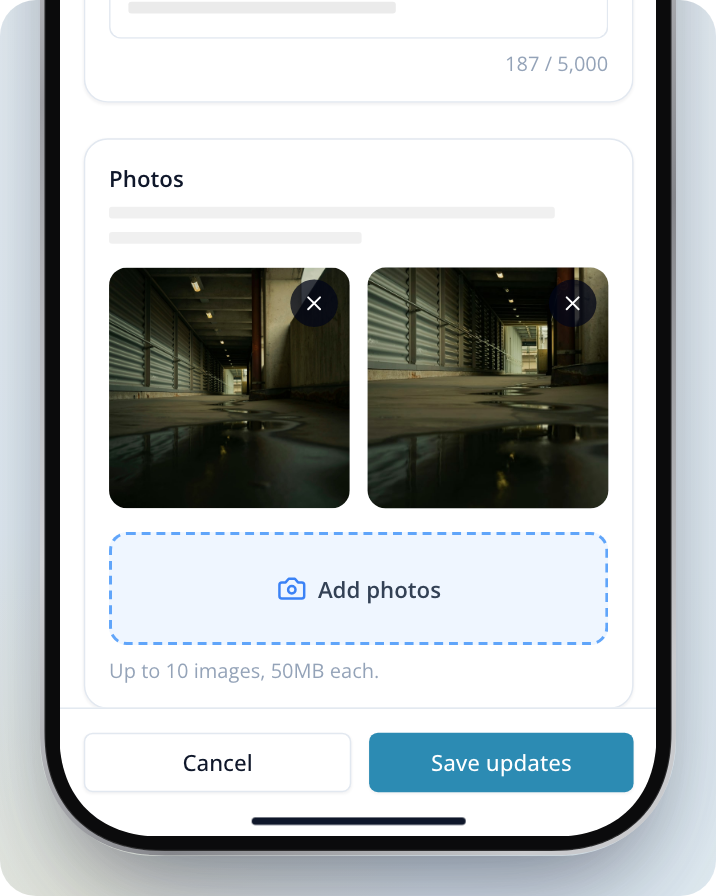
Under Photos, select Add photos and choose your photos. You can add up to 10 images, 50MB each. You can also add more detail under What else should businesses know?
Save
Select Save updates. Tradies already matched to your job will see the latest version.
Where a quote shows up
When a tradie sends you a firm quote, their response changes to Quote received with the price beside it.
Open the response
On the response, select Review the quote. This opens your conversation with the tradie.
Open the quote
Select Quote received at the top of the conversation, or Open the quote on the quote message. The quote opens in a panel titled This quote.
Accept or decline
Select Accept quote to go ahead with this tradie, or No thanks to turn the price down. If you decline, you can still message them.
To compare quotes from more than one tradie, see How Do I View, Compare or Decline Quotes?.
Posted your job in the wrong trade category?
You can't change the category of a job once it's posted. The Update job details screen lets you change the details and photos only, so the job isn't sent to a different set of tradies. If your job is in the wrong category, contact us and our team will help.
Need Assistance?
If you have questions, contact us at support@service.com.au or call 1300 523 787. Our team is here to help!