Once your job is finished, or you no longer need more quotes, you can close the job from your account. When you close it, you can leave a review for your tradie straight away or come back later.
Log in to your account
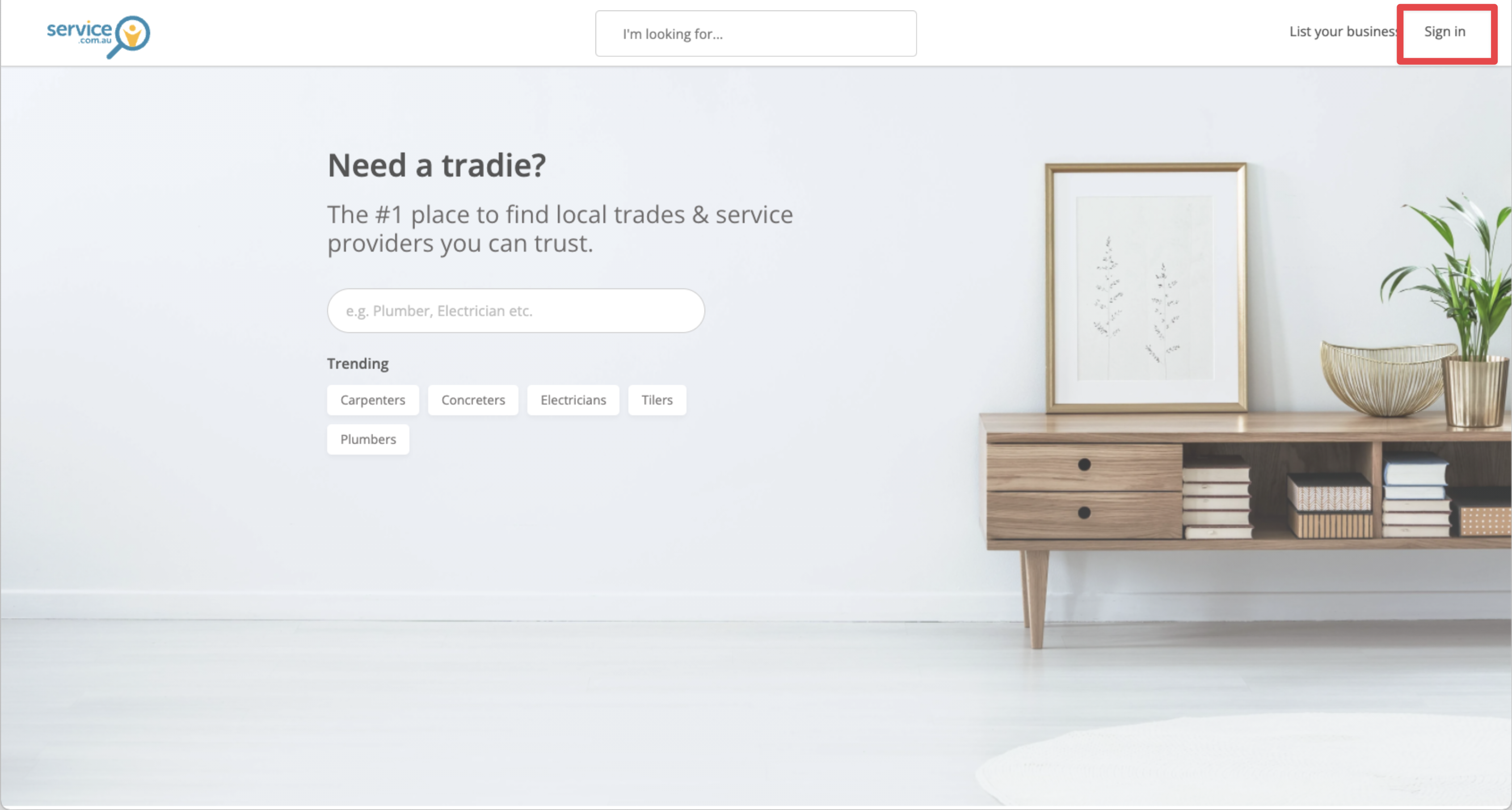
Go to Service.com.au and click on Sign in in the top right corner.
Enter your login details
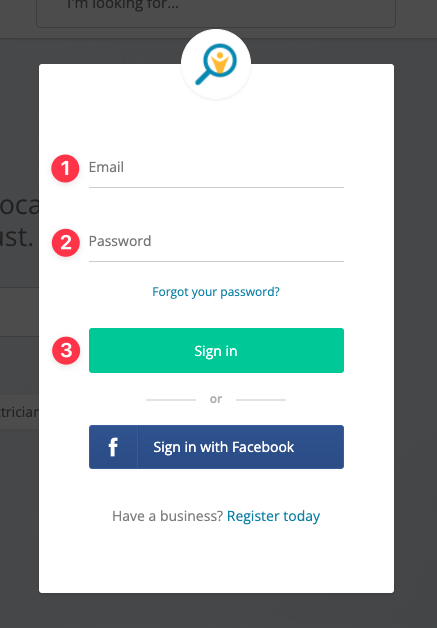
Enter your email address and password, then click on Sign in.
Open your jobs
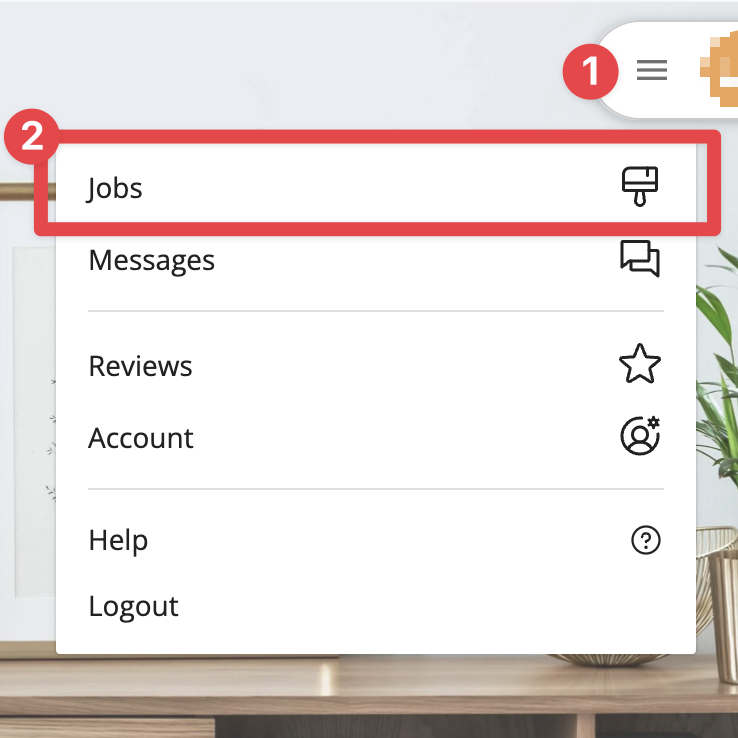
Open the Menu in the top right corner, then select Jobs.
Choose the job
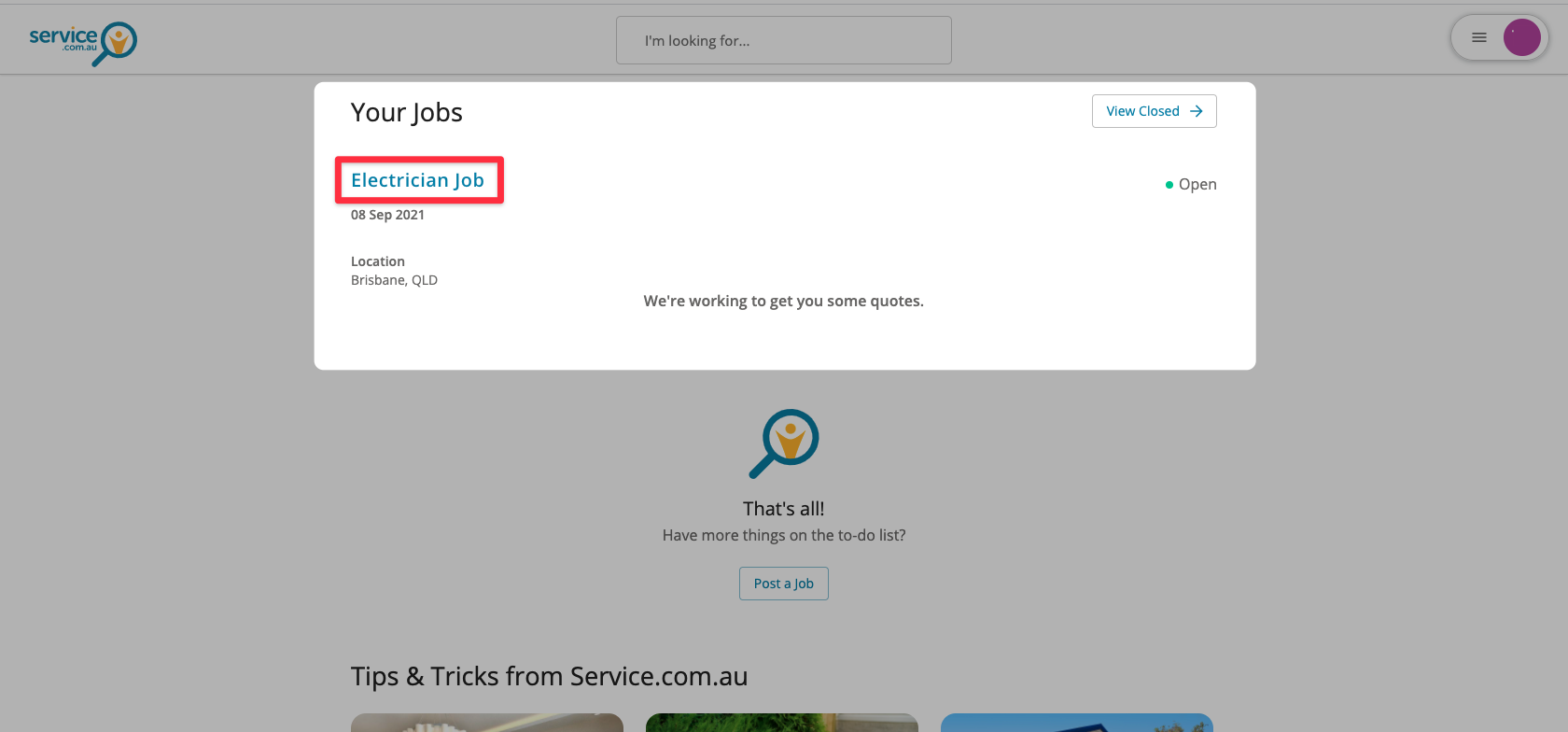
Under Your Jobs, find the job you want to close and click on it.
Open the actions menu
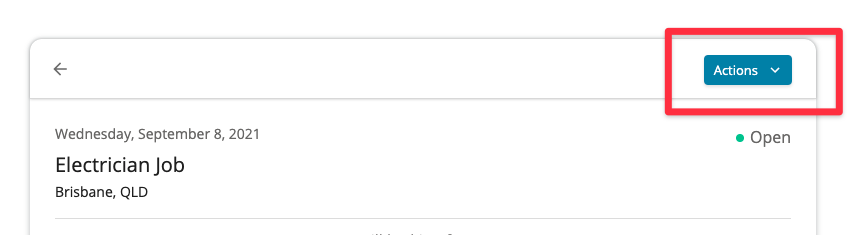
Click on Actions in the top right corner of the job page.
Close the job
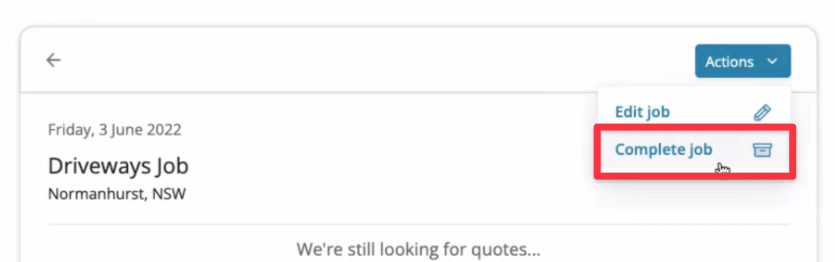
Select Close Job from the menu.
Choose a reason
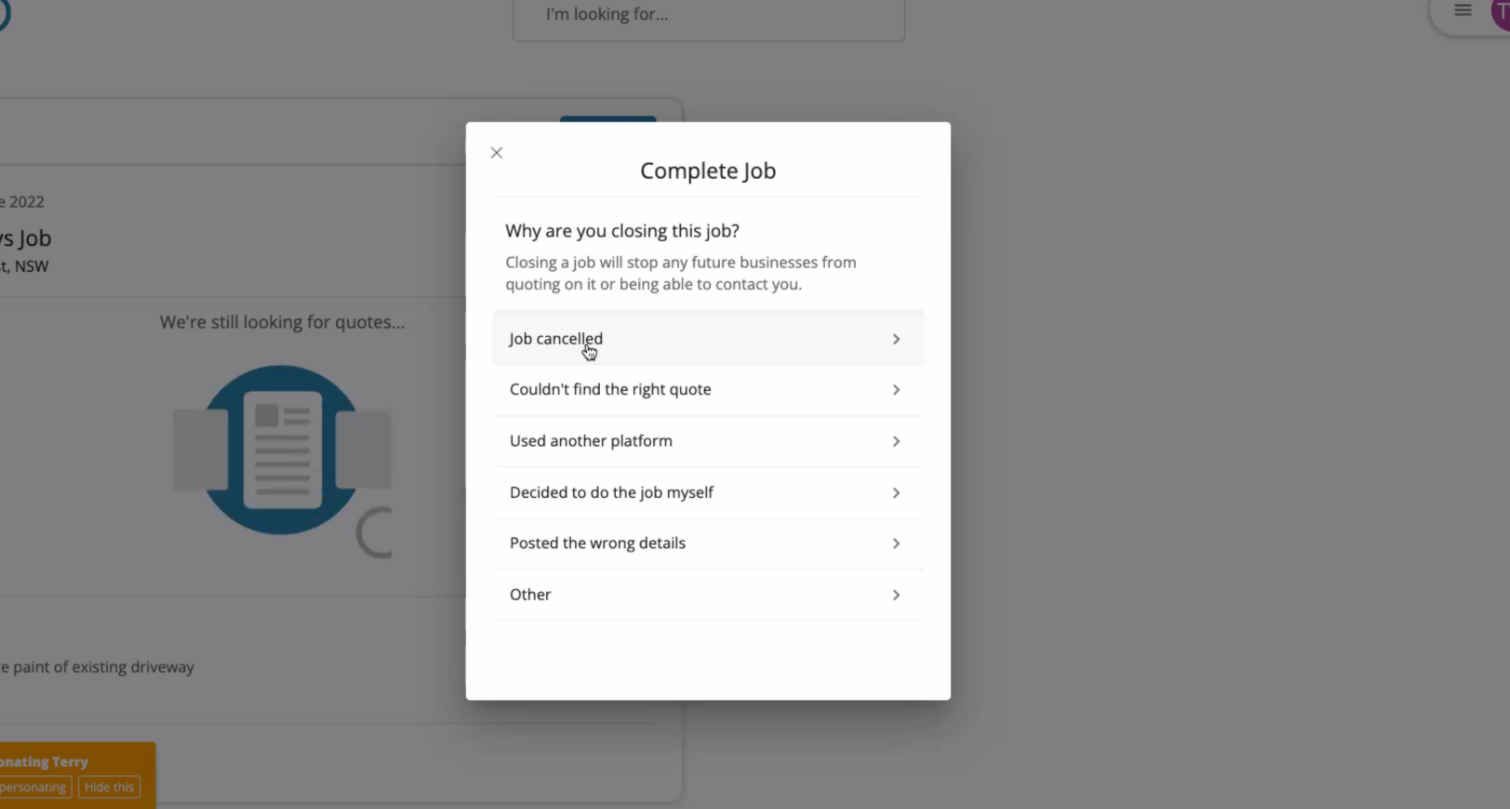
Select the reason for closing or cancelling the job to confirm your choice.
After you close your job
Once your job is closed, you can leave a review for your tradie.
If you do not want to leave a review straight away, you can close the job and come back later. You will also get an email reminder so you can leave a review when you are ready.