You can send photos and more job details to a tradie in two ways. Add them to your job so every tradie matched to it sees them, or send them in a message to one tradie who has responded. A tradie's phone number and email are in the menu on their response.
Add more details or photos to your job
Use this when you want every tradie matched to your job to see the new details or photos.
Open your job
Log in to your account, go to Jobs and open the job you want to update.
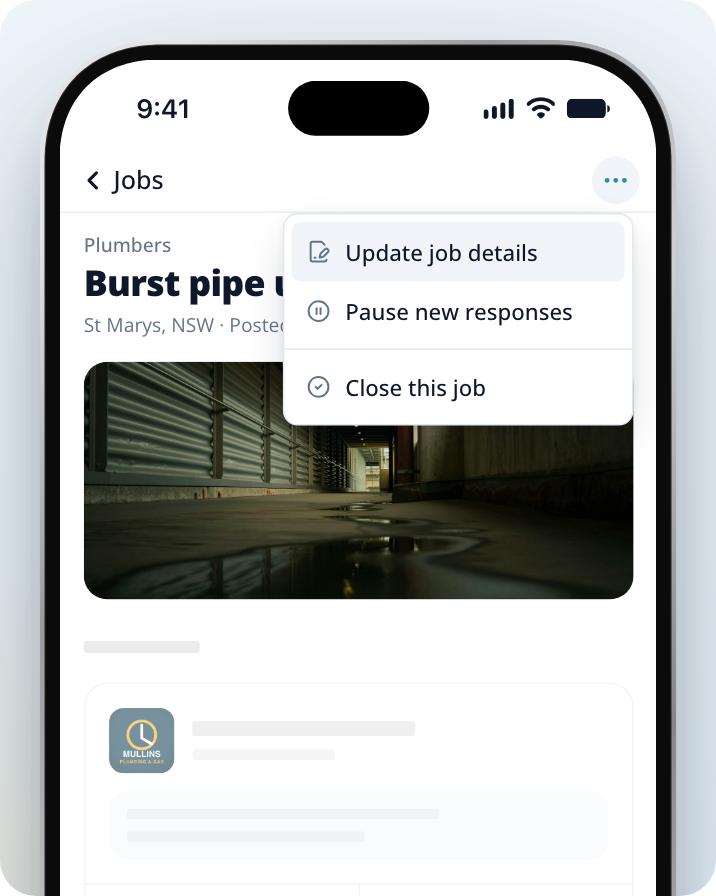
Open Update job details
Select the … icon, then Update job details. The icon is at the top right of the screen on a phone, or next to the job title on a computer. If nobody has responded yet, you can also select Add more detail on the job page.
Add the extra details
In What else should businesses know?, add measurements, access notes, materials, timing, or anything that has changed. The whole description can be up to 5,000 characters.
Add photos
Under Photos, select Add photos and choose your images. You can add up to 10 images, 50MB each.
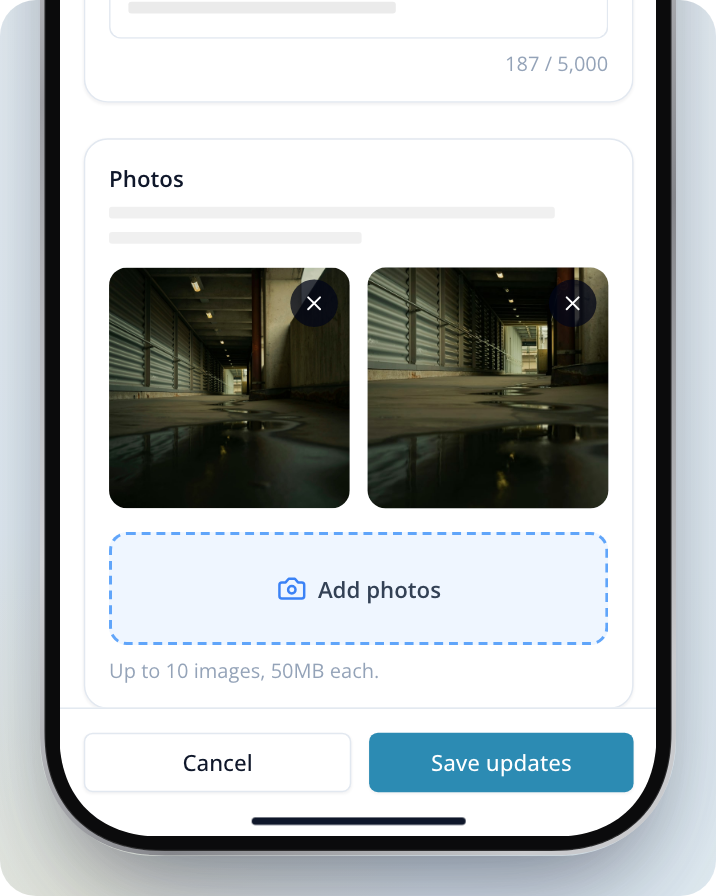
Save your changes
Select Save updates. Businesses already matched to your job will see the latest version.
Update job details only shows while your job is still active. As the edit screen says, "Category, location and contact details stay the same." Use a message to share anything about those.
Send photos or details to one tradie
You can message any tradie who has responded to your job and attach photos or other files.
Open the conversation
Go to Inbox and open the conversation with the tradie. You can also open your job and select the tradie's response.
Attach your photos
Select the paperclip icon next to the message box and choose your photos or files.
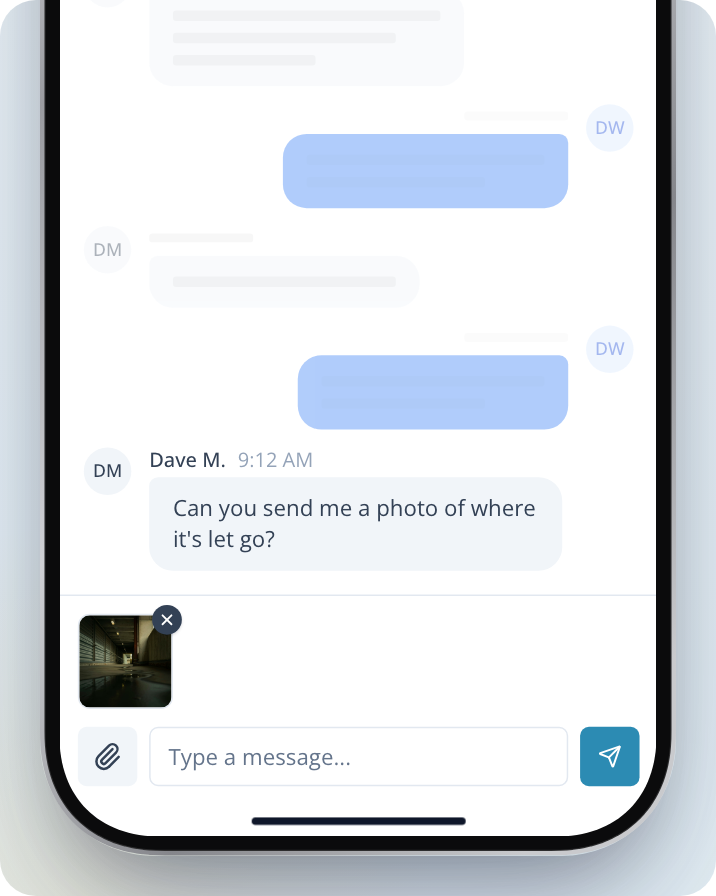
Write your message
Enter your message in the Type a message... box.
Send it
Select the send button next to the message box.
Share your address and contact details
A business that responds to your job may already be able to see your phone number and email. To share your address or a better time to call, send it in a message, as in the steps above. Only the tradie you're messaging will see it.
To change the phone number or email on your account, go to your personal details and update Phone or Email.
Get a tradie's phone number
Open the tradie's response
Go to Inbox and open the conversation, or open your job and select the tradie's response.
Open the menu
Select the … icon at the top of the screen.
Call or email them
The tradie's phone number shows in the menu. On a phone, tap it to call. To email them, select Email them.
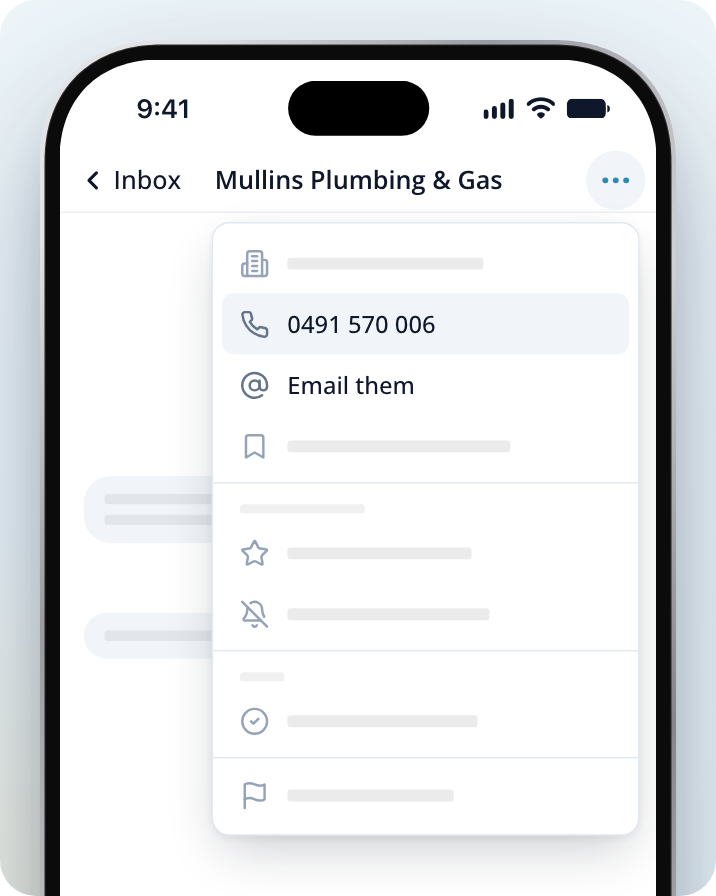
If no phone number or Email them shows, the tradie hasn't added one to their listing. Send them a message instead.
Ask tradies to email you instead of calling
To ask tradies to email rather than call:
- Add it to your job with Update job details, for example "Please email rather than call." Every tradie matched to your job will see it.
- Send a message to a tradie who has already responded.