To reply to a tradie who responded to your job, open the job, select their response and type your message in the conversation. You can message a tradie the same way to ask about their quote or estimate, or to arrange a time.
Replying to our email or text won't reach the tradie. Reply on Service.com.au.
Find the tradie's response and reply
Each job has its own list of responses. Any response you see on a job's page belongs to that job.
Open your jobs
Log in to your account and Select Jobs.
Open the job
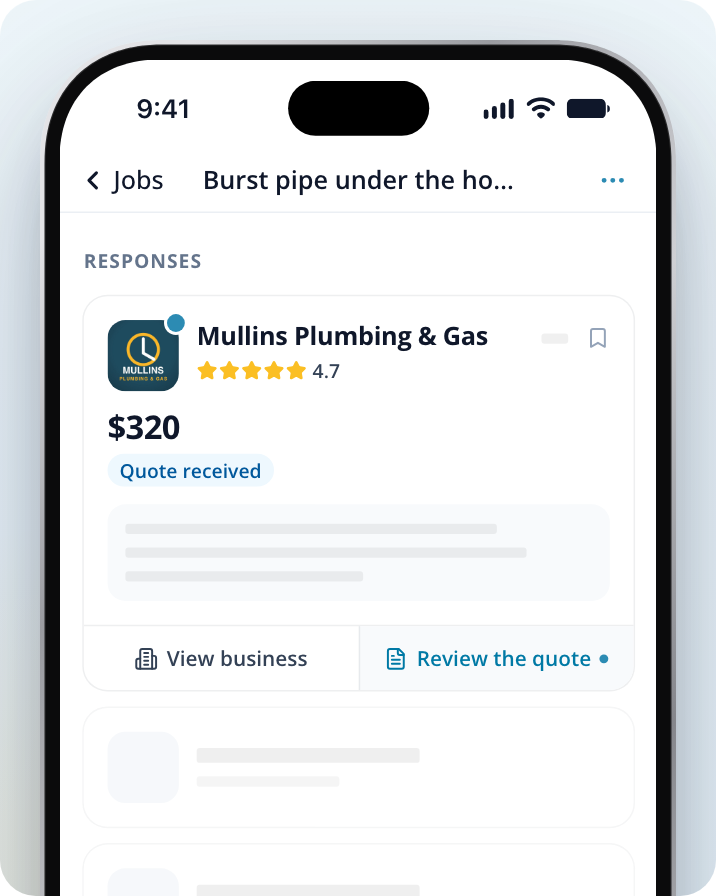
Select the job the tradie responded to. Their response is listed under Responses. If you can't see their response, Select Show all responses or Show [number] more under the list.
Open the tradie's response
Select the blue link at the bottom of their response, next to View business. It usually says Message, but it changes with where things are up to, for example Review the quote or Accept this time. A dot next to it means there's a message you haven't read.
Type your message
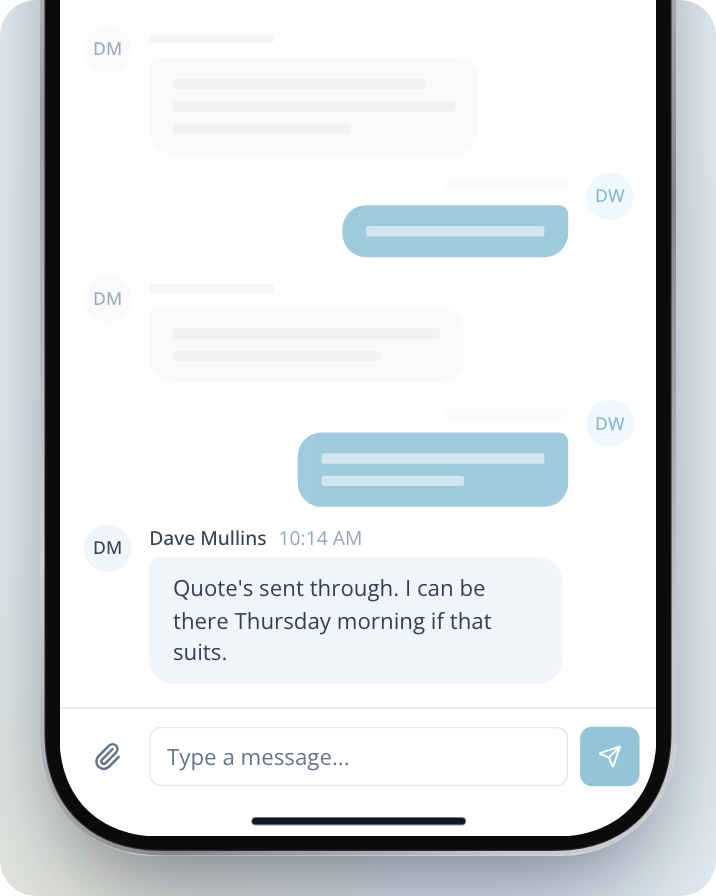
Enter your message in the Type a message... box at the bottom of the conversation. To add a photo or file, Select the paperclip icon.
Send it
Select the send button next to the message box. The tradie sees your message in their conversation with you.
You can also go to Inbox and select a business to read and reply to your messages with them.
To see more about the tradie before you reply, Select View business on their response.
Call or email the tradie
If the tradie has shared a phone number or email address, you'll find it in the tradie's response.
Open the menu
Open the tradie's response as above, then select the three dots in the top right corner of the screen.
Choose how to contact them
Select their phone number to call them, or Email them to send an email.
Ask a question about a quote or estimate
Reply in the same conversation as their quote or estimate. Open the tradie's response as above and type your question in the message box.
What the tradie sent tells you what kind of price it is:
- Estimated price is an estimate, not a firm price. It can change once they've seen the job.
- Inspection required means they'd like to see the job before they give you a price.
- No price yet means they haven't given a price in their response. Message them to ask for one.
- Quote received is a firm price you can accept or turn down.
What happens when you open a quote
Review the quote opens your conversation with them. To see the quote, select Open the quote on the Quote card, or the Quote received price at the top of the conversation.
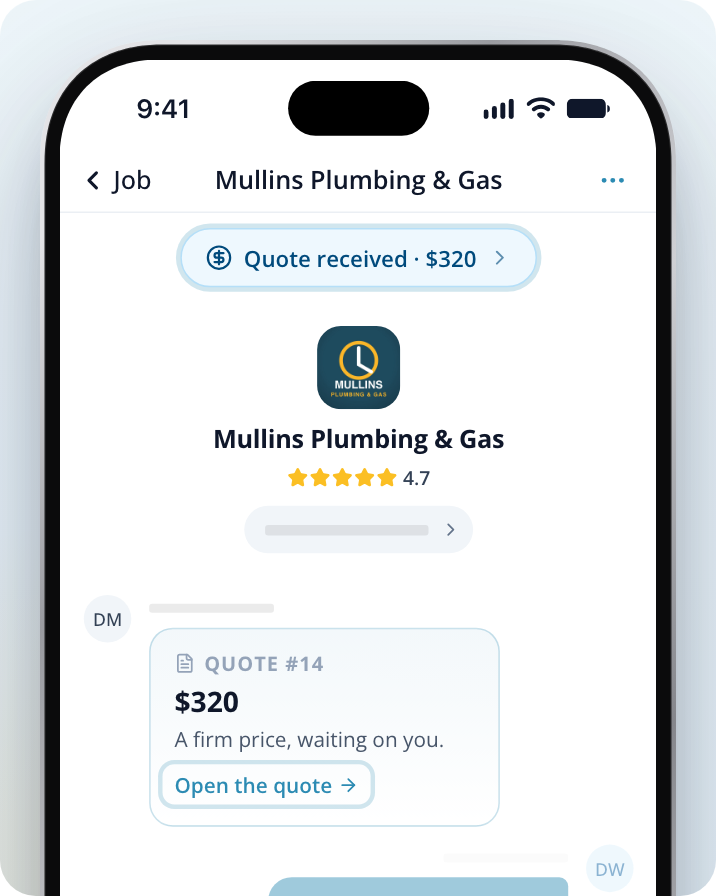
Opening the quote doesn't accept it. You'll see the full quote with two buttons:
- Accept quote (with the total) means you're going ahead with this business at this price.
- No thanks turns the quote down. You can still message the tradie afterwards.
If you have a question first, close the quote and message the tradie. You don't need to accept or decline straight away.
Arrange a time for a quote or visit
To arrange a time, send the tradie a message with the days and times that suit you.
When a tradie suggests a time to come out, their response shows Time suggested with the date. Nothing is locked in until you accept it.
Open the tradie's response
Select Accept this time on their response.
Accept the time
Select Accept this time at the top of the conversation, then select Accept the time.
Once you've accepted, the response shows Booked with the date and time. If the time doesn't suit you, message the tradie to suggest another one.