You can't import Google reviews or other existing reviews to your profile yourself. To add reviews from past customers, send them your review link so they can leave a review on your listing. You can also email homeowners whose jobs you finished through Service.com.au.
Can I Import My Google Reviews?
Not yourself. Your listing has no import option for reviews from other sites. If you have reviews from past work that you'd like on your listing, contact us and our team can talk you through your options. You can also send those past customers your review link (see below) and ask them to leave a review on your listing.
Request Reviews From Past Customers
With a Premium listing, Request reviews in Insights lets you copy your review link or email past customers in one place.
Open Insights
On a computer, select Insights in the top bar. On a phone or in the app, open Menu and select Insights.
Find Your reviews
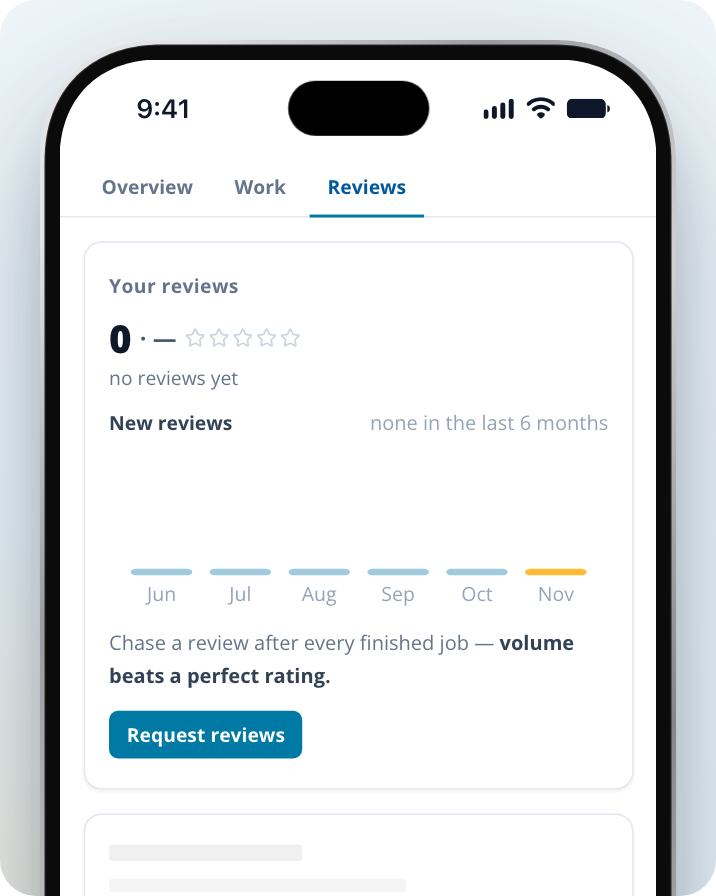
On a computer, scroll to the Reputation section and find the Your reviews card. On a phone or in the app, select the Reviews tab near the top of the page.
Select Request reviews
Select Request reviews to open the request window.
Share your review link
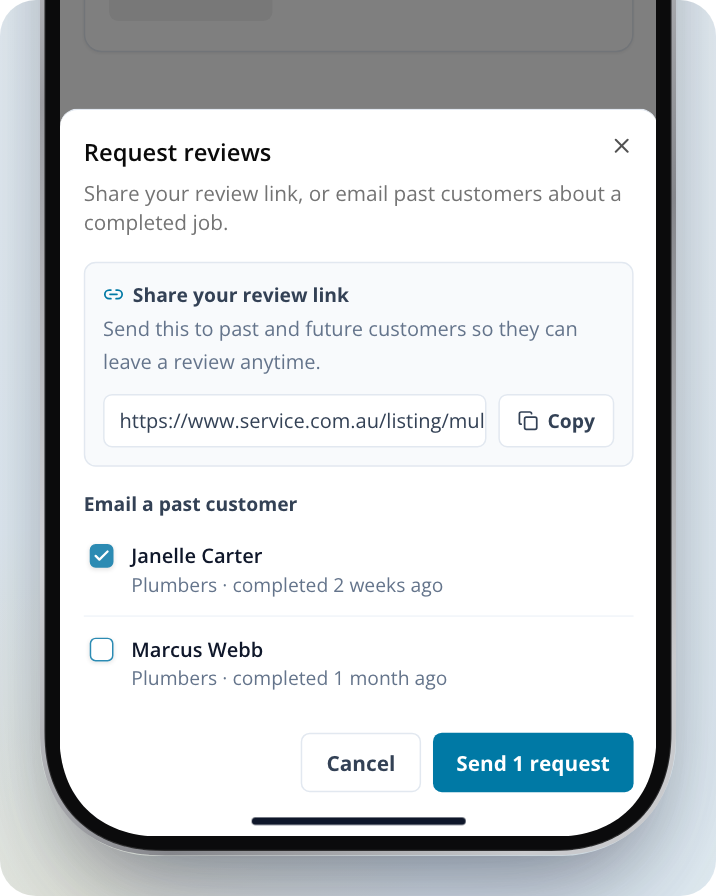
Under Share your review link, select Copy and send the link to any past customer by text, email or message.
Email a past customer
Under Email a past customer, tick each job you'd like a review for, then select Send 1 request (or Send 2 requests, and so on). Until you tick a job, the button reads Select jobs to send.
Some things to know about emailing past customers:
- The list shows jobs you won through Service.com.au that finished in the last 90 days and haven't been reviewed yet.
- If you've already asked about a job, it shows when you asked ("requested ..."). You can ask again 7 days later.
- If no jobs are waiting on a review, you'll see "No completed jobs are waiting on a review." You can still share your review link.
If Your Listing Is New
For your first 21 days, or until you finish setting up, Insights shows only the "Let's get you set up" checklist. Request reviews isn't there yet. In the meantime, send past customers the link to your listing page (see below).
If You Have a Basic Listing
Insights and Request reviews come with a Premium listing. With a Basic listing, you can still send past customers the link to your listing page.
Your Review Link
Your review link is your listing page: service.com.au/listing/ followed by your listing's name in the web address. To find it without Insights:
Open Listings
On a computer, select Listings in the top bar. On a phone or in the app, select the Listings tab.
Open your listing
Select your listing's name.
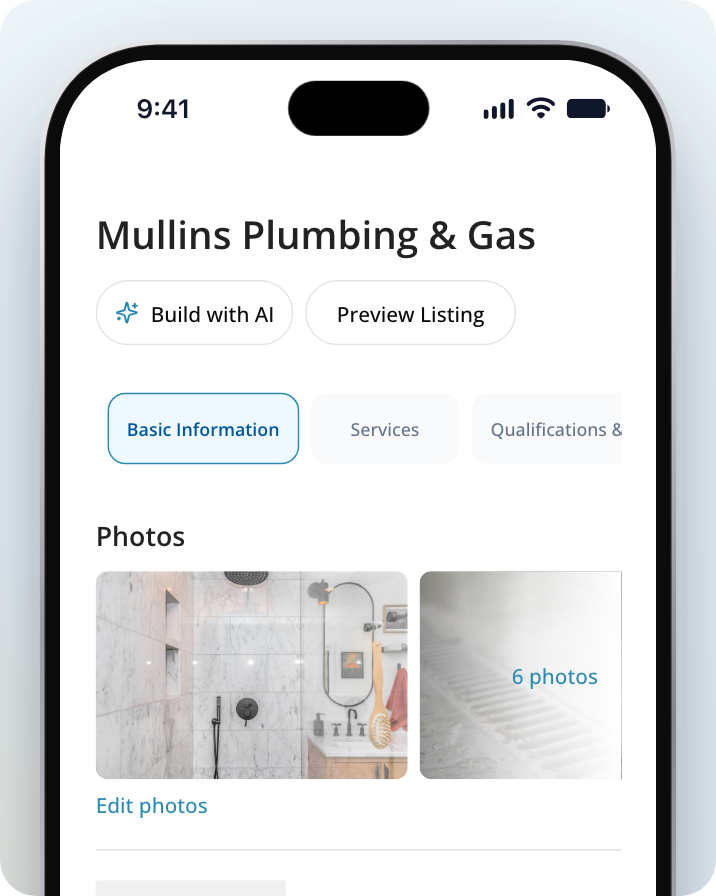
Preview your listing
Select Preview Listing, then copy the web address of the page that opens and send it to your past customers.
What Your Past Customers Do
When a past customer opens your link, they scroll down to the Reviews section of your listing and select Leave a review. If your listing has no reviews yet, the button reads Be the first to leave a review. If they aren't logged in, they enter their name, email address and phone number along with their rating and review.
Reviews of 1 to 3 stars, and reviews with photos, wait for approval before they show on your listing. Reviews of 4 or 5 stars without photos show straight away.
How Reviews Are Linked to Jobs
Whether a review is linked to a job depends on where it was left:
- From a job the homeowner posted: when a homeowner hired you through Service.com.au, they can review you from that job. That review is linked to the job.
- From your listing: when someone uses your review link, or selects Leave a review on your listing, the review goes on your listing but isn't linked to any job.
- Added by our team: a review our team adds to your listing isn't linked to a job either.
To have a homeowner review a job you won through Service.com.au, use Email a past customer in Request reviews. For more ways to ask, see How to Request a Customer Review.
Why Can't I Find the Job Linked to a New Review?
A review left from your listing or your review link isn't linked to a job, so there's no job to find. This is normal for reviews from customers you worked for outside Service.com.au.
Review Details shows the reviewer's name, their location, which of your listings they reviewed and the date. It doesn't show a job. To work out which job a review is about, match the reviewer's name and the date against your Jobs.
Open Reviews
On a computer, select Reviews in the top bar. On a phone or in the app, open Menu and select Reviews.
Open the review
Select the review to open Review Details, where you can also write Your Reply.
Need Assistance?
If you have questions, contact us at support@service.com.au or call 1300 523 787. Our team is here to help!