Your notifications feed is the bell in your dashboard. It's where updates and announcements from the Service.com.au team show up. New notifications have a blue dot and a bold title until you've read them.
Open your notifications
On a computer
Click the bell
Log in to your dashboard and click on the bell in the top right corner, next to the menu icon. A red dot on the bell means you have unread notifications.
See your latest notifications
Your latest notifications open in a small panel. Click on a notification to open it. If a notification has nothing to open, clicking it marks it as read.
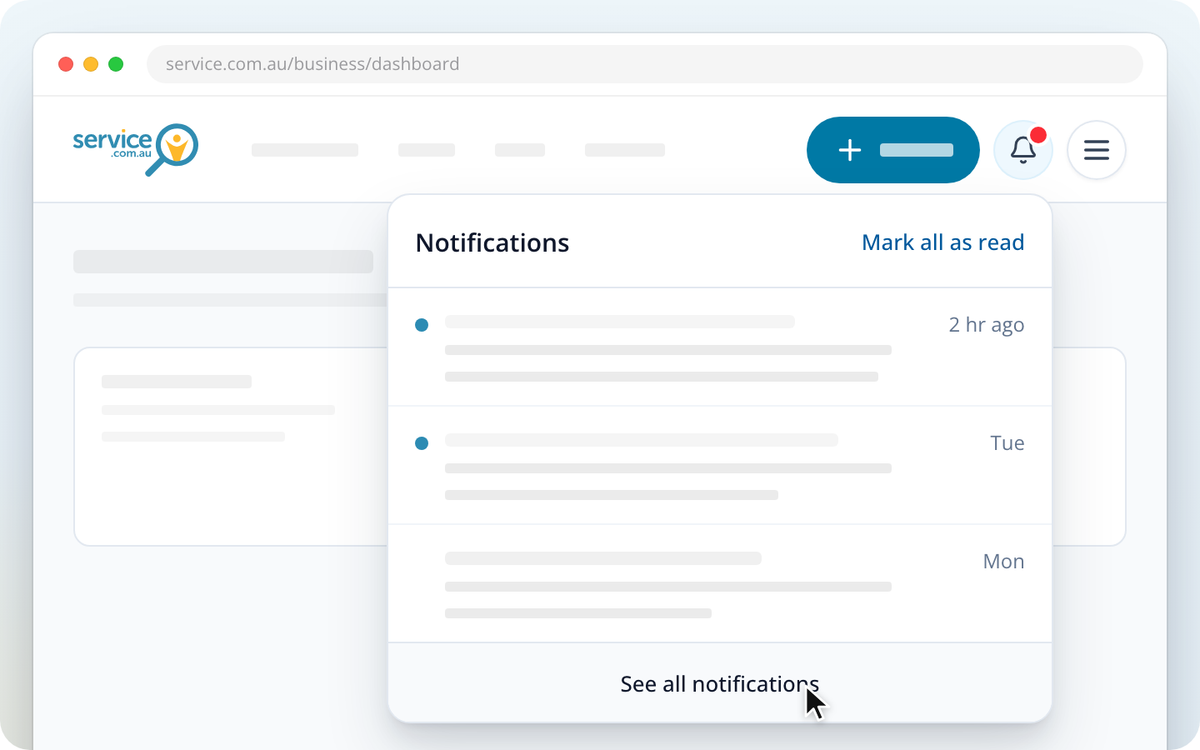
Open the full feed
Click on See all notifications at the bottom of the panel to open your full Notifications page.
On your phone or in the app
Open the menu
Tap Menu in the bottom bar.
Tap the bell
Tap the bell at the top of the menu, next to your name. A red dot on the bell means you have unread notifications. Your Notifications page opens.
Read a notification
- Longer messages: if a message is cut off, tap Read more under it to show all of it, and Show less to fold it back up.
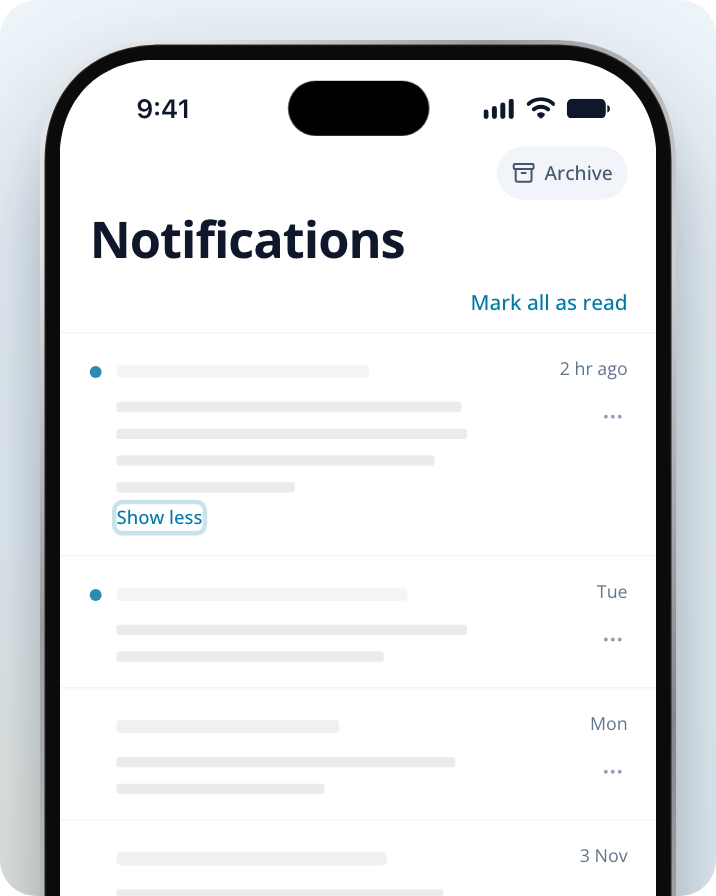
- Notifications with a link: tap the notification to go straight to the page it's about. If it opens a website outside your dashboard, it opens in a new tab.
- Announcements: longer announcements from our team open in full when you tap them. On a computer they open over your feed; on a phone or in the app they open as their own page, with Notifications at the top to take you back.
Opening a notification, or tapping Read more on it, marks it as read. To clear every blue dot at once, select Mark all as read at the top of your feed.
If an announcement shows "This update is unavailable", it's been withdrawn by our team or is no longer in your notifications.
Archive or restore a notification
Archiving tidies a notification out of your feed without losing it.
Archive a notification
On your Notifications page, click on the three dots next to a notification and select Archive notification. On a phone, you can swipe the notification to the left instead.
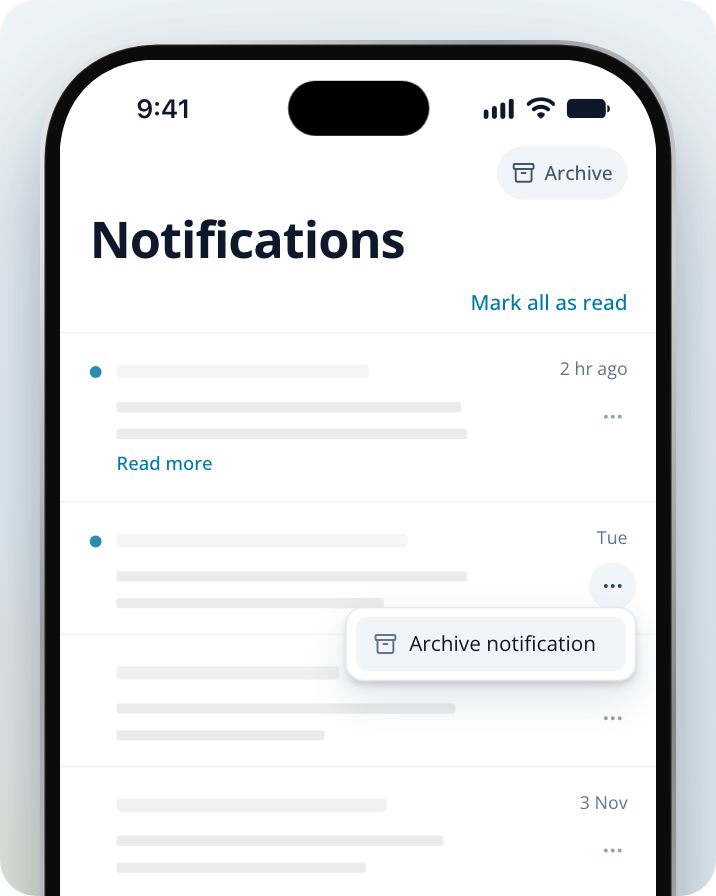
Find your archived notifications
Select Archive at the top of your Notifications page. Select Back to return to your feed.
Restore a notification
In your archive, click on the three dots next to a notification and select Restore notification, or swipe it to the left on a phone. It moves back to your feed.
Notifications are kept for 90 days, whether they're in your feed or your archive.
How the feed is different from emails, SMS and push alerts
The feed only shows inside your dashboard and the app. Announcements from our team are posted to your feed; they aren't sent to you as an email, a text or a push alert.
Your lead alerts, emails and texts are separate, and you manage them in your notification settings:
- On a computer: click on the menu icon in the top right corner and select Notifications.
- On your phone or in the app: tap Menu, then Notification settings.
To turn off emails or job lead alerts, see How to Unsubscribe From Emails and Stop Job Lead Alerts.