Your Insights page shows how your listing is doing on Service.com.au. It shows how many jobs you respond to, how fast you reply, how many jobs are posted in your area and how your reviews are tracking. Each card also links to the thing you can change to improve that number.
Insights is a Premium feature. On a Basic listing, the page shows Insights is available on Premium instead of your numbers.
Open your Insights page
Log in to your business account
Log in at service.com.au.
Open Insights
On a computer, click on Insights in the top bar. On a phone browser, tap Menu, then Insights under Business.
Choose a listing, if you have more than one
If you have more than one listing, select the listing name at the top right to switch between them. Basic listings show in the list with Upgrade to see insights. With one listing there's no listing name to choose, and the date range sits on its own at the top right.
Your first 21 days: the setup checklist
For a new listing, Insights opens on Let’s get you set up instead of your numbers. The Get set up to win checklist shows how many steps you've done, and Your next step points you to the most useful one to do next.
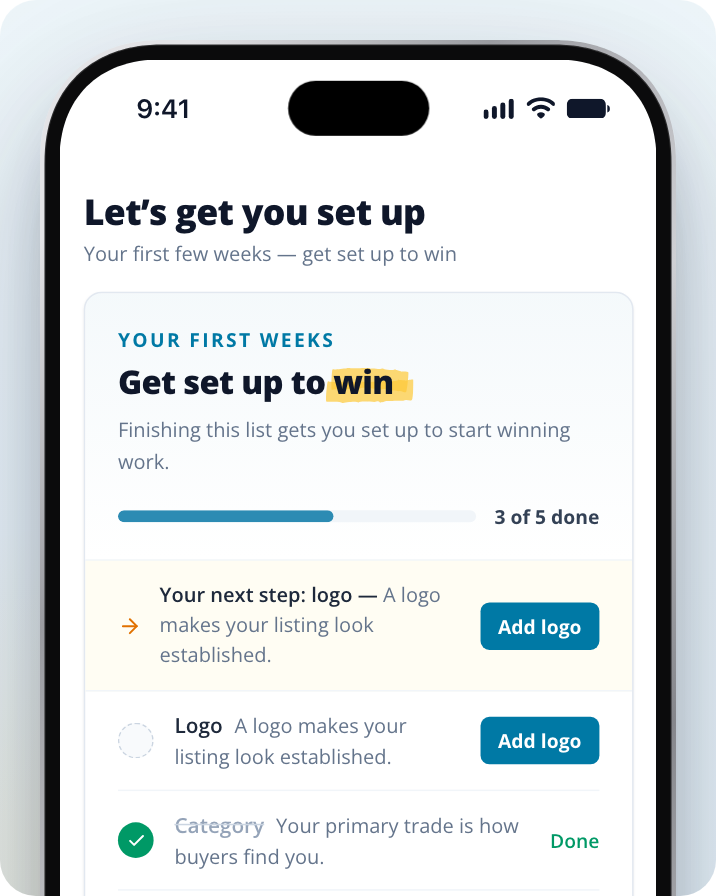
The checklist has five steps of its own: Logo, Category, Service area, Reviews and Premium. These are different from the items in Your profile strength, so the checklist's count and your profile strength percentage won't match.
Your numbers replace the checklist once you finish every step or your listing is 21 days old, whichever comes first. The Reviews step needs at least one review, so a new listing with no reviews sees the checklist for the full 21 days. The date range picker isn't shown while the checklist is up.
Change the date range
Insights shows the Last 6 months unless you choose another range.
Open the date range picker
Click on the date range at the top right of the page (next to your listing name, if you have more than one listing).
Pick a preset or specific dates
Select Last 3 months, Last 6 months, Last 12 months or Since 1 Jan. To use your own dates, pick a start and end day under Specific dates, then click on Apply.
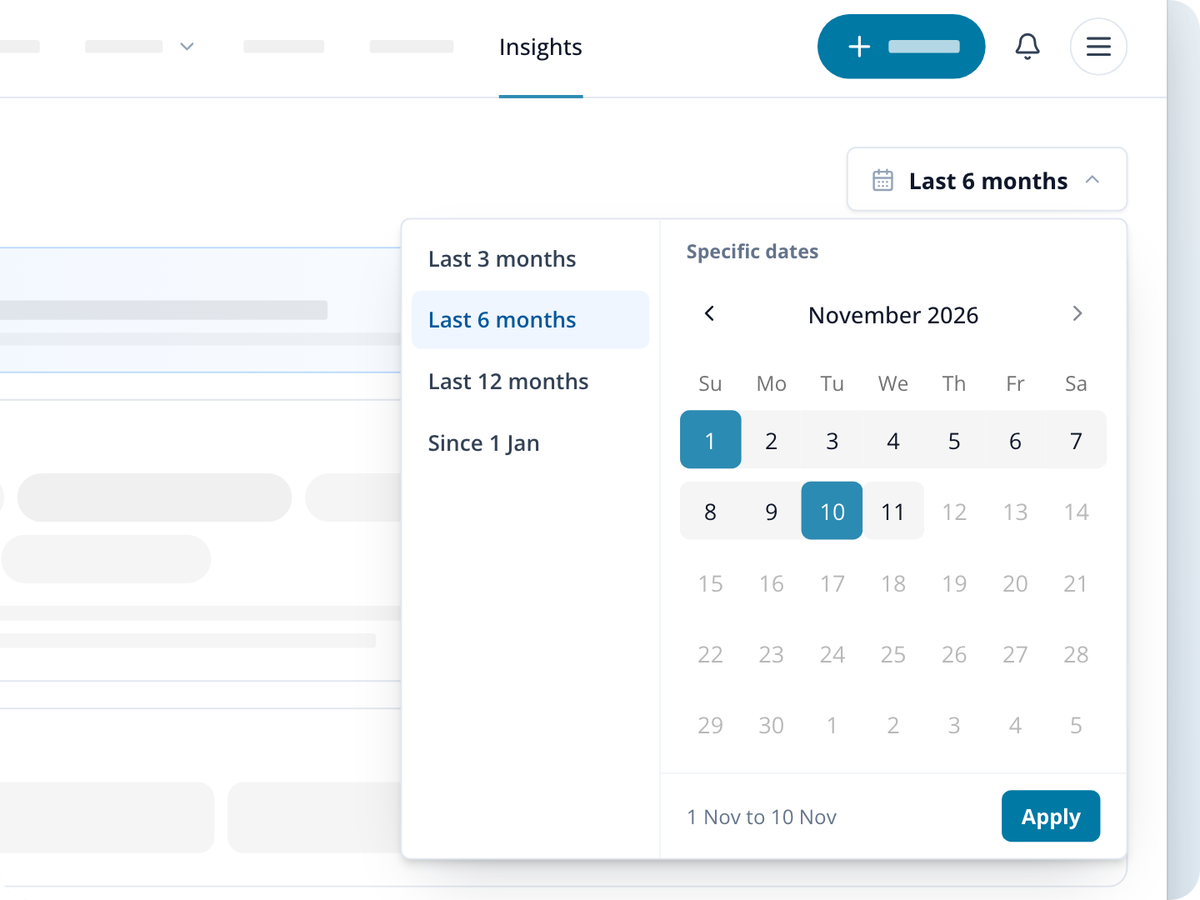
You can pick dates going back up to 12 months. Most cards use the range you choose. These show where things stand right now, whatever range you pick:
- Jobs you looked at but didn't respond to
- The health label next to the page title
- Your profile strength
- Verification
The total review count and average cover all time up to the end of your range.
What each card means
On a phone, the cards are grouped into tabs: Overview, Work and Reviews. On a computer, they all show on one page.
Your profile strength
How much of your listing is filled in, as a percentage. Each item is ticked or crossed. Complete your profile takes you to your listing to fill in what's missing. A complete profile is what earns your verified badge.
Verification
Where your listing is up to with getting verified, with a link to the next step.
Response rate
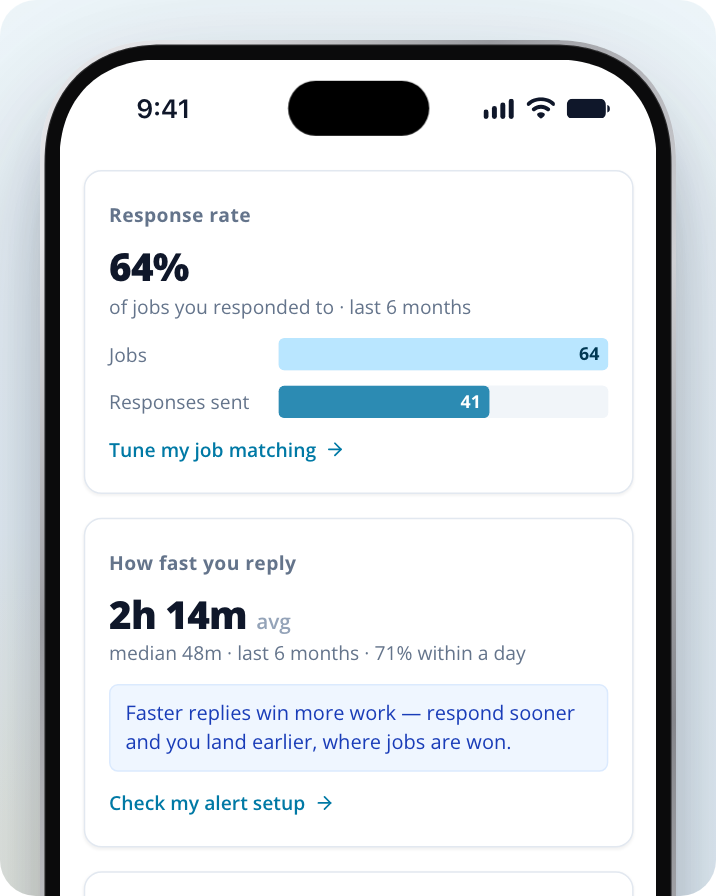
Of the jobs matched to your listing in the date range, the percentage you sent a response to. It shows Jobs (how many you were matched to) and Responses sent.
A low response rate means leads are passing you by. Respond to more of the leads you get, or use Tune my job matching to change your services so you get leads you want.
How fast you reply
Your average time to respond to a lead, your median time and the percentage of responses you sent within a day. Until you send your first response, it shows No responses yet.
The faster you respond, the more likely you are to win the job. Check my alert setup opens your notification settings so you hear about new leads straight away.
Jobs within reach
How many jobs in your categories were posted within your service area during the date range. This counts every matching job posted in that time, not only the ones still open.
Below the total, the card shows how many more jobs you'd have reached with a wider service area. If you haven't set your area yet, it shows Add your area, with a Set your service area link.
Where your jobs come from
Which of your categories your leads came from. This card only shows once your listing has leads in its categories.
Jobs you looked at but didn't respond to
Leads you opened but didn't respond to that are still open. Select a job to read it and respond without leaving Insights, or click on Respond to these to go to your Inbox.
Completed work
How many jobs you've won and completed in the date range, and how many of them have a review. View completed work (or View all if you have more) lists them in full.
Your reviews
Your total number of reviews and your average rating, then New reviews showing how many came in during the date range, month by month.
Reviews to reply to
Reviews you haven't replied to yet. Replying to a review shows homeowners you care about your work.
Request reviews from Insights
Open Request reviews
On the Your reviews card, click on Request reviews.
Share your review link
Under Share your review link, click on Copy to copy your listing's review link. Send it to any homeowner you've worked for.
Email homeowners from completed jobs
Under Email a past customer, tick the completed jobs you want a review for. Jobs you've already asked about show when the request was sent and can't be selected again.
Send the requests
Click on Send (the button shows how many requests you've selected).
If there are no completed jobs to ask about, you'll see No completed jobs are waiting on a review. You can still share your review link.
What to do with your numbers
Choose the card that's lowest for you and use its link to fix it:
- Low response rate: respond to more leads, or tune your job matching.
- Slow replies: check your alert settings so you see new leads sooner.
- Few jobs within reach: look at whether a wider service area would bring in more leads.
- Few reviews: request a review after every completed job.
For more ideas, see How to Get More Jobs and How to Optimise Your Business Profile.