If you posted your first job on Service.com.au, a password was automatically created and sent to the email address you used. If you cannot find that email, check your spam or junk folder.
Change your password
1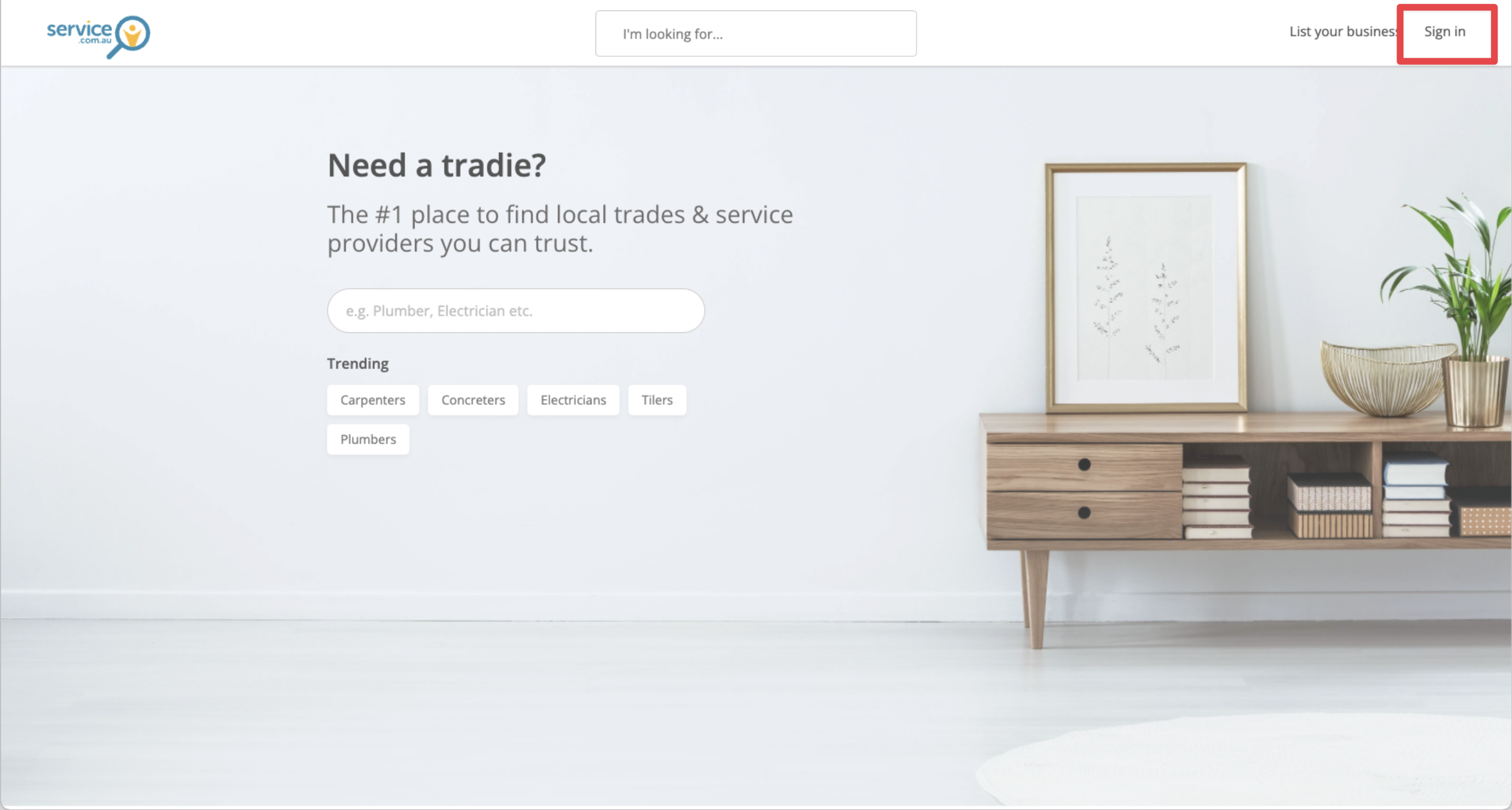
The Sign in link in the top right corner of the Service.com.au website
Open the sign in page
Go to the Service.com.au website and click on Sign in in the top right corner.
2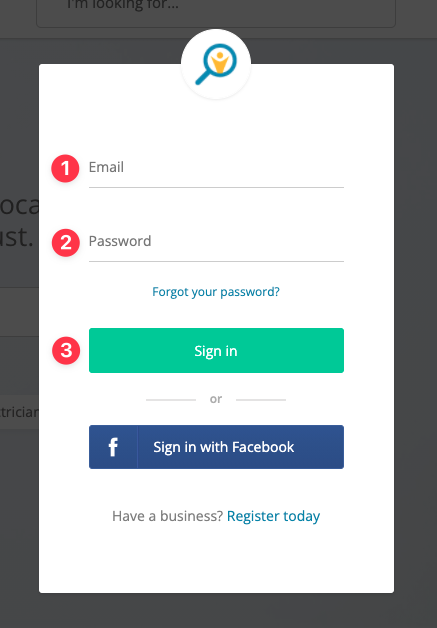
The sign in form with fields for email address and password
Log in to your account
Enter your email address and current password, then click on Sign in.
3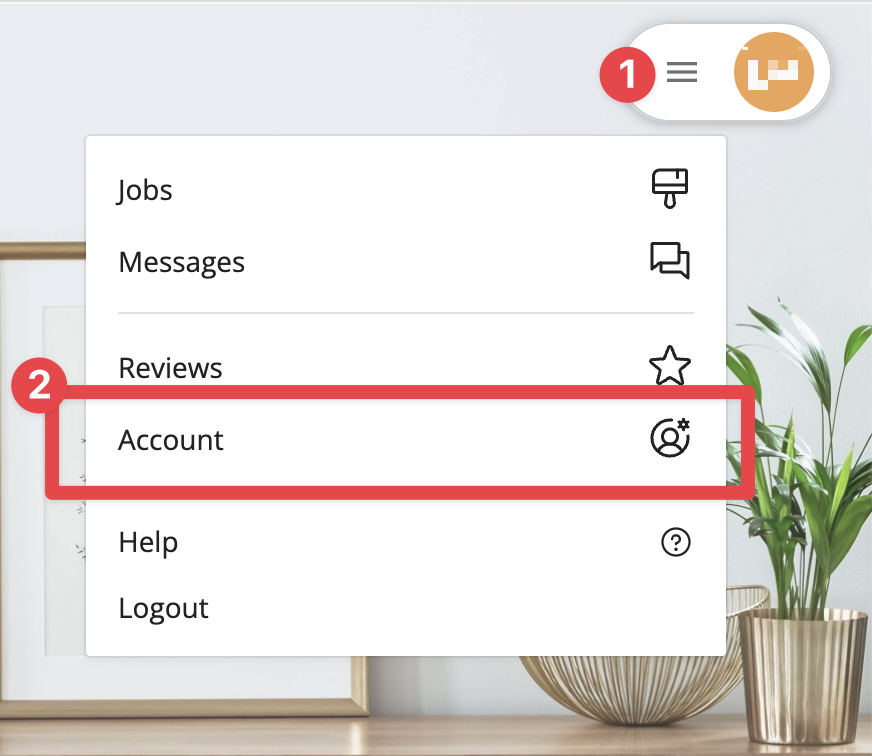
The menu button opened with the Account option visible
Open your account settings
Click on the Menu button at the top of the page and select Account.
4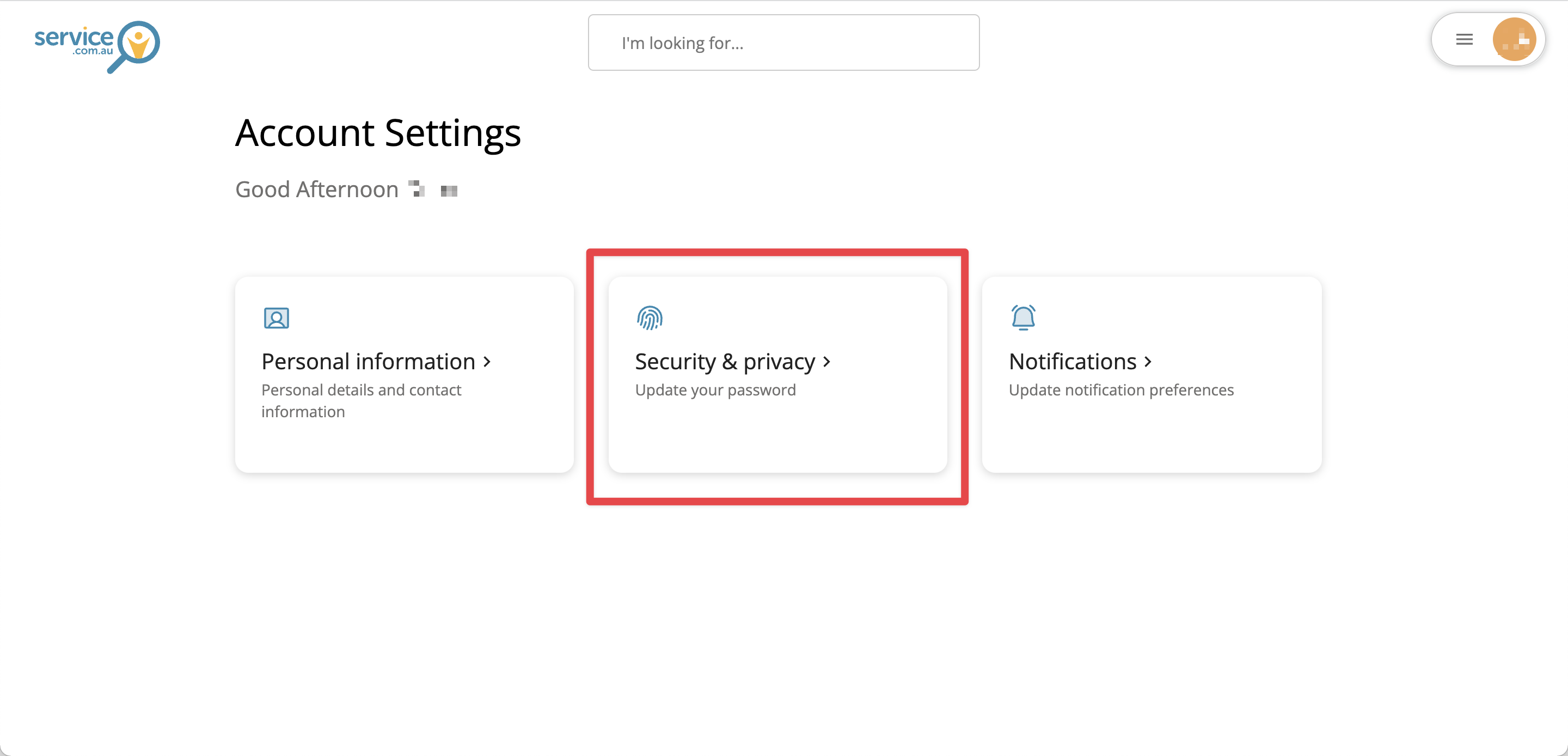
The account settings page showing the Security and Privacy option
Go to Security & Privacy
Click on Security & Privacy in your account settings.
5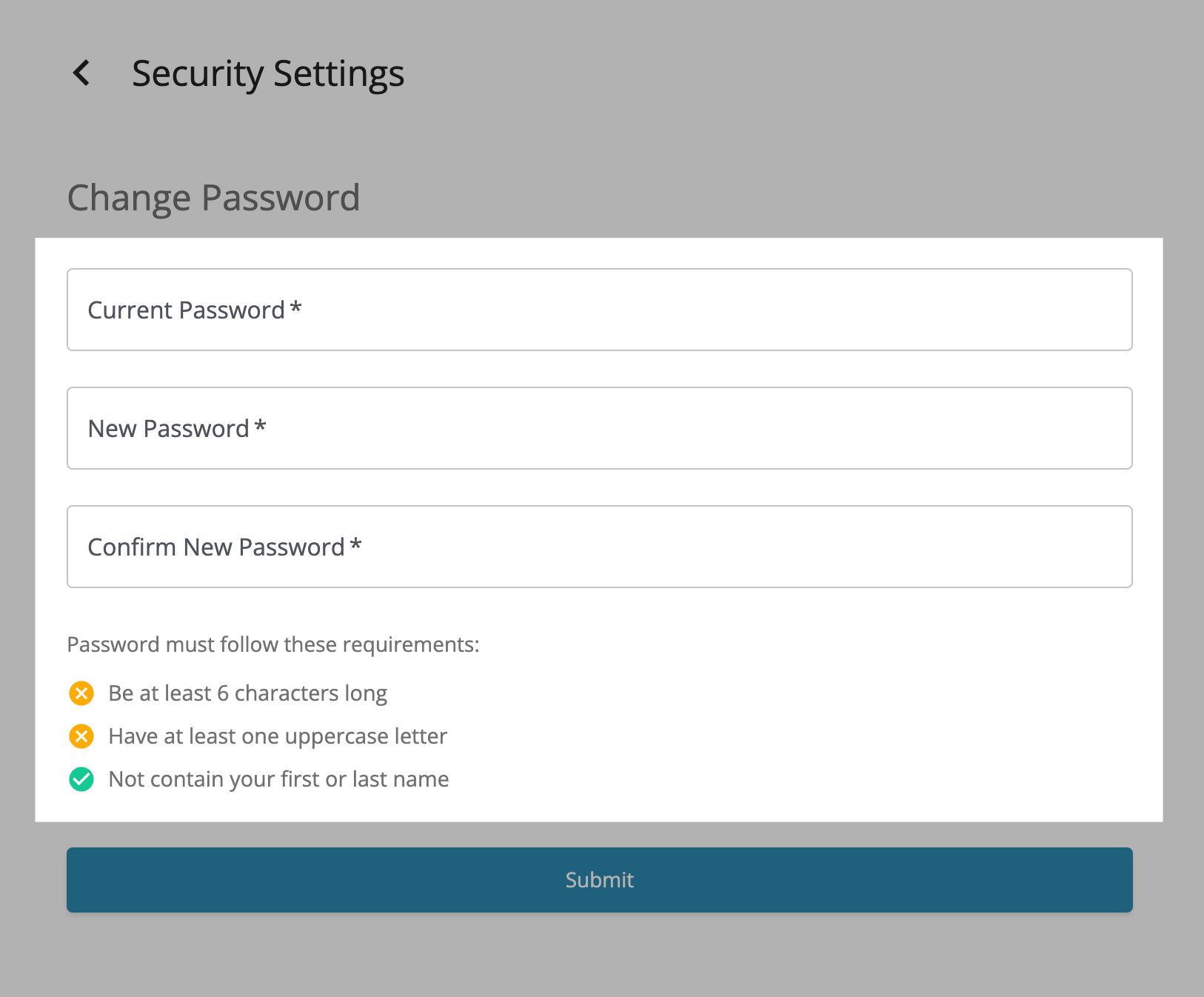
The change password form with fields for current and new password
Enter your new password
Enter your current password, then enter and confirm your new password. Make sure it matches the password requirements shown on the page.
6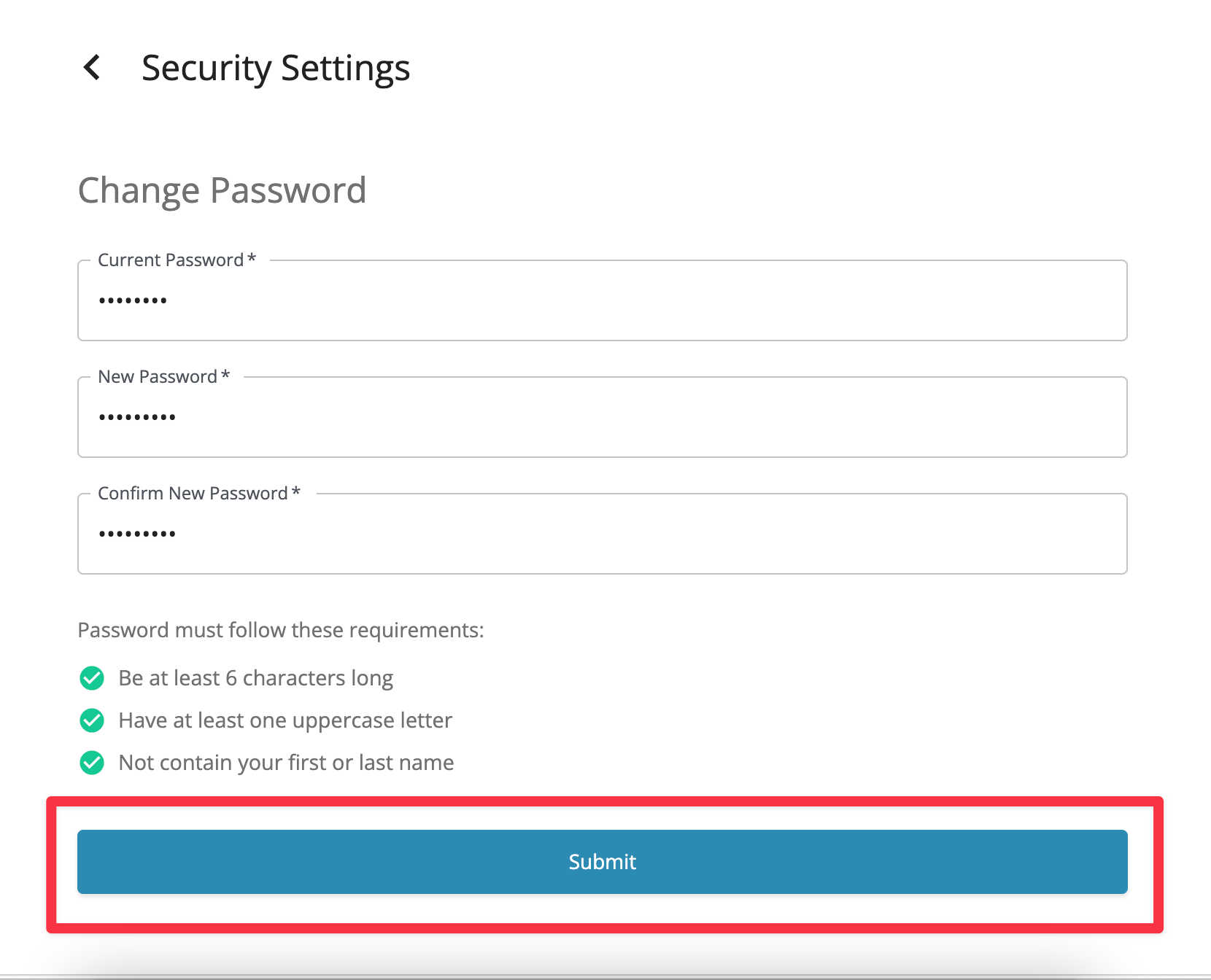
The Submit button used to save a new password
Save your changes
Click on Submit to update your password.