You can add your trade licences and qualifications to your listing from the Qualifications & Licences tab in the listing editor. You add one licence at a time, and it shows on your listing as soon as you save it.
Add a qualification or licence
Open your listing
Go to Listings and click on your listing's name to open it.
Open Qualifications & Licences
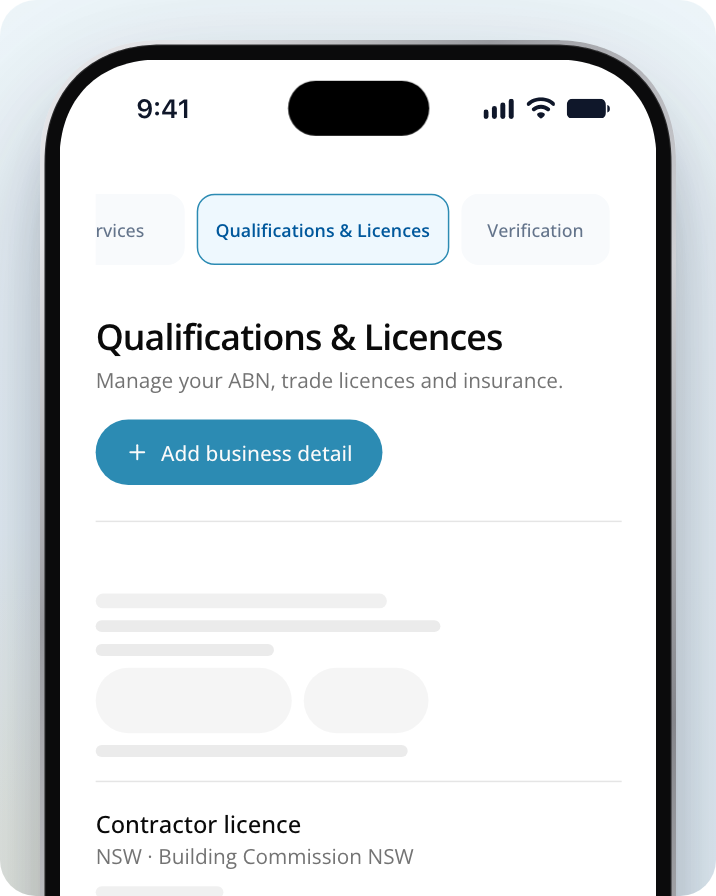
Select Qualifications & Licences from the listing editor's menu. On a phone, the tabs are along the top: swipe them to find it. This is where you manage your ABN, trade licences and insurance.
Start a new licence
Click on Add business detail.
Add a photo or document of your licence
Click on Upload photo or PDF, or Take a photo on your phone. Add a clear copy of one licence, with the front and back if needed. You can use JPEG, PNG, WebP or PDF files up to 10 MB.
Read the details from your document
Click on Read licence details. This can take up to a minute, and nothing is saved yet. Your document is sent to OpenAI to read the details. It isn't published or saved to your listing.
Check the details
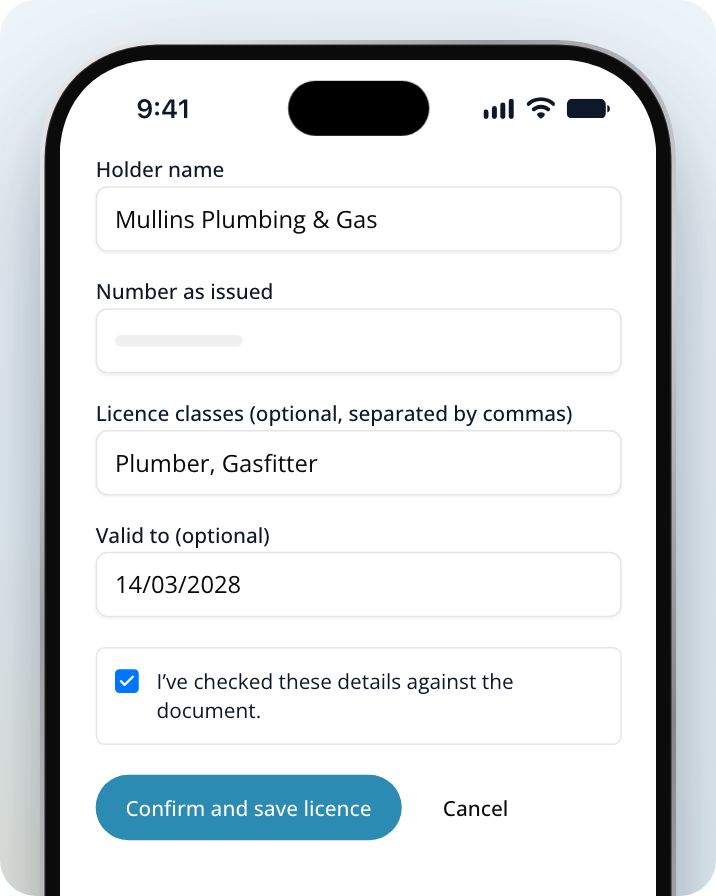
Compare each field with your licence and fix anything that's wrong, such as the Holder name or Number as issued.
Confirm and save
Tick "I’ve checked these details against the document", then click on Confirm and save licence.
No document handy?
Under the upload area, choose one of these instead:
- Describe the licence: type the licence name in your own words under Licence name or description (use the wording on your licence), then click on Find licence type. If the match looks right, click on Use this licence type, then enter the number and holder details. A match suggests the type only. It doesn't verify your licence.
- Enter manually: choose the State or territory and Licence type yourself, then fill in Held by, Holder name and Number as issued, and click on Save details.
If you can't find a match after a few tries, you can enter the licence name and issuing organisation yourself.
What happens after you save
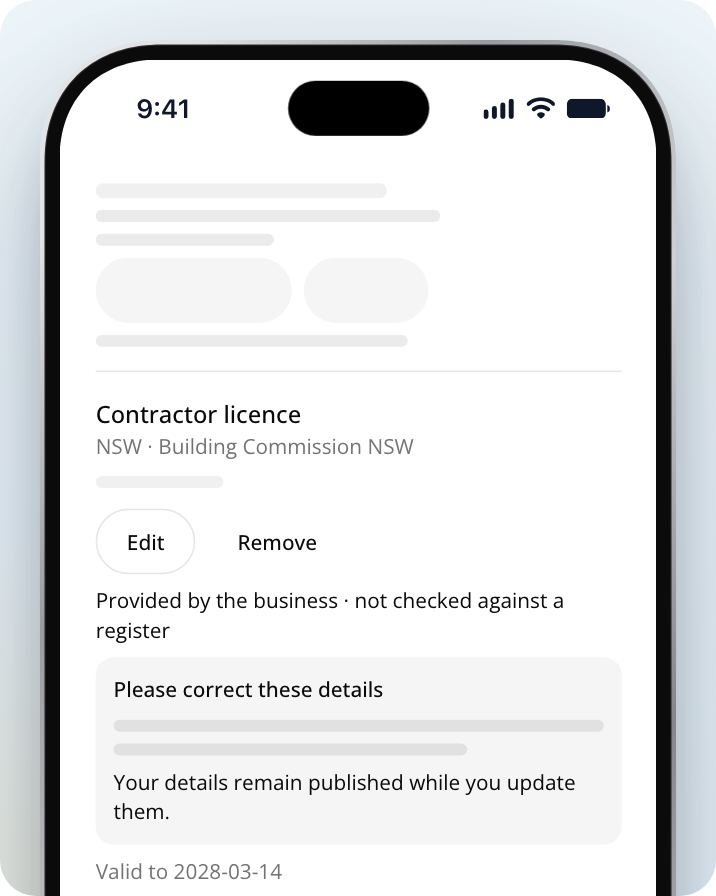
Your licence shows on your listing straight away. On the Qualifications & Licences tab it reads "Provided by the business · not checked against a register". We don't check your licence with the issuer.
Our support team looks out for details that don't add up, such as a licence type and classes that don't match, holder details that contradict each other, or placeholder text. If something needs fixing, you'll see one of these messages under the licence:
- Please correct these details: support explains what to change, and we email you. Your details stay published while you update them. Click on Edit to fix them.
- Removed from your listing. Update the details for support to review.: the licence has been taken off your public listing. Click on Edit to update it. It stays off your listing until support has reviewed your changes.
A licence with a "Valid to" date in the past is hidden from your public listing. Edit it with your renewed details to show it again. To take a licence off your listing yourself, click on Remove.
How it shows on your listing
Your licences appear in the Qualifications & Licences section of your public listing. Each one shows the licence name and state, the issuer, who holds it and any classes or expiry date. Some licence types also show the number. Homeowners see "Provided by the business" next to it, because it hasn't been checked against a register.
Where the issuer has a public register, a View register link sits beside the licence so homeowners can look it up themselves.
Licences and your Verified badge
Adding a licence doesn't give you the verified-business badge. Your badge needs your ABN, which you also add on the Qualifications & Licences tab. To find out what else it needs, read How to Get Verified.