To remove a duplicate business listing you can't edit, or to get access to an existing listing someone else created for your business, contact our team. You can only edit a listing that's in your own account, so we'll need to sort these out for you. If the wrong details are on a listing you already manage, you can correct them yourself.
Remove a duplicate listing you can't edit
You can't delete a listing yourself. Contact us and we'll look into the duplicate. To help us find it quickly, send us:
- the name of your business and the email address you log in with
- which listing you want to keep (the one in your account)
- a link to the duplicate listing, or its name and suburb as they show on it
- anything on the duplicate that's wrong, such as an old phone number or address
Get access to a listing someone else created
If a listing for your business isn't under Listings in your account, you can't manage it yourself. This includes a listing someone else created for your business. Contact us to claim it and tell us:
- the name of your business and the email address you log in with, or that you don't have an account yet
- a link to the listing, or its name and suburb as they show on it
Correct wrong details on a listing
If the wrong details are on a listing you can't edit, contact us and tell us what needs to change.
If the listing is in your account, you can correct the details yourself:
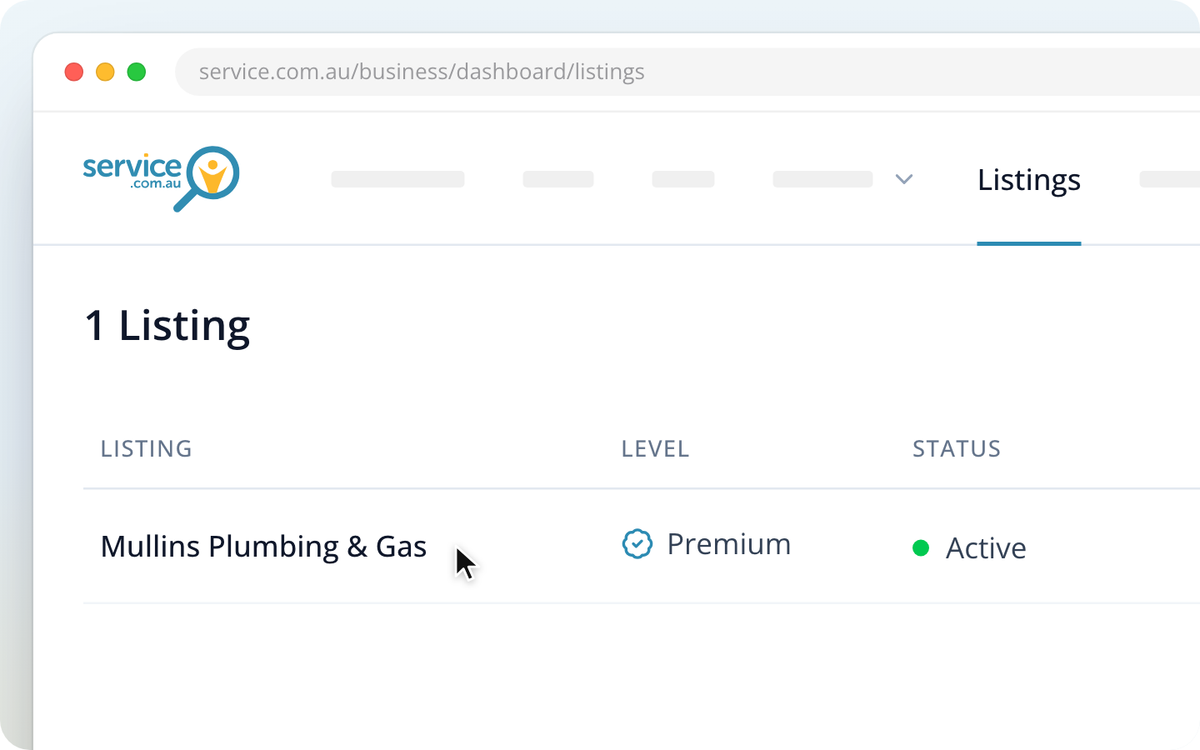
Open Listings
Log in to your account. On a computer, Click on Listings in the top bar. On a phone or in the app, tap the Listings tab at the bottom.
Open the listing
Click on the listing's name. It opens on Basic Information.
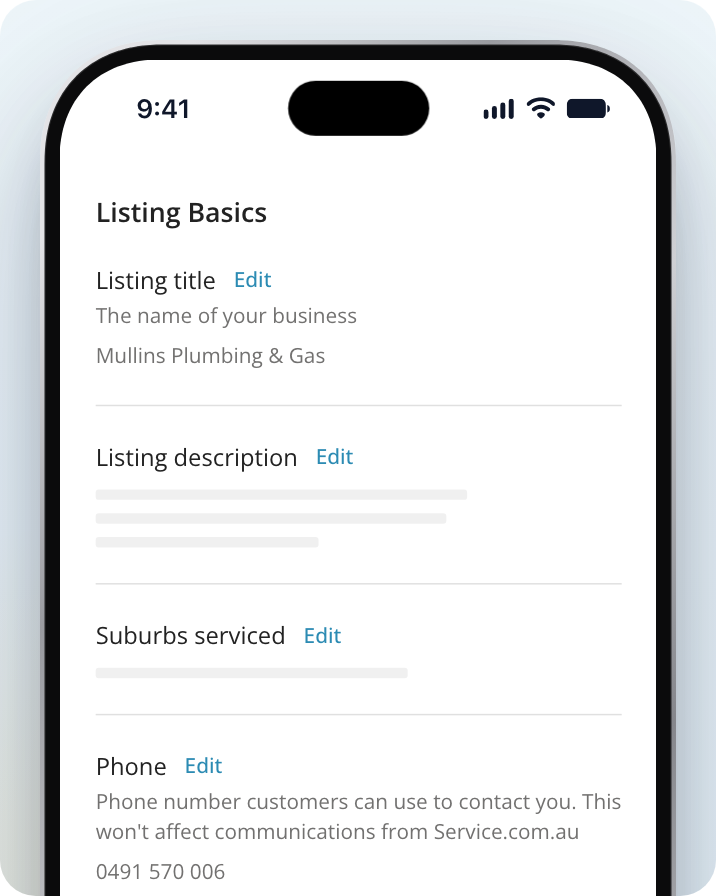
Edit the wrong detail
Under Listing Basics, Click on Edit next to the detail you want to change. You can change the Listing title (the name of your business), Listing description, Suburbs serviced, Phone and Email.
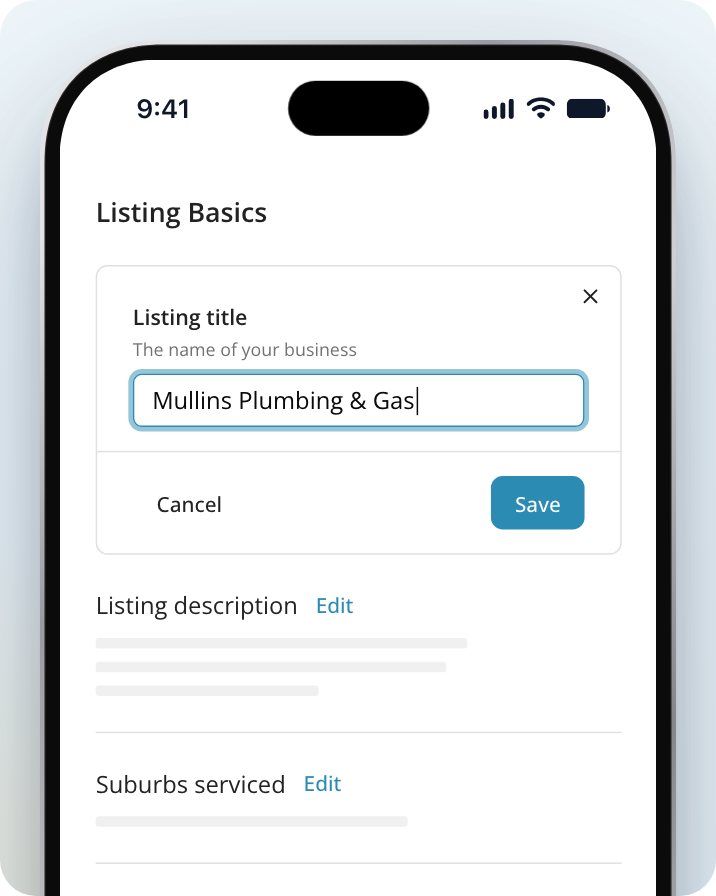
Save your change
Enter the correct details and Click on Save.
Your categories and location are on the Categories & Location tab of the same listing.
Need Assistance?
If you have questions, contact us at support@service.com.au or call 1300 523 787. Our team is here to help!