To add extra business listings or locations to your account, contact our team and we'll set them up for you. One account can hold more than one listing, so a business with several locations or brands can keep them all under one login. There's no button to add a listing yourself from your dashboard.
Adding Another Listing or Location
Contact our team at support@service.com.au or call 1300 523 787. Tell us which location or brand you'd like to add, and we'll help you get it set up. You can also use our contact form.
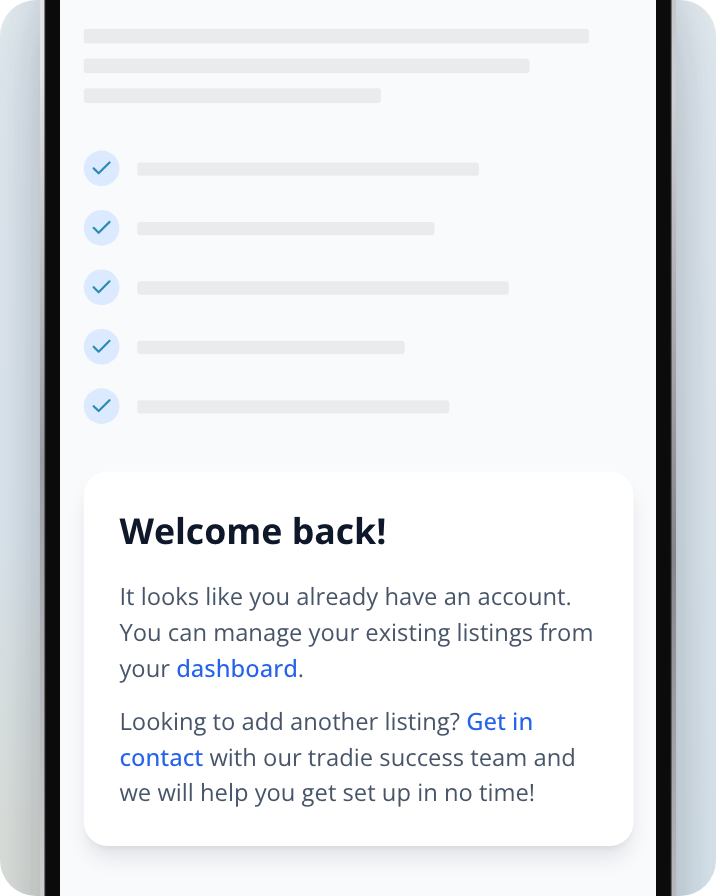
If you go to the business sign-up page while you're logged in, it doesn't let you sign up again. Instead it links to your dashboard, which opens your Listings page, and asks you to Get in contact with our team to add another listing.
Packages for Several Locations
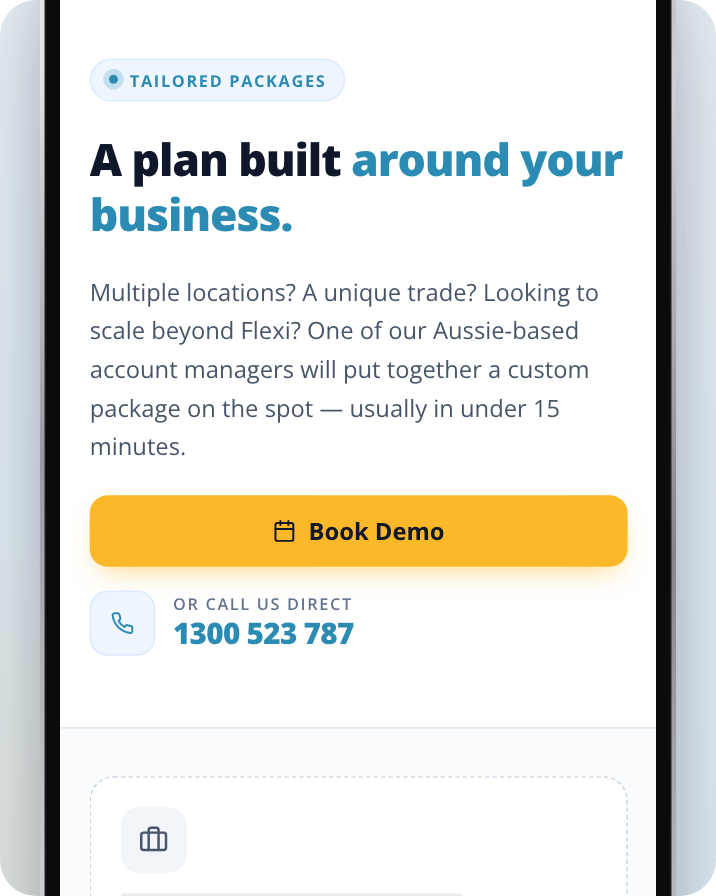
To talk about a package for several sites, contact us on 1300 523 787 or at support@service.com.au. If you have a Basic listing, you can also find a Tailored packages section near the bottom of the Choose Your Plan page. It's there for businesses with multiple locations. Select Book Demo and one of our account managers will contact you about a package that fits your business.
Finding Your New Listing
Once your new listing is set up, it appears with your other listings.
Open Listings
Log in to your account. On a computer, click on Listings at the top of the page. In the app, tap the Listings tab at the bottom of the screen.
Check your listings
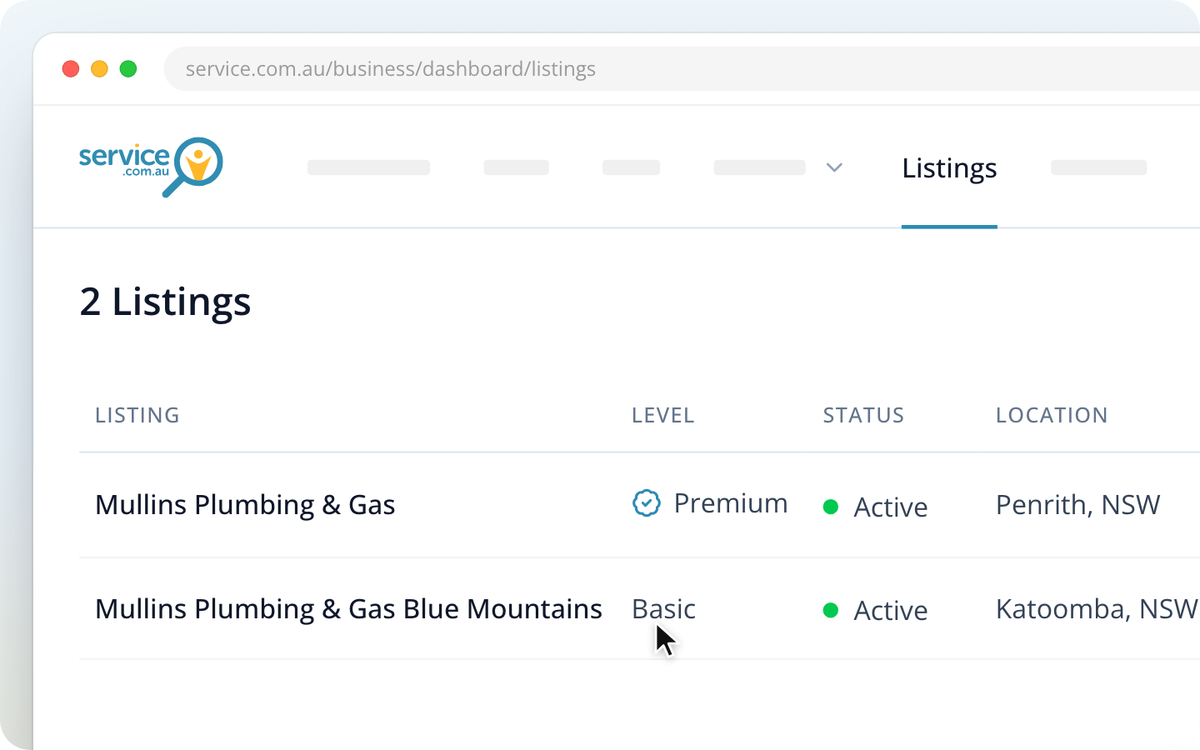
The page heading shows how many listings you have (for example, "2 Listings"). On a larger screen, each row also shows the listing's Level, Status, Location and Category.
Open the listing you want to edit
Click on the listing's row to open it on Basic Information, where you can update that listing's details.
Need Assistance?
If you have questions, contact us at support@service.com.au or call 1300 523 787. Our team is here to help!