When you log in to Service.com.au as a homeowner, you land on Home. From your Home page you can ask the home assistant a question, check your active jobs and keep a list of things to get done around the house. You can get back to it at any time from Home in the top menu on a computer, or the Home tab on your phone or in the app.
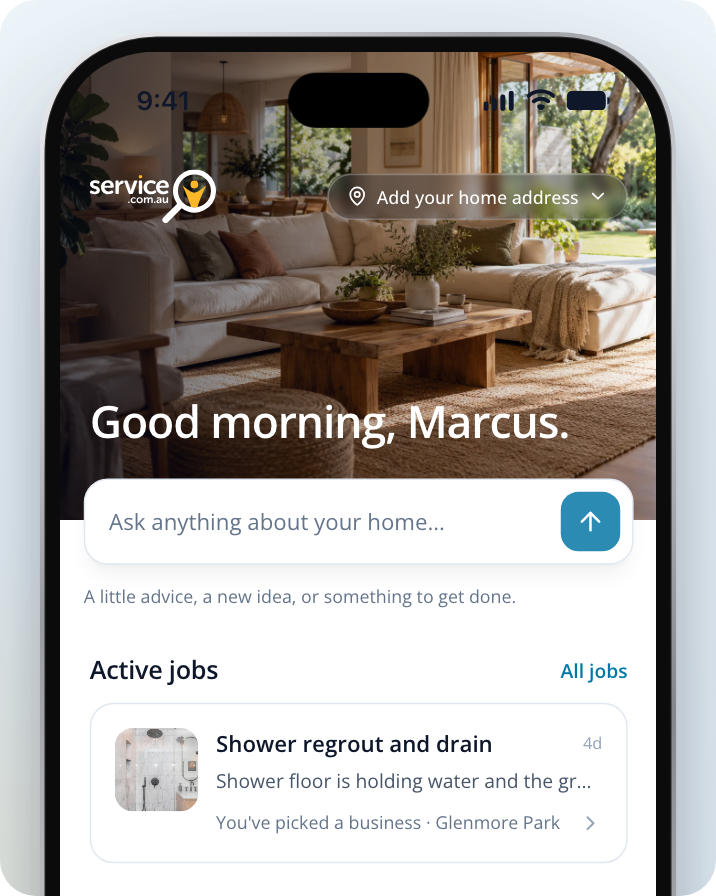
What's on Your Home Page
- Greeting and home address: the top of the page greets you by name and shows your home's name or address. Select it to add or change your home.
- The home assistant box: "Ask anything about your home…" opens your home assistant. If you've already started a chat, the box shows Continue your chat instead. If the assistant has suggested something and is waiting on you, the box shows Waiting for you to confirm.
- Active jobs: jobs you've posted that are still open, including ones where you've picked a business. Select a job to open it, or All jobs to see every job. This section only shows when you have an active job.
- This season's suggestion: a heading such as This Spring with one seasonal idea for your home. Select Add to list to save it to Your List, or Not this season to skip it. If you skip one by mistake, select Undo.
- Your List: things you want to get done around the house. Home shows the first few, with a link to the rest.
- Worth a Read: articles picked for your jobs and your list. On a computer they show on the right of the page.
Adding a seasonal suggestion only saves it to Your List. Nothing is posted to tradies until you request quotes.
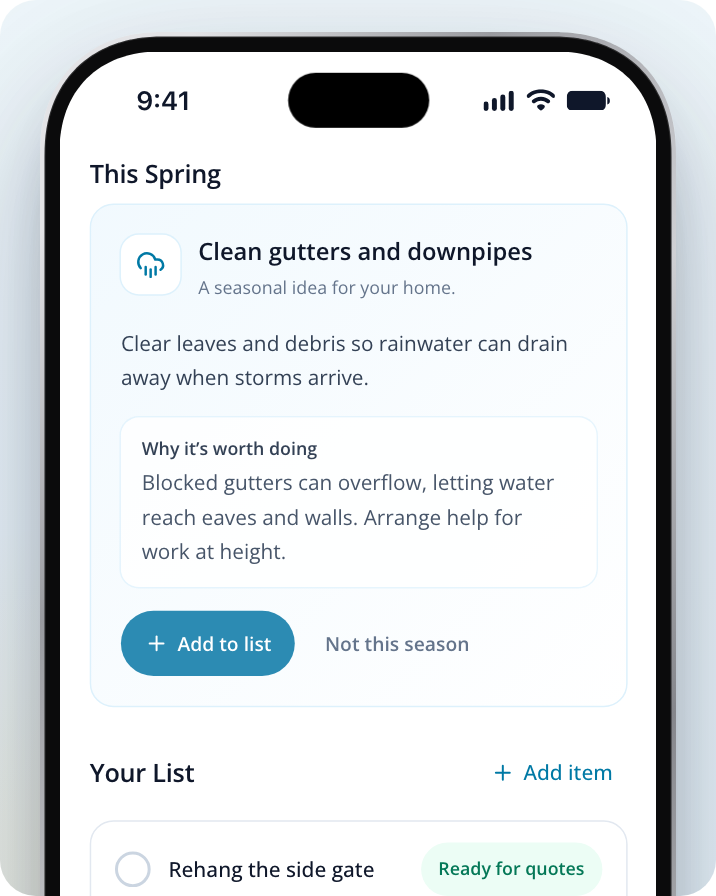
Add or Change Your Home Address
Adding your home address is optional. When you request quotes for something on Your List, the job uses your home's suburb.
Open your home details
Select your address (or Add your home address) at the top of your Home page.
Enter your home
Enter a Home name if you'd like one, such as "Beach house". Then start typing in Full home address and choose your address from the list.
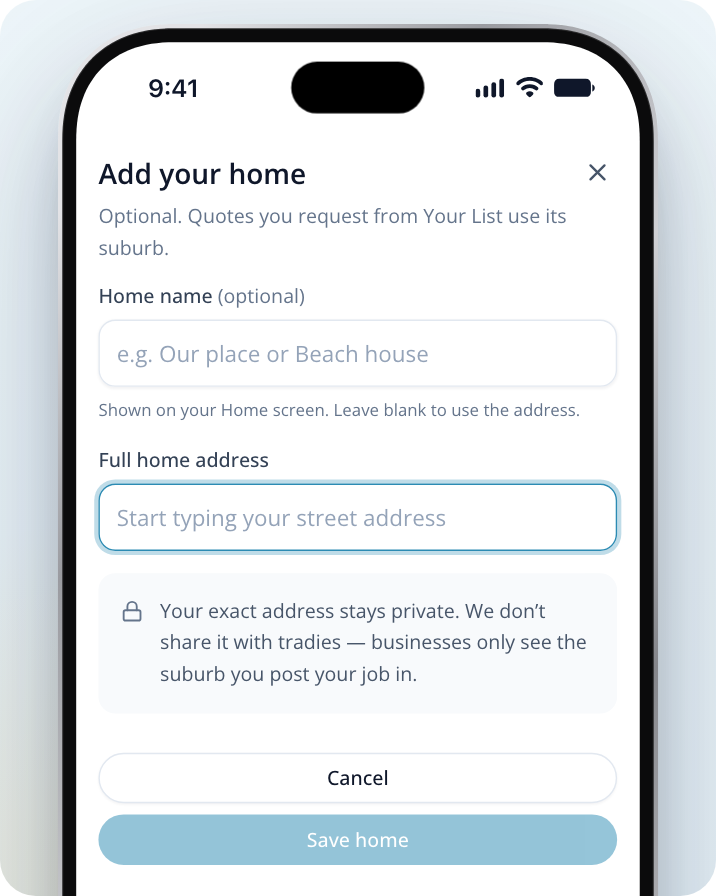
Save it
Select Save home.
Using the Home Assistant
The home assistant is a chat for anything about your home. You can ask it things like:
- What you should get done around the house this season
- Roughly what a job on your list might cost
- What to do about something that needs fixing, such as a leaning fence or a cracked tile
It can also do things for you. Each time, it shows a card first and changes nothing until you confirm:
- Add to Your List: saves one or more things to Your List.
- Add details to your item: saves notes to an item already on your list.
- Mark item done or Reopen item: ticks an item off Your List or puts it back.
- Update your job: adds details to a job you've already posted. If tradies are already talking with you about the job, you can choose to send them the update as well.
To go ahead, select the button on the card. To leave things as they are, select Discard.
Open the assistant
Select the "Ask anything about your home…" box on your Home page. The Your home assistant page opens.
Ask your question
Enter your question in the message box at the bottom ("Ask about your home, or tell me what needs doing…") and send it. Before you send your first message, you can also select one of the suggested questions above the box.
Confirm anything it suggests doing
If the assistant shows a card, select the blue button on the card to confirm, or Discard.
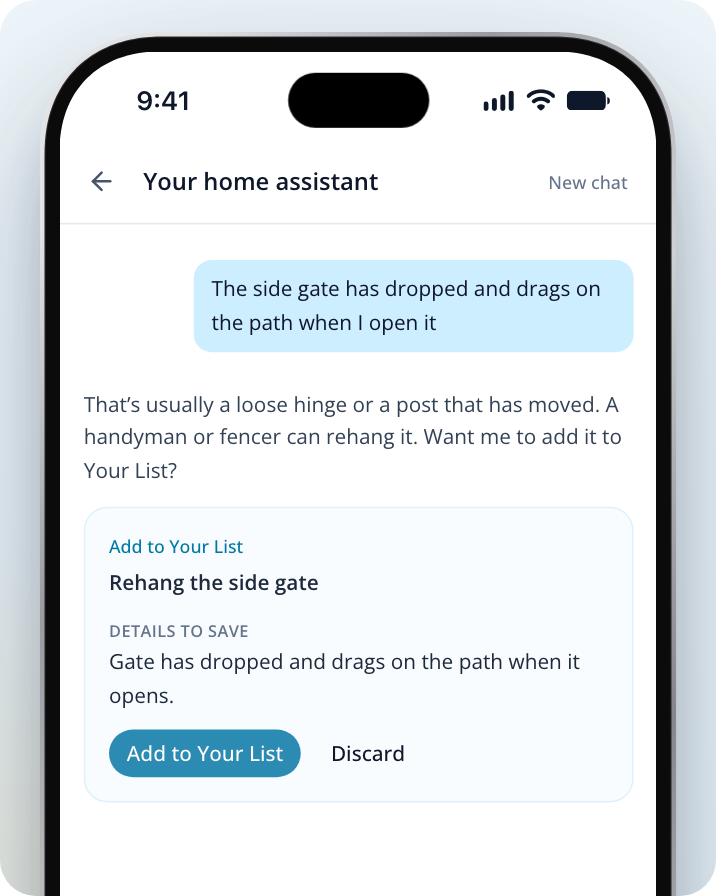
Start a new chat
To start fresh, select New chat at the top of the page.
Getting Quotes From the Assistant
If you tell the assistant you want quotes for some work, it shows a Get quotes for this work button. Select it to start your quote request right there in the chat. If you leave before you finish, the assistant keeps your draft. Select Continue your quote request to pick up where you left off, or Discard draft to delete it.
Using Your List
Your List is private until you request quotes. Home shows the first few items. Select See all or Completed under the list to see the rest.
Add Something to Your List
Start a new item
Select Add item next to the Your List heading on your Home page.
Describe what needs doing
Enter what needs doing, then select Add to list.
Open the item (optional)
To add more, select Open on the confirmation message, or select the item on Your List.
Add Notes and Photos to an Item
Select an item on Your List to open its page. You can add measurements and other details under Notes, add pictures with Add photos, and change the item's title with the pencil icon.
The item page also checks whether a tradie would need anything else to quote. If it shows A few details, when you have a moment, select Add details to answer a few quick questions. When the item is ready, the page shows Ready when you are.
Request Quotes for an Item
Open the item
Select the item on Your List. If it's ready, you'll see Ready when you are. Items that are ready show Ready for quotes on the list.
Check what will be sent
Review the summary of what tradies will see. If the page asks, add your home address or suburb.
Request quotes
Select Request quotes.
Choose when you need it done
In Send to local businesses?, choose Within a month, Next few months or No rush. Then select Request quotes to send it, or Not yet to keep it on your list.
Your request goes to matching local tradies, and your exact home address stays private. Once it's sent, the job shows under Active jobs on your Home page.
Mark an Item as Done
Open the item
Select the item on Your List.
Mark it done
Select Mark as done at the bottom of the page.
Tell us who did it (optional)
In Nice one. Who did it?, choose who did the work and, if you like, enter Roughly what did it cost?. Then select Mark as done, or Skip the questions. What you enter here stays private.
You can also tick the circle next to an item on Your List. To bring a finished item back, open it and select Put back on Your List.