Your home assistant is a chat for anything about your home. Ask it for advice, work out what a job might cost, keep Your List up to date, ask about a job you've posted, or get something ready for quotes. It never saves or sends anything until you confirm.
Open the Assistant
Go to your Home page
Select Home in the top menu on a computer, or the Home tab on your phone or in the app.
Open the assistant
Select the "Ask anything about your home…" box under the greeting. If you've chatted before, the box shows Continue your chat instead. The Your home assistant page opens.
Ask your question
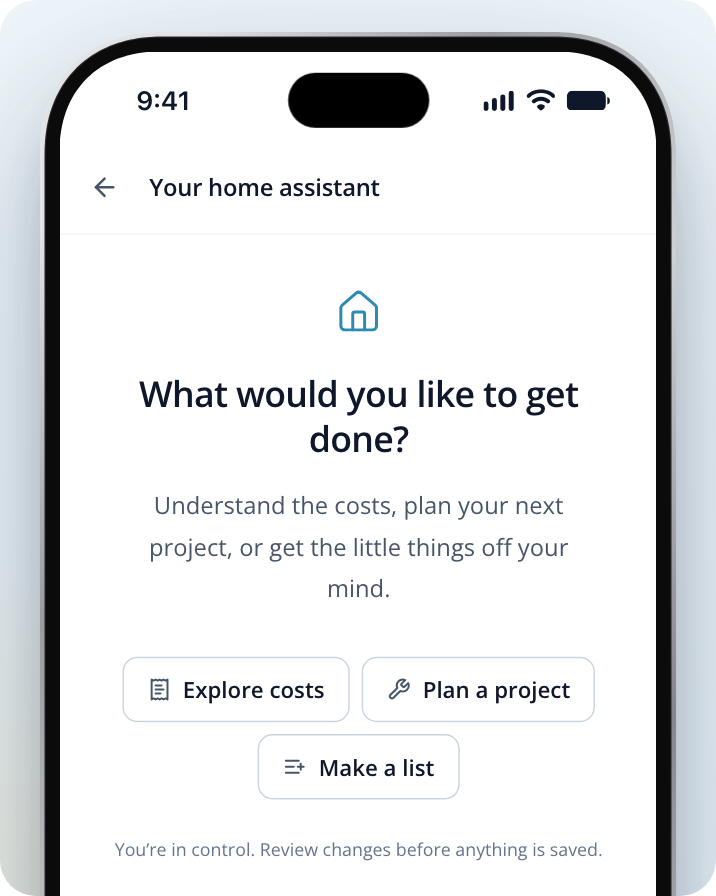
Enter your question in the "What can I help with?" box at the bottom and send it. In a new chat you can also select Explore costs, Plan a project or Make a list to get started.
The + button beside the message box starts a message for you to finish, such as "How much does it cost to" or "Add these to my list:".
What You Can Ask
- What a job should cost. The assistant uses our cost guides, and links the articles its answer came from under its reply.
- How to plan a project, such as what to do first and what kind of tradie you'll need.
- What to do about something that needs fixing, such as a gate that's dropped or a cracked tile.
- To add things to Your List, one at a time or several at once.
- About a job you've posted, such as what happens next or how its quotes compare.
Confirm Anything It Suggests Doing
When the assistant can do something for you, it shows a card first. Nothing changes until you select the button on the card. It can:
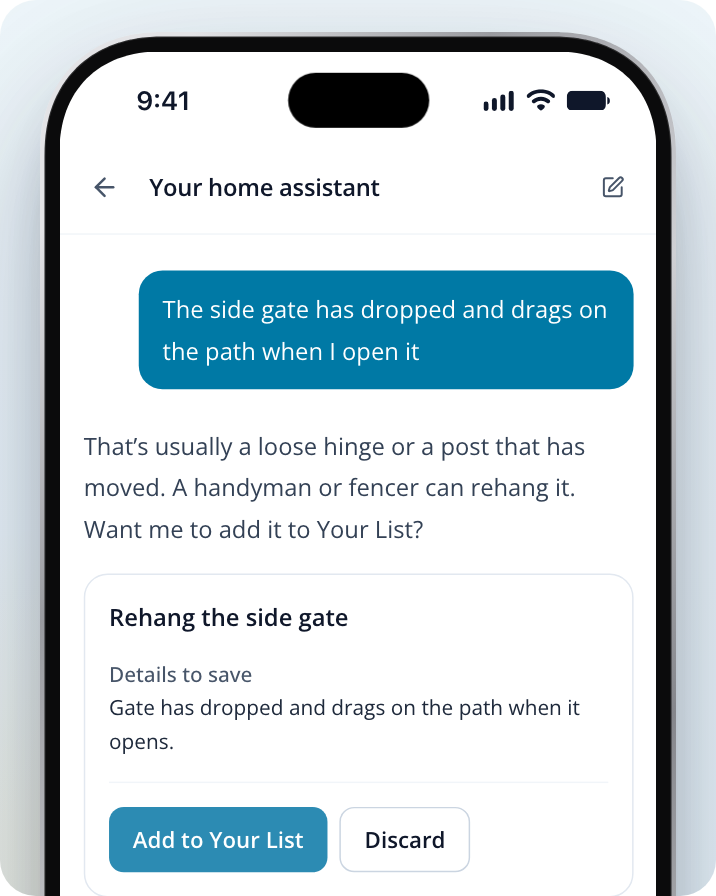
- Add to Your List: saves one item. For several items, the button shows how many, such as Add 3 to Your List. You can edit, remove or add items on the card first.
- Save to this item: adds notes to something already on Your List.
- Mark item done or Reopen item: ticks an item off Your List or puts it back.
- Save Address: saves your home address. If it finds more than one match, choose yours first.
- Save Details: saves details about your home, such as your hot water system or how many bedrooms it has.
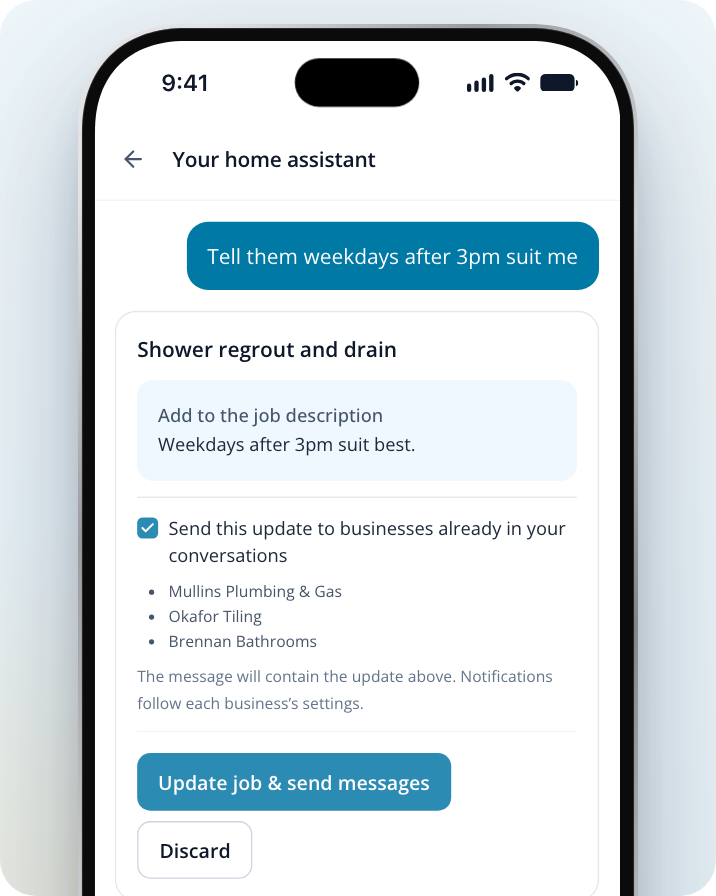
- Update job: adds details to a job you've posted. To tell the tradies who've already responded, tick Send this update to businesses already in your conversations. The button then shows Update job & send messages.
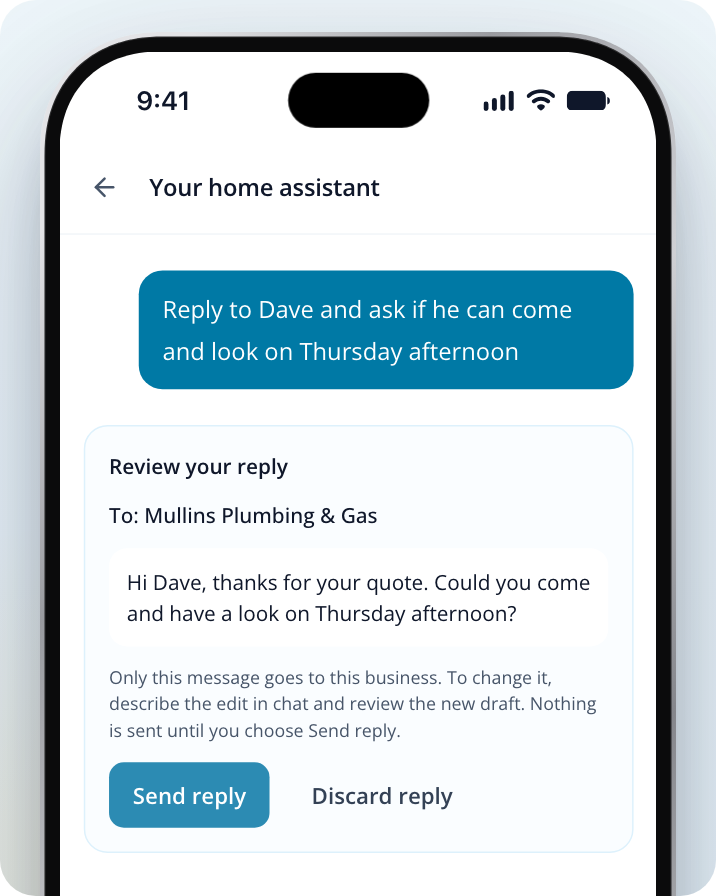
- Send reply: sends a reply the assistant wrote for you to a tradie who responded to your job. Only that tradie gets it.
Check the card
Read what the card will save or send.
Confirm or discard it
Select the blue button on the card to go ahead, or Discard to leave things as they are. To change what's on the card, tell the assistant in the chat and it will show you a new one.
If a card says the preview expired, ask the assistant again for a fresh one.
Cards That Message Tradies
Two cards send something to tradies, so check them before you confirm.
Update job changes your job's description. If the tick box is ticked, the tradies listed under it also get the update as a message. Untick it to change the job without messaging anyone.
Review your reply shows who the message goes to and exactly what it says. Only that tradie gets it, and nothing is sent until you select Send reply. To change the wording, tell the assistant what to change and check the new draft.
Ask About a Job You've Posted
Open your job
Select the job under Active jobs on your Home page, or from Jobs.
Open the assistant on this job
Select Ask About This Job. It shows while the job is still active.
Choose a question or ask your own
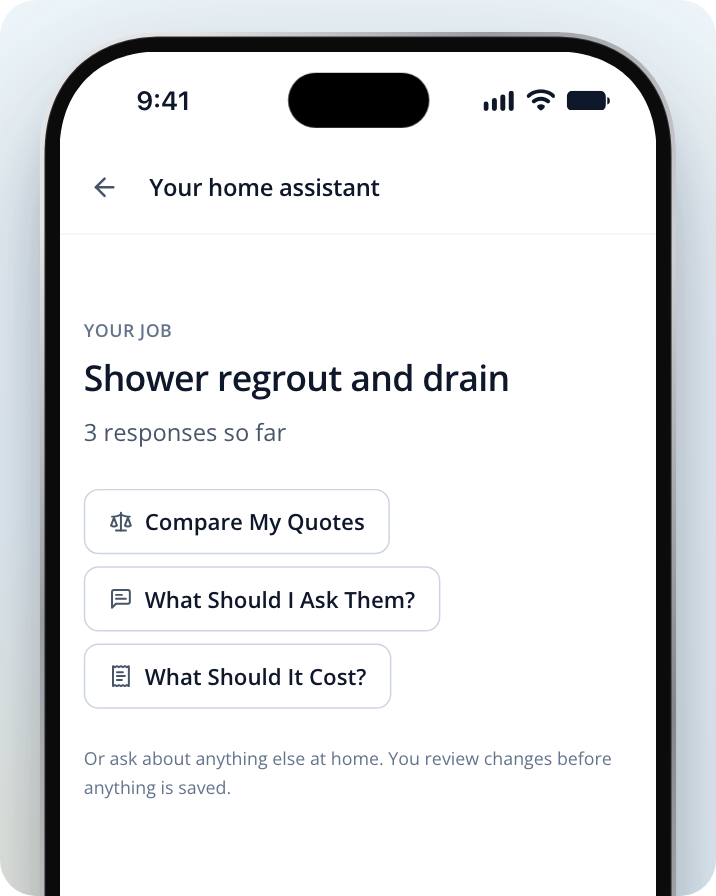
Select one of the suggested questions, or type your own. The suggestions change with your job: What Happens Next? before anyone responds, What Did They Say? after one response, and Compare My Quotes and What Should I Ask Them? once you have more than one. What Should It Cost? and Add Details are there too.
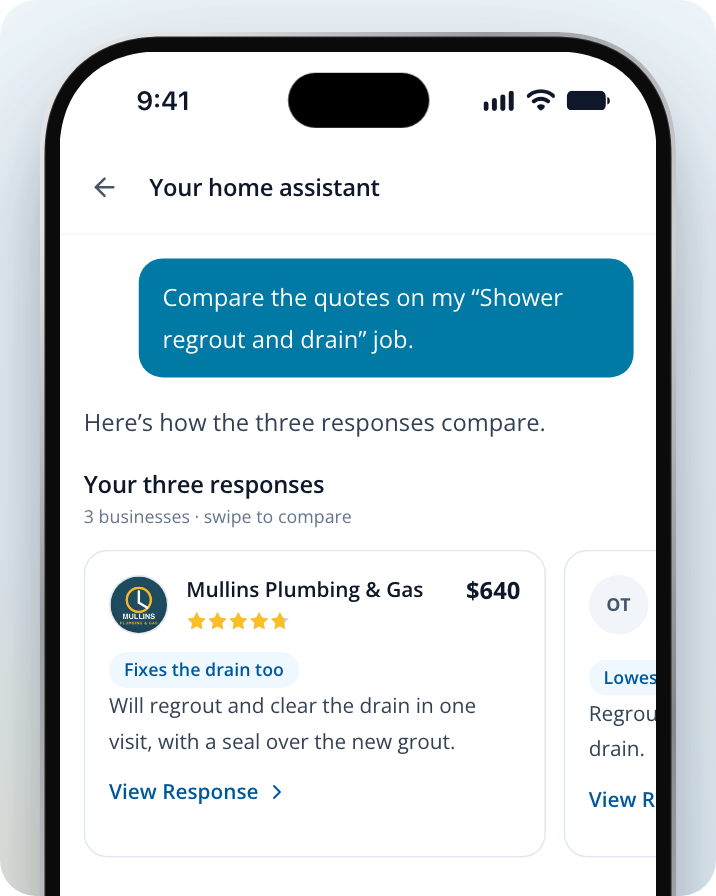
When you ask about the responses, the assistant shows each tradie's price, star rating and what they said. On a phone, swipe sideways to compare them. Select View Response to read a tradie's full response, or Open this job to go to your job.
To get back to your job, select the back arrow at the top of the page.
Get Quotes Through the Assistant
The assistant can turn something on Your List, or something you tell it about, into a quote request. It asks only for what a tradie needs to quote.
Start your request
Tell the assistant you'd like quotes. Or open an item on Your List and select Get Quotes.
Answer its questions
Answer each question in the chat. You can add photos as you go. If it asks you to verify your phone number, follow the steps on screen.
Check what businesses will see
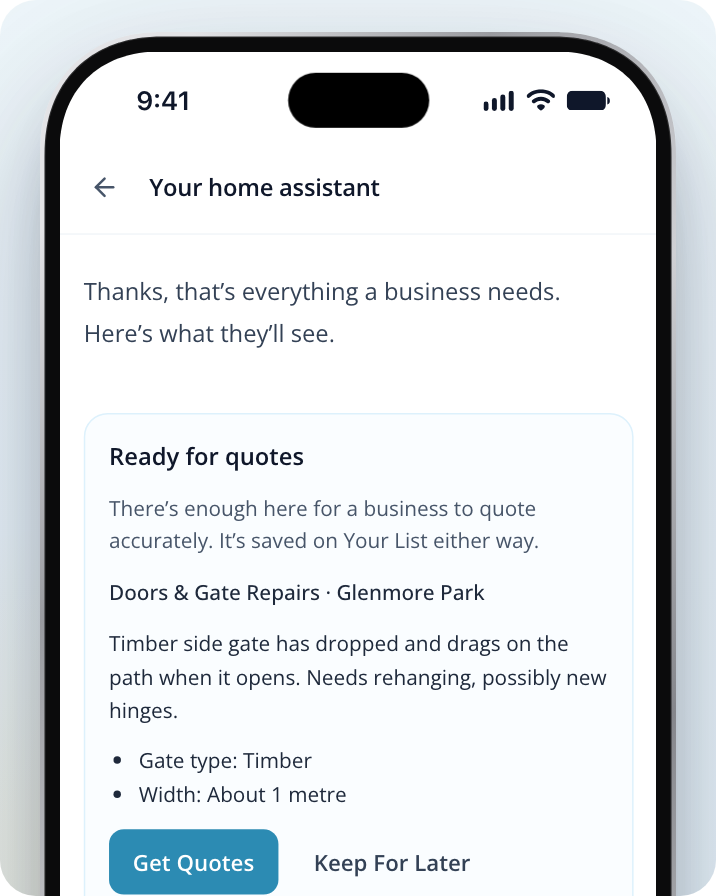
When it has enough, the assistant shows Ready for quotes with what tradies will see. To change anything, say so in the chat. To leave it for now, select Keep For Later. It stays on Your List either way.
Request quotes
Select Get Quotes. In Send to local businesses?, choose Within a month, Next few months or No rush, then select Request quotes.
Your request goes to matching local tradies, and your exact home address stays private. Nothing goes to businesses until you select Request quotes.
If you leave before you finish, the box on your Home page shows Continue getting this ready for quotes. In the assistant, select Continue getting this ready to pick up where you left off, or Not now to leave it.
Start a New Chat
To start fresh, select the pencil icon at the top right of the assistant (New chat on a computer). It shows once you've started chatting.
Common Questions
Is the assistant a real person? No. It's an automated assistant. Check anything important, such as a price, before you decide.
Can tradies see my chat? No. Tradies only see what you choose to send them: a quote request, a job update or a reply you confirm.
Can I go back to an old chat? Not from the assistant. Starting a new chat replaces the one on screen. Chats you start from a job or from an item on Your List are kept separately from your main chat, so opening one doesn't replace another.
If Something Goes Wrong
- "I couldn't answer just now": your message is kept. Send it again.
- "This preview expired" or "This review expired": the card is out of date. Ask the assistant for it again.
- "A newer proposal is available below": the assistant has replaced the card. Use the newest one.
- "The last reply was interrupted": your message and photos are saved. Select Retry last message.
- "Your previous reply is still in progress": wait a moment. The reply appears when it's ready.
- "Your conversation could not load": select Try again.
- You can't see Ask About This Job: it only shows on jobs that are still active.
Need Assistance?
If you have questions, contact us at support@service.com.au or call 1300 523 787. Our team is here to help!