To change the logo, business name, ABN or brand colour on your quotes and invoices, go to Toolbox settings and open Business details. Toolbox settings also holds your default quote terms, invoice terms, payment terms and job settings.
Open Toolbox Settings
Open the menu
On a computer, click the menu icon (three lines) in the top right corner. On a phone, open the menu.
Select Toolbox settings
Select Toolbox settings. You'll see four sections: Job, Business details, Quote and Invoice & payments.
On a computer, the four sections are listed down the left and Job opens first. On a phone, tap a section to open it, and tap Settings at the top to come back to the list.
Business Details: Your Logo, ABN and Brand Colour
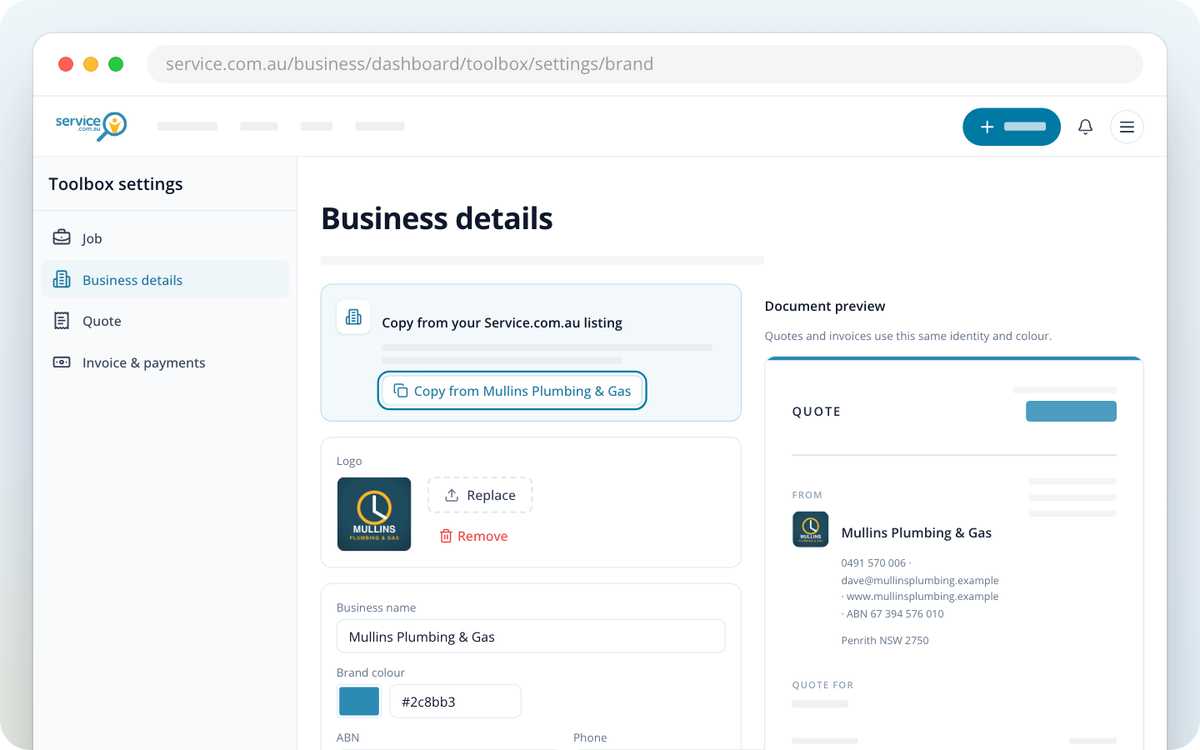
Business details controls what homeowners see on your quotes and invoices. A Document preview beside the form shows how your quotes and invoices will look as you type.
Open Business details
Select Business details in Toolbox settings.
Copy your listing details (optional)
If you have a listing, you can start from it. Under Copy from your Service.com.au listing, click on Copy from followed by your listing's name. If you have more than one listing, choose one under Listing to copy, then click on Copy listing details. This fills in your business name, ABN, phone, email, website, location and logo from the listing. Nothing copied this way is saved, including the logo, until you click on Save business details.
Add your logo
Under Logo, upload an image. A logo you upload saves straight away. To change it later, use Replace or Remove.
Check your details
Enter or check your Business name, Brand colour, ABN, Phone, Email, Website and Business address.
Save
Click on Save business details.
If you don't have Toolbox, the page shows your saved business details but you can't change them.
How Business Details Relates to Your Listing
Your listing and your business details are separate. Your listing is what homeowners see on Service.com.au, and you edit it from Listings. Business details is only for your quotes and invoices.
- Changing your business details doesn't change your listing, and changing your listing doesn't overwrite details you've saved here.
- If you have one listing and leave a field blank here (business name, ABN, phone, email, website or address), your quotes and invoices use that detail from your listing instead. Your logo isn't filled in this way. If you have more than one listing, blank fields stay blank on your quotes and invoices.
- Copy from your Service.com.au listing copies your listing's details once. Check them, then save.
GST
Registered for GST is one switch, and you'll find it in both Quote and Invoice & payments. Turning it on or off saves straight away. When it's on, new quotes and invoices include GST. Your business name and ABN must be set in Business details before you can send a document with GST.
Quote Settings
Open Quote
Select Quote in Toolbox settings.
Set how long quotes are valid
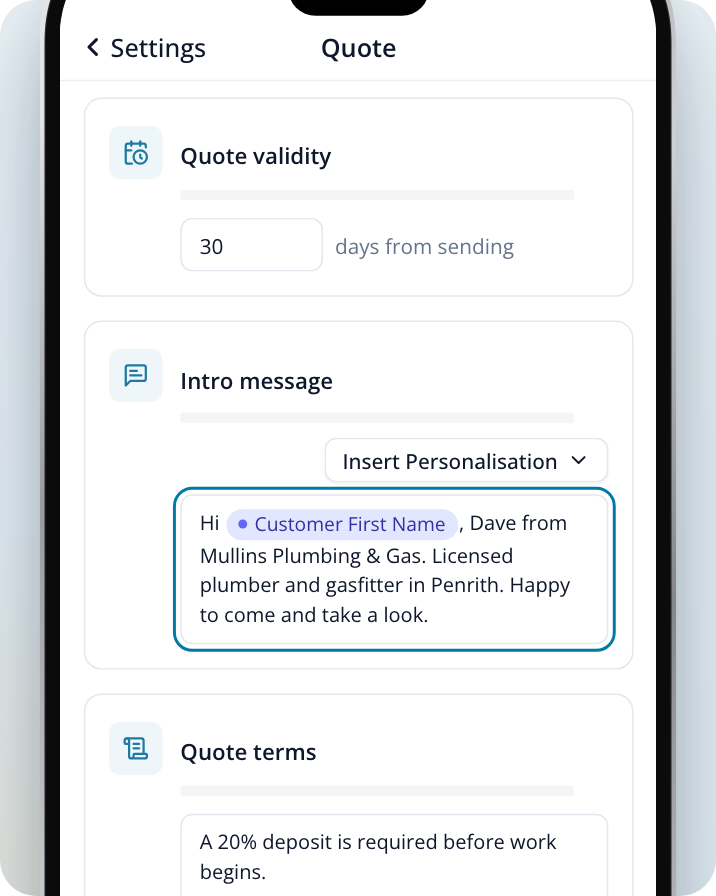
Under Quote validity, enter the number of days from sending (1 to 365). The expiry date is added when you send a quote, and changing this doesn't affect quotes you've already sent.
Write your intro message
Under Intro message, write the introduction you want filled in each time you start a quote. You can add personalisation, which fills in from the job when you send. This is the same message as Inbox settings > Intro Message, so changing it in one place changes it in the other. See Set Up Your Intro Message and Quick Messages.
Add your quote terms
Under Quote terms, enter the terms shown at the bottom of your quotes, such as a deposit you need before work starts.
Save
Click on Save quote settings.
Invoice and Payment Settings
Invoice & payments is also where you set up card payments with Set up card payments. Each section below has its own save button.
Open Invoice & payments
Select Invoice & payments in Toolbox settings.
Set your payment terms
Under Payment terms, enter how many days from sending an invoice is due (1 to 365). This sets the due date on every invoice you send. Click on Save terms.
Add your invoice terms
Under Invoice terms, enter the terms shown at the bottom of your invoices. Keep these separate from your quote terms. Click on Save terms.
Add your bank transfer details
In the Bank transfer details box, type your BSB, account number, account name and the reference you'd like homeowners to use. These show on every invoice. Click on Save details.
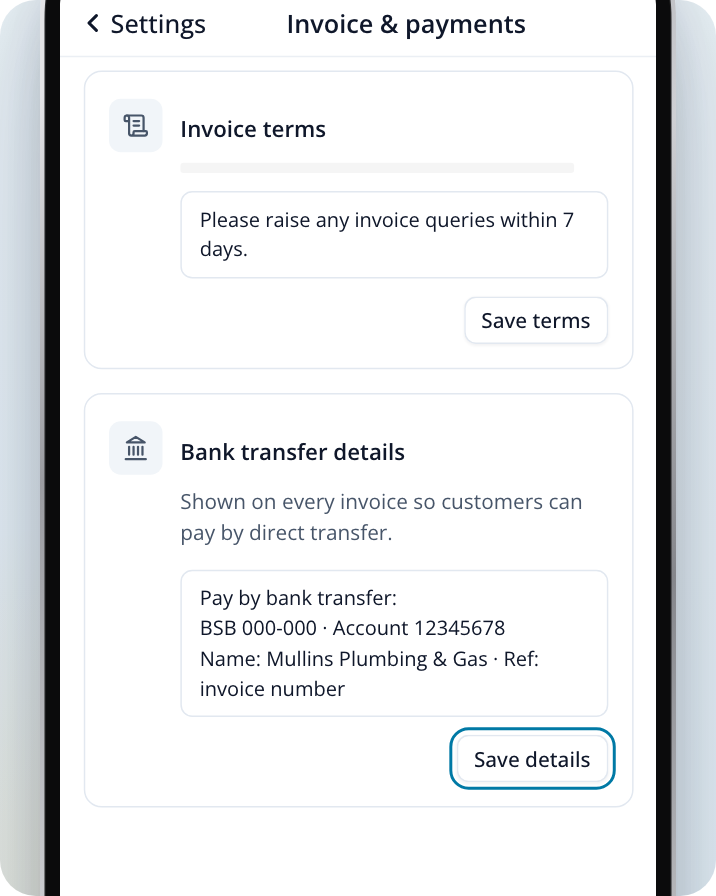
To remove invoice terms or bank transfer details, clear the box and save.
Job Settings
Job sets the defaults you use when you add and schedule jobs.
- Lead sources: add the places your work comes from (for example, a local sports club) and click on Add. They're suggested when you create or edit a job. Default sources lists the built-in options.
- Scheduling defaults: choose the Arrival window (Exact time, 30 minutes, 1 hour or 2 hours) and the Window position (Centred on start or From start), then click on Save scheduling defaults.
- Default Job view: choose which view opens first in Jobs (Active, To do or All), then click on Save default view. You can still switch views at any time.