Your price book holds the prices you charge most, like labour, call-out fees or materials, so you can add them to a quote or invoice without typing them again. You can add prices one at a time or import them all at once from a CSV file.
To add, change or import prices you need a Toolbox subscription. If your Toolbox subscription has ended, you can still view your saved prices, but you can't change them.
Open your price book
Open the menu
On a computer, click on the menu icon in the top right corner. On a phone or in the app, tap Menu.
Go to Price book
Select Price book. On a computer, you'll find it under Toolbox.
Add a price
Start a new item
Click on the + button at the top of your price book.
Enter the item and price
Enter a name in Item (for example, Labour or Call-out fee) and the amount in Price.
Add a unit if you charge by one
Enter a unit in Unit (optional), or tap a suggestion such as hr, ea, m² or day. Leave it blank for a fixed price.
Save it
Click on Add item.
Change or remove a price
Open the item
Click on the item in your price book list.
Change it
Change the Item, Price or Unit (optional), then click on Save changes.
Or remove it
To remove the item instead, click on the ... button at the top of the item, select Remove item, then click on Remove item again to confirm.
Removing an item takes it out of your price book only. Quotes you've already made keep their line items.
Import prices from a CSV file
If you already keep your prices in a spreadsheet or another job app, you can bring them all in at once. Most spreadsheets and job apps can save a list as a CSV file. Look for Export or Save as.
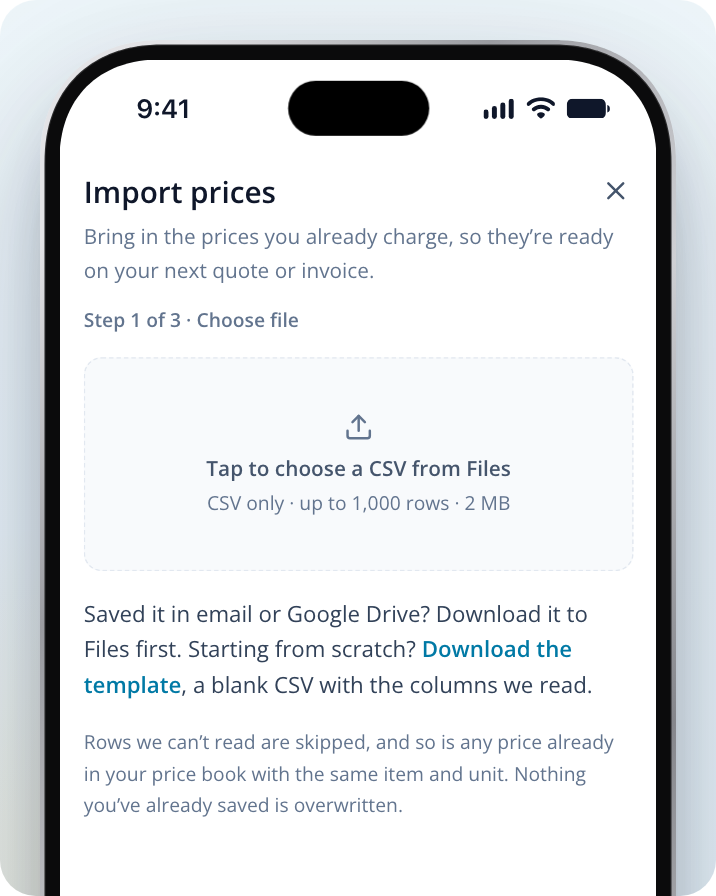
The file can be up to 1,000 rows and 2 MB. If you're starting from scratch, Download the template in the import window. It's a blank CSV with the columns your price book reads: Item, Price, Unit and GST.
In GST, put Yes or 10% for prices with GST, and No or 0 for prices without. A blank GST cell counts as no GST. Leave the column out and every price gets 10% GST.
Open Import prices
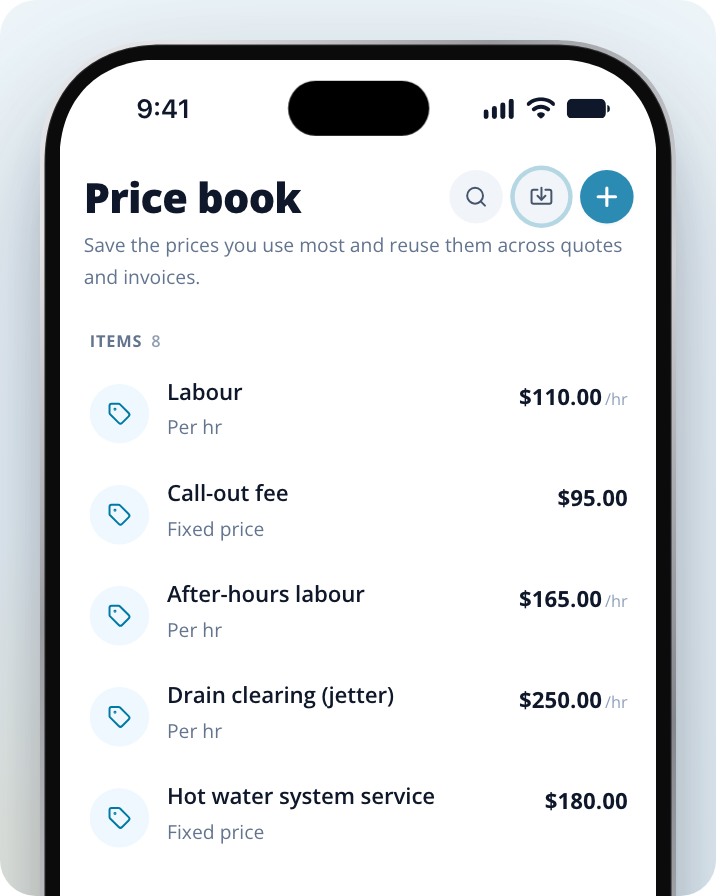
In your price book, click on the import button next to the + button. If your price book is empty, click on Import prices instead.
Choose your file
On a computer, drop your CSV file into the box or click it to choose a file, then click on Next. On a phone, tap the box or Choose a file and pick the CSV from Files. If the file is in your email or Google Drive, download it to Files first.
Match your columns
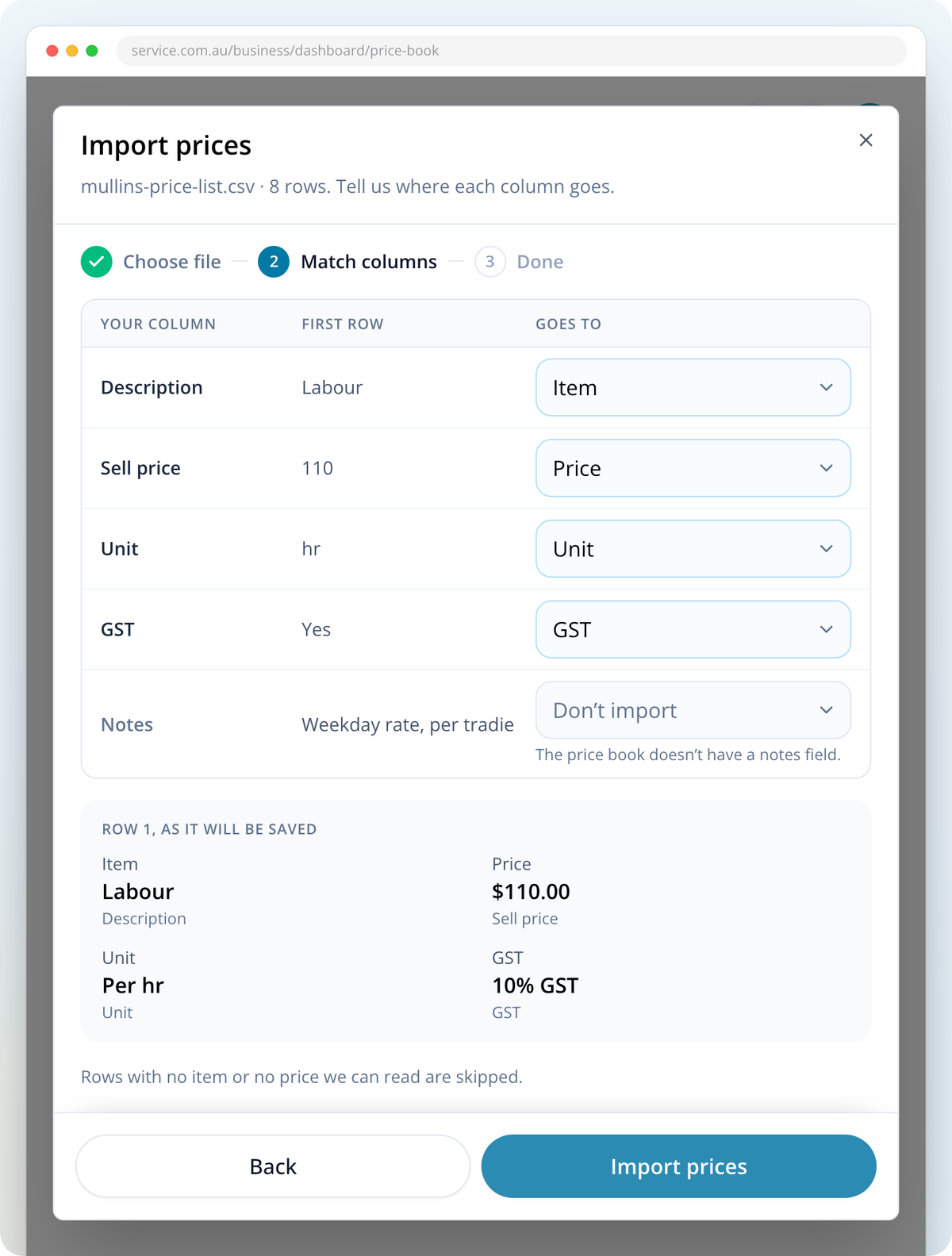
For each column in your file, select where it goes under Goes to: Item, Price, Unit, GST or Don’t import. Most columns are matched for you from their headings. You need one column matched to Item and one to Price.
Check the first row
Look at Row 1, as it will be saved to make sure your first price looks right. Under each value you'll see the column it came from. If a value shows in red, that row will be skipped. If it doesn't look right, change the column matches.
Import
Click on Import prices. Large files can take a little while. You can close the window and the import keeps going. Open Import prices again to see how it went.
When the import finishes, you'll see how many prices were imported. They're in your price book straight away.
What happens to duplicates and rows that can't be read
- A price already in your price book with the same item and unit is skipped. Nothing you've already saved is overwritten.
- Rows with no item, or a price, unit or GST that can't be read, are skipped.
- Columns your price book doesn't keep, such as notes, categories, your cost price or item codes, are set to Don’t import, with a note saying why.
- If everything in the file is already in your price book, you'll see Nothing new to import.
- If you see None of these rows could be imported, check that your item and price columns are matched correctly and that the prices are numbers.
- If you see Some prices clash, two rows have the same item and unit and differ only by an accent or a symbol. Change one in your file, then choose the file again. Nothing was added.
- If you see a message that lots of imports are running, nothing was added. Try again in a minute.
Use your saved prices on quotes and invoices
When you add an item to a quote or invoice, you'll see Add an item. Search your price book or pick from Saved items. Each saved item shows its price, whether it has GST and its unit.
Picking a saved item fills in the description, unit and price for you. You can still change the price on that quote. If you do, tick Update [item] in price book from [old price] to [new price] to save the new price for next time.
To save a new item while you're writing a quote, select Add a custom item, enter the details, then tick Save this item to my price book before you click on Save line.