To get paid for a job, create an invoice from the job or from an accepted quote and send it by SMS or email. The homeowner gets a link to view the invoice, and once you've set up card payments they can pay by card straight from it.
Create an invoice
Open the job
Go to Jobs and open the job you want to bill.
Start the invoice
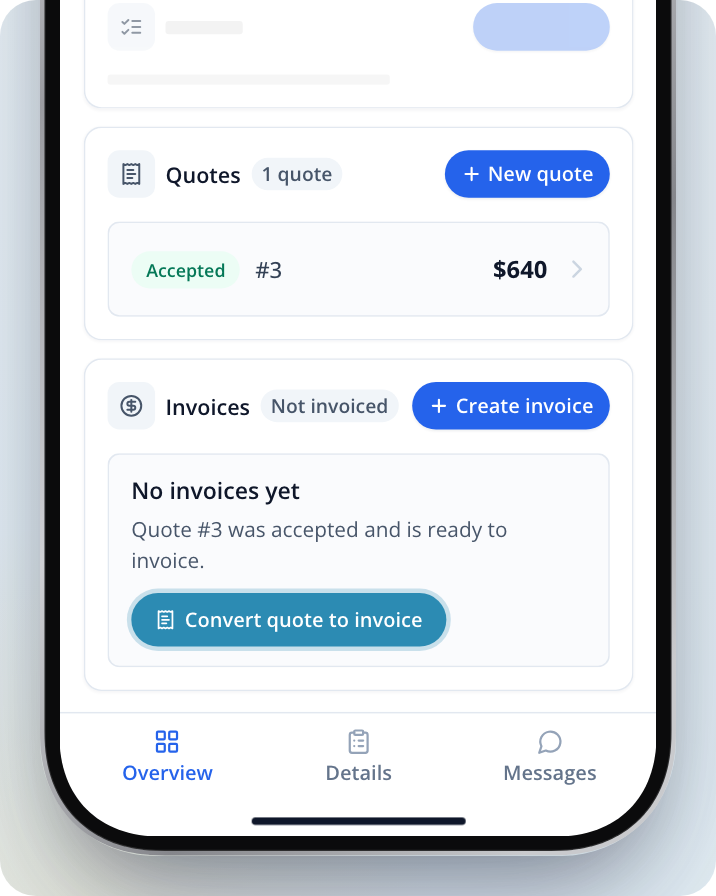
In the job's Invoices section, select Create invoice (or New invoice if the job already has one). If a quote on the job was accepted and the job has no invoices yet, you can select Convert quote to invoice to copy its lines across. You'll also find Convert to invoice on an accepted quote itself.
Check the customer and line items
Make sure a customer is chosen and every line has a price. You can't send the invoice until both are done.
Set when payment is due
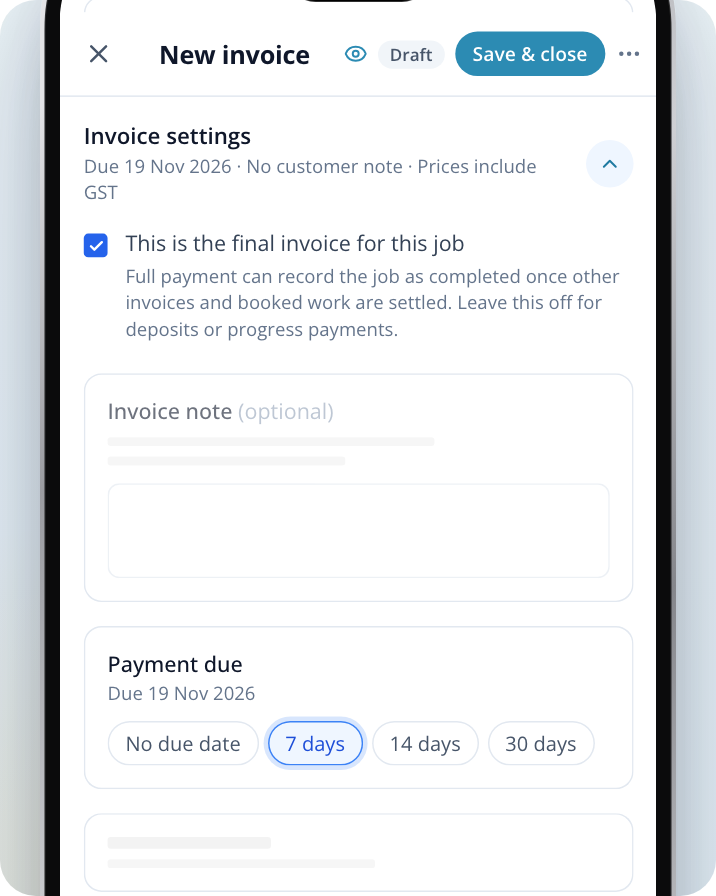
Open Invoice settings and, under Payment due, select 7 days, 14 days, 30 days or No due date. If you choose No due date, the invoice still gets a due date when you send it, from the Payment terms in Invoice & payments (7 days unless you've changed it).
Mark the final invoice, if it is one
Tick This is the final invoice for this job when this invoice covers the rest of the job. Leave it off for deposits or progress payments.
Invoicing a lead job you won on Service.com.au is part of your listing. Invoicing a job you added yourself needs Toolbox.
Send the invoice
Review and send
Select Review & send.
Choose how to send it
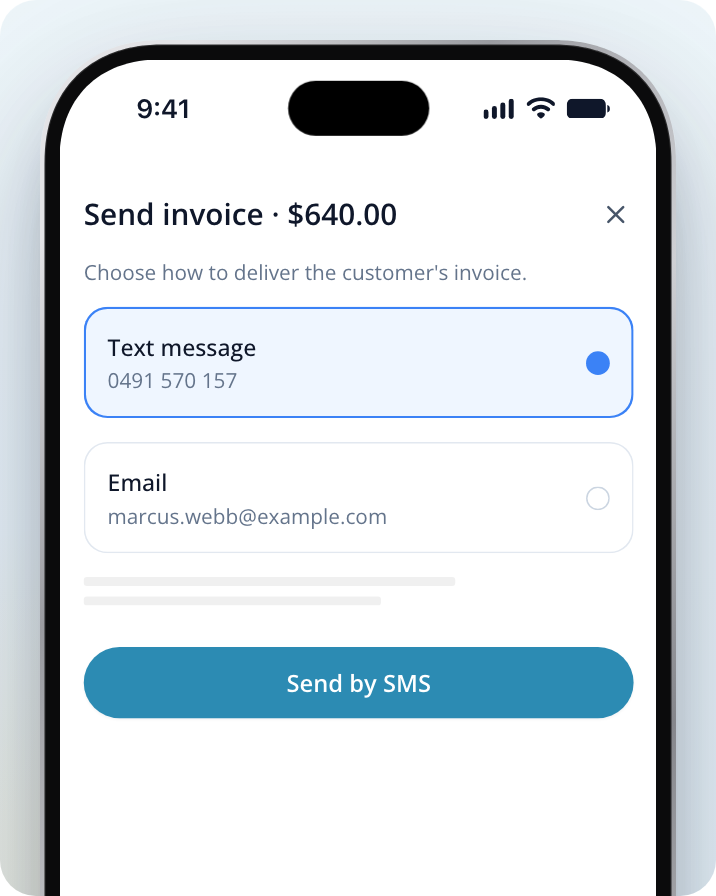
Select Text message or Email. An option is greyed out if there's no mobile or email on file for the customer.
Send
Select Send by SMS or Send by email. The homeowner gets a message with a link to view the invoice.
Once the invoice is sent, it shows a Customer link you can copy and share yourself. While the invoice is unpaid, you can also select Show QR for the customer to scan & pay so the homeowner can pay on the spot from their phone.
Set your invoice terms
Your invoice terms appear at the bottom of every invoice, separate from the terms homeowners see before accepting a quote. Saving invoice terms needs Toolbox.
Open Invoice & payments
Go to your Toolbox settings and open Invoice & payments.
Enter your terms
Under Invoice terms, type your terms, for example how long homeowners have to raise a query.
Save
Select Save terms.
Set up card payments and payouts
Before homeowners can pay you by card, set up card payments once. Setup takes a few minutes.
Open Invoice & payments
Go to your Toolbox settings and open Invoice & payments.
Have your details ready
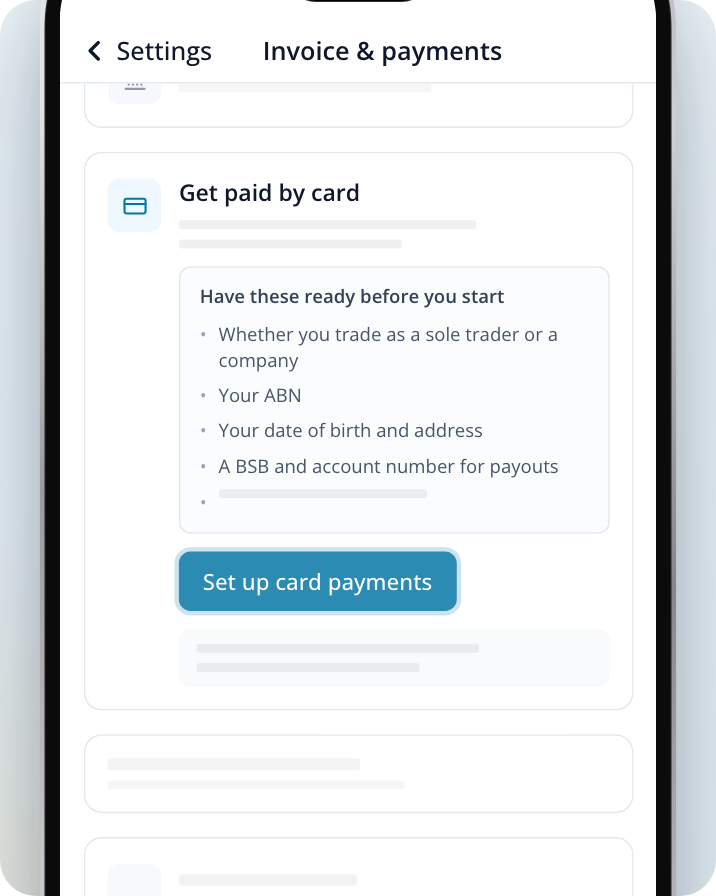
You'll need to know whether you trade as a sole trader or a company, plus your ABN, your date of birth and address, a BSB and account number for payouts, and photo ID if you're asked to verify who you are.
Start setup
Select Set up card payments and follow the steps. If you stop part way, come back to Invoice & payments, where the card is headed Finish setting up card payments, and select Continue setup.
Check you're ready
When setup is finished, Invoice & payments shows Card payments active.
Payouts usually reach your bank account within a couple of business days. Your first payout takes a little longer while your account is checked.
What card payments cost
The standard card processing fee is taken from each card payment before it's paid out to you. Invoice & payments shows the estimated fee for a domestic card. Service.com.au doesn't add a margin on top.
Paid, partially paid and overdue
Each invoice shows its status on the job's Invoices section and at the top of the invoice:
- Draft: not sent yet.
- Sent or Viewed: sent, and not paid yet.
- Partially paid: some of it has been paid. The invoice shows what's been Paid and the Balance due.
- Paid: paid in full.
- Overdue: not fully paid and past its due date.
- Voided: cancelled.
Card payments are recorded on the invoice for you, under Payments.
Record a bank transfer or cash payment
If a homeowner pays you another way, record it so the invoice stays up to date.
Open the invoice
Open the invoice from the job's Invoices section.
Record the payment
Select Record a payment, enter the Amount received and choose Bank transfer, Cash or Other under How was it paid?
Save
Select Record payment.
If an invoice was sent by mistake and nothing has been paid, select Void invoice to cancel it.
Need Assistance?
If you have questions, contact us at support@service.com.au or call 1300 523 787. Our team is here to help!