You can quote by talking. Open a new quote in Toolbox, tap the microphone and describe the job, including quantities and any prices you know. Toolbox turns what you said into line items, using the prices saved in your price book. You check them, fill in anything missing and send the quote before you leave the site.
Talk the job through
Start a new quote
On a computer, open the Toolbox menu in the top bar, select Quotes, then click the + button. On a phone or in the app, tap Menu, then Quotes under Toolbox, then the + button.
Tap the microphone
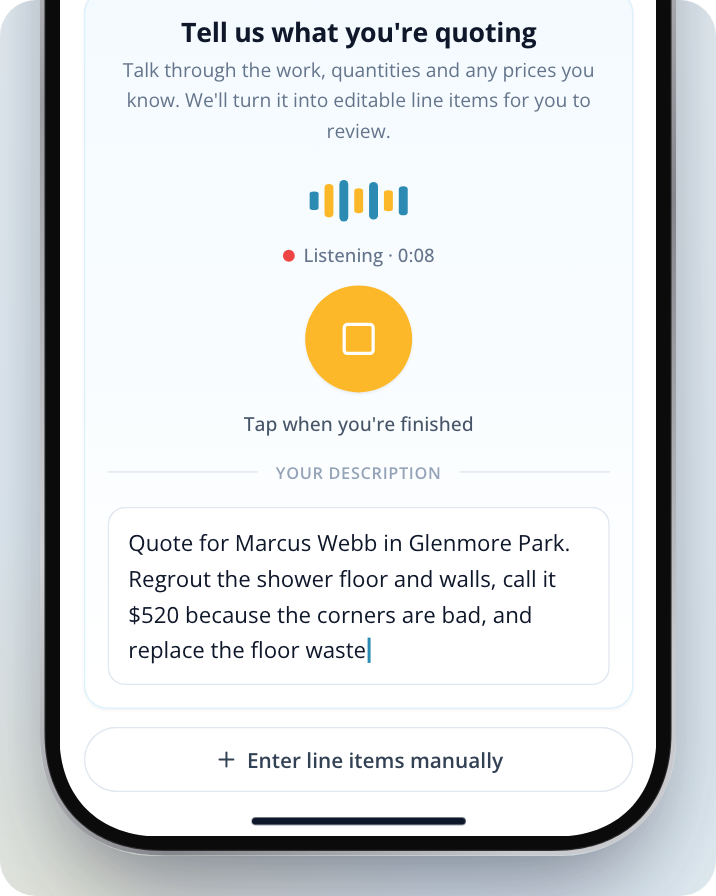
Under Tell us what you're quoting, tap the blue microphone. The first time, your phone or browser asks to use the microphone. Allow it.
Describe the work
Talk it through as you would to the customer: what you'll do, how many of each, and any prices you already know. For example, "Replace the hot-water system, remove the old unit and allow $250 for disposal." While you talk, the screen shows Listening and a timer. If you mention the customer's name, phone, email or address, those are filled in on the quote too.
Stop recording
Tap the amber button again when you're finished. Your words appear in the box as you talk, and you can correct anything there before you go on.
Build the quote
Tap Build my quote. Your description becomes line items you can change.
You don't have to talk. You can type the same description into the box (under or type it out) and tap Build my quote, or tap Enter line items manually to add lines yourself.
Check and edit the quote before sending
Nothing is sent until you choose to send it.
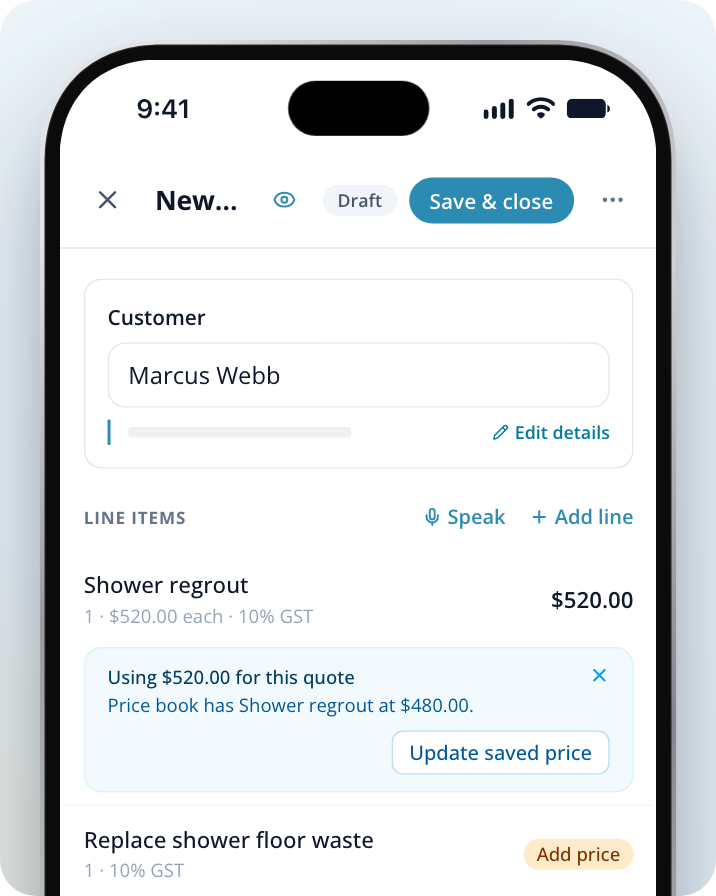
- Matched prices. Work that matches an item in your price book uses your saved price.
- Prices you said. A price you said out loud is used for that line.
- Add price. A line with no price shows Add price. Tap the line and enter one. You can't send the quote until every line has a price; Toolbox never guesses one.
- Changing a line. Tap any line to change its description, quantity or price, or to delete it.
- Different from your price book. If a line's price differs from the saved one, the quote shows both. Tap Update saved price to save the new price to your price book, or close the notice to use it on this quote only.
- More work. Tap Speak, talk through the extra work, then tap Add to quote. Or tap Add line to type one in. New lines are added to the quote.
Preview what your customer sees
On a computer the preview shows beside the quote. On a phone, tap the eye icon at the top.
Review and send
Tap Review & send. If you haven't chosen a customer yet, the quote asks you to do that first.
Choose how to send it
Select Text message or Email, then tap Send by SMS or Send by email. Your customer gets a link to review the quote.
If you need to stop partway, tap Save & close to keep the quote as a draft.
Get better quotes from talking
- Fill your price book. Toolbox can only use your prices for items that are in your price book. Add the work you do most often under Toolbox > Price book on a computer, or Menu > Price book on a phone, using Add item. Work it can't match comes through without a price.
- Say quantities and units. "Three downlights" or "20 metres of gutter" gives you the right quantity on each line.
- Allow the microphone. If you see "Microphone access was blocked. Allow it for this site, then try again.", turn on microphone access for Service.com.au in your browser or phone settings, then tap the microphone again.
- If the microphone isn't offered. Some browsers can't record here. You'll see a message asking you to type the work out instead, and the line items are still built from what you type.
Need Assistance?
If you have questions, contact us at support@service.com.au or call 1300 523 787. Our team is here to help!