You can cancel your Toolbox subscription, or change the card it's charged to, from Billing. Look for the Toolbox section and select Manage. This works the same during your free month and after it.
Cancel Toolbox
Open Billing
Log in to your account. On a computer, click on the menu icon in the top right corner and select Billing. On a phone, tap Menu and then Billing.
Find the Toolbox section
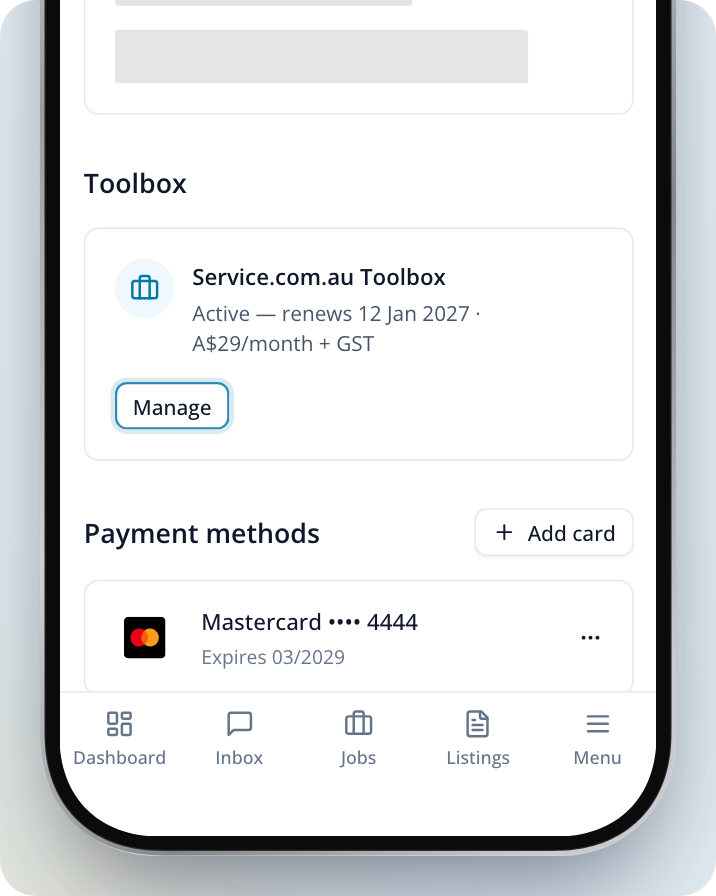
Scroll to Toolbox. The Service.com.au Toolbox card shows where your subscription is up to. During your free month it reads Free trial with the date of your first payment. After that it reads Active with your renewal date.
Select Manage
Select Manage. A secure billing page opens in your browser.
Cancel your subscription
Select the option to cancel and follow the prompts to confirm.
After you cancel, the Toolbox card keeps reading Free trial or Active until your current period ends. Check the billing page before you confirm to see when your next payment is due. If you're not sure whether you'll be charged, contact us before you cancel.
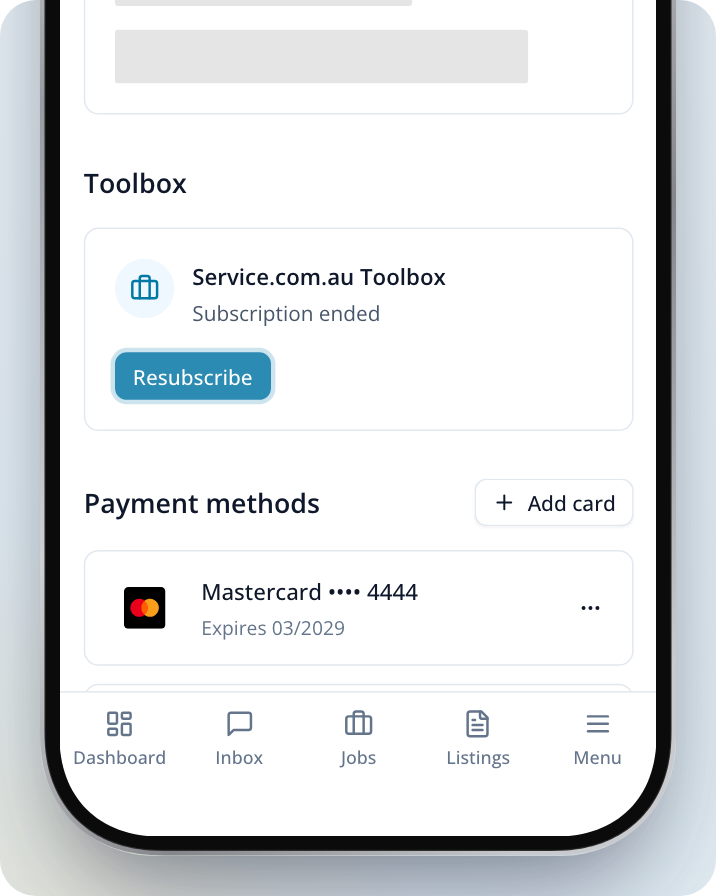
Once the subscription has ended, the Toolbox card reads Subscription ended and shows a Resubscribe button, which takes you straight to checkout.
Change the card used for Toolbox
Open Billing
Go to Billing from the menu, the same way as above.
Select Manage on the Toolbox card
In the Toolbox section, select Manage.
Update your card
On the billing page that opens, add your new card and make it the one you pay with.
If a payment doesn't go through, the Toolbox card shows Payment issue — access is paused until it's fixed. Your Toolbox access is paused until the payment goes through. Select Manage and update your card to fix it.
What happens to your jobs, customers, quotes and invoices
Once your Toolbox access ends, you can still open what you've already added, but you can't add or change it unless you resubscribe.
- You can still open your jobs, customers, to-dos and Price book from the menu. Your price book becomes read-only.
- On a job you added yourself, the job's Quotes and Invoices sections show Locked. To open the quotes and invoices you've already made, go to Quotes or Invoices in the menu.
- You can't add or change jobs, customers, to-dos or price book items. You also can't save changes to your Business details or your Invoice & payments settings.
- Quotes and invoices on jobs that came from a Service.com.au lead aren't part of Toolbox. You can keep creating and sending them.
- Your logo and brand colour no longer appear on the quotes and invoices your customers open.
- Customers can still open invoices you've already sent. If you take card payments, whether they can pay online depends on your payments setup, not your Toolbox subscription.
If you have questions about a particular record after cancelling, contact us.
Toolbox is separate from your Premium membership
Toolbox is a separate subscription from your Premium membership, and each one has its own card on Billing. Cancelling Toolbox doesn't change your Premium plan, and cancelling Premium doesn't cancel Toolbox. To cancel your Premium membership, see How to Cancel Your Membership.
If your Premium plan was set up by our team and Billing shows Account managed manually, you still cancel Toolbox yourself from the Toolbox section.
Need Assistance?
If you have questions, contact us at support@service.com.au or call 1300 523 787. Our team is here to help!