You can add customers to Toolbox one at a time, or import the customers you already have from a CSV file. Once a customer is saved, their details are ready to use on your next job or quote.
Find your customer list
On a computer, Click on Toolbox in the top bar and Select Customers. On a phone, Open Menu and tap Customers under Toolbox.
The list is sorted by name. Use the search button at the top to find a customer by name, phone, email or address.
Select a customer to open their page. It shows:
- Contact details: their phone, email and address. Tap the phone number to call them or the email to write to them.
- Jobs: every job linked to this customer, with each job's status. Select a job to open it.
To change a customer's details, Select Edit (on a phone, the pencil icon), make your changes and Select Save changes.
Add a customer by hand
Open your customer list
Navigate to Toolbox > Customers.
Start a new customer
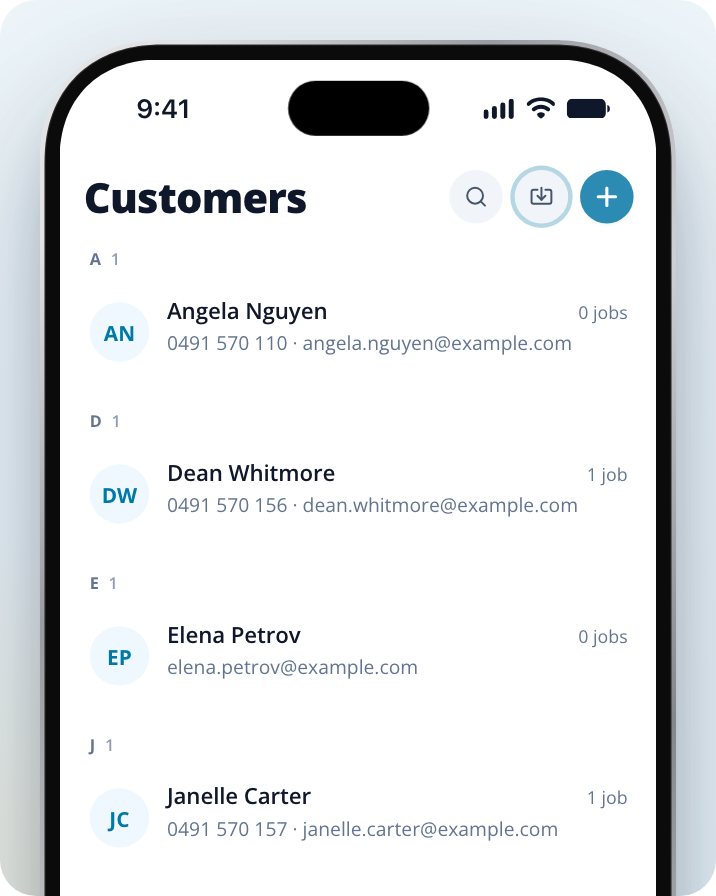
Select the blue + button at the top of the list.
Enter their details
Enter their Name. Phone, Email and Address are optional. Start typing the address and pick it from the suggestions.
Save the customer
Select Add customer. Their customer page opens.
If you add a customer who's already in your list with the same phone number or email, Toolbox fills in any details the saved customer is missing instead of adding them twice.
Import customers from a CSV file
If you keep your customers in a spreadsheet or another job app, you can bring them all in at once.
Prepare your file
- The file must be a CSV. Most job apps and spreadsheets can save a list as CSV: look for Export or Save as.
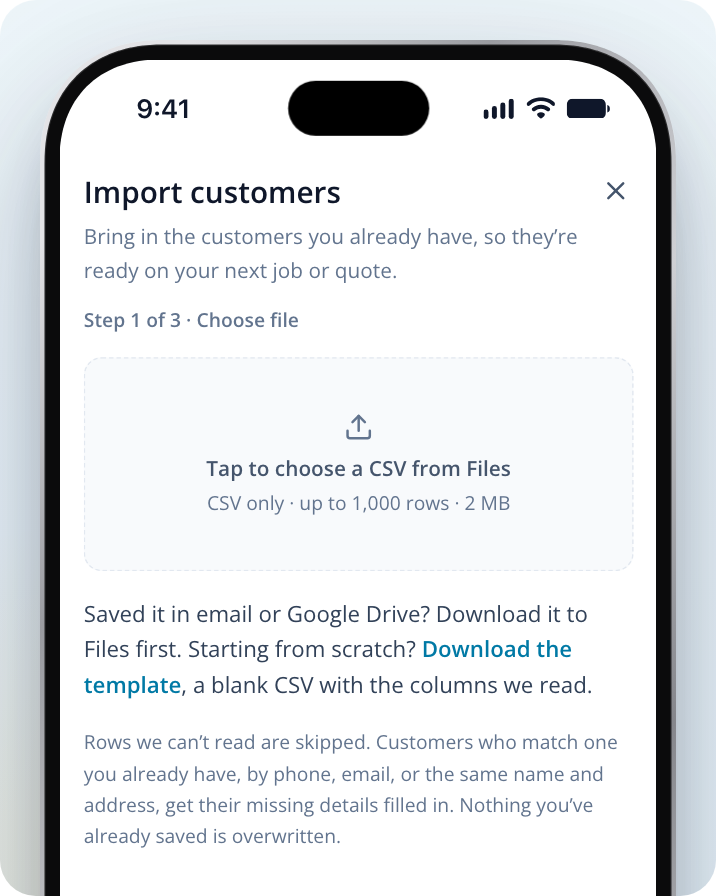
- A file can have up to 1,000 rows and be up to 2 MB.
- Each customer needs a name. Rows with no name are skipped.
- Starting from scratch? In the import window, Select Download the template for a blank CSV with the columns Toolbox reads: Name, Phone, Email and Address.
- On a phone, save the file to Files first. If it's in an email or Google Drive, download it to Files before you start.
Your columns don't need to match the template exactly. Toolbox recognises common headings such as "First name" and "Surname", "Mobile", "Suburb" and "Postcode", and you can match any column yourself in the next step.
Import the file
Open the import
Navigate to Toolbox > Customers and Select the import button (next to the blue +) at the top of the list. The Import customers window opens.
Choose your CSV
On a computer, drop your file on the box or click it to choose a file, then Select Next. On a phone, tap Choose a file (or tap the box, "Tap to choose a CSV from Files") and pick the CSV from Files.
Match your columns
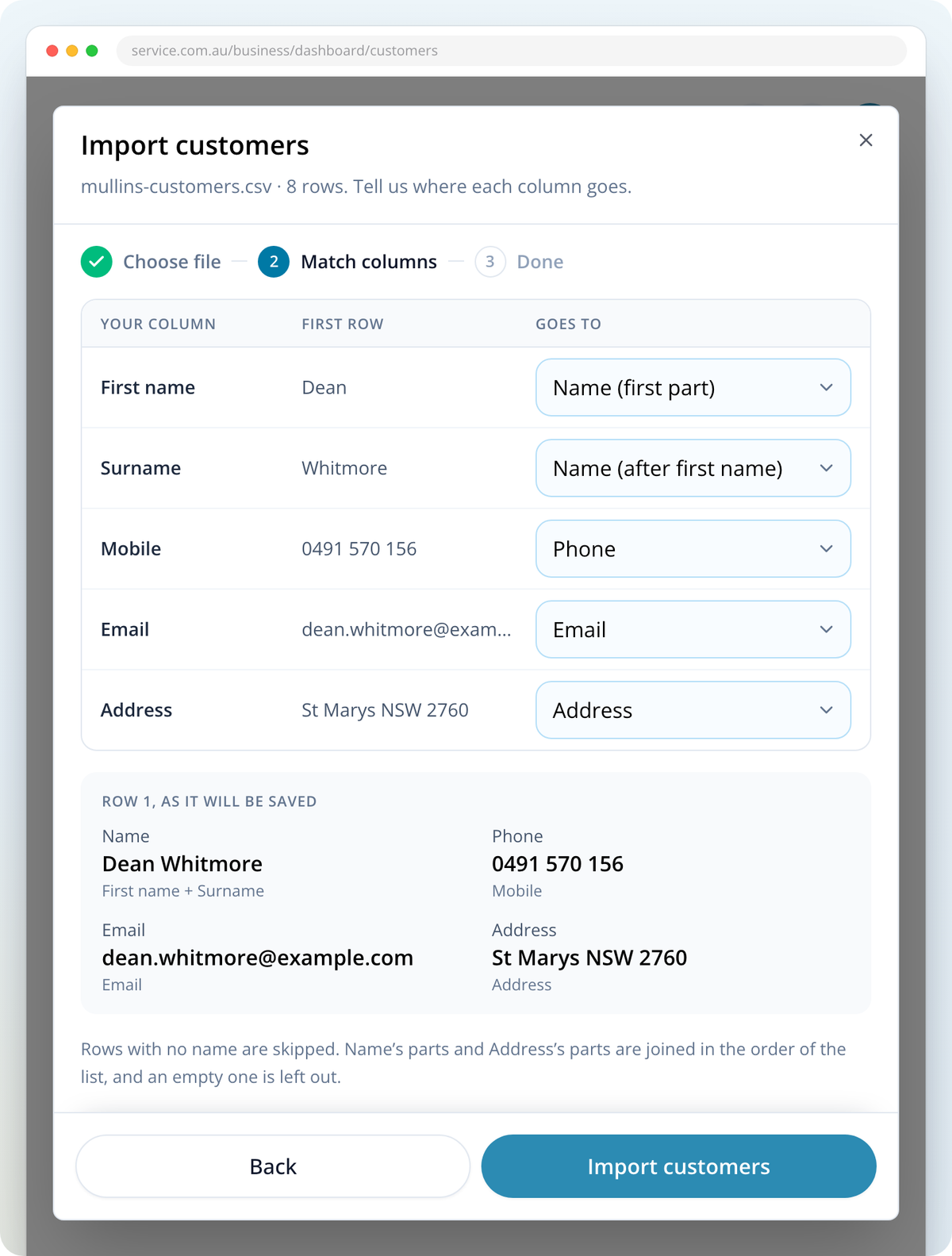
Each column in your file is listed with its first row. Under Goes to, check where each column will be saved, and change any that are wrong. Choose Don’t import for columns you don't need.
Check the preview
Row 1, as it will be saved shows how your first customer will look, and names the column each value came from (for example "First name + Surname"). If row 1 has no name, it shows "Missing: this row will be skipped". If you see "Match a column to Name, or to both parts of Name.", match a column to Name, or to Name (first part) and Name (after first name).
Import
Select Import customers. When it's finished you'll see how many customers were imported, and they're in Customers.
A large import can take a little while. You can close the window and it carries on. Open the import again to see how it went.
Tips for matching columns
- If your file has first and last names in separate columns, match them to Name (first part) and Name (after first name). They're joined into one name.
- If your address is split into columns, match them to Address (street), Address (suburb), Address (state) and Address (postcode). They're joined into one address.
- If your file has two phone columns, a mobile number goes to Phone and the other goes to Phone (backup), which is used only when the mobile is blank. Each customer keeps one phone number.
- A Notes or Company column is set to Don’t import, with the reason under it. Customers don't have a notes field, and they have one name, so only one column goes to Name.
Customers you already have
Importing doesn't create duplicates. A row matches a customer already in your list if it has the same phone number, the same email, or the same name and address. Toolbox then fills in any details that customer is missing. Nothing you've already saved is overwritten.
If every row in your file is already in your list, you'll see Nothing new to import. That means it's safe to import the same file twice.