Walkthroughs are short guided tours of your dashboard. Each one highlights the real screen one part at a time and explains what it does. A walkthrough starts on its own the first time you reach the page it covers, and you can replay any of them from Walkthroughs in your menu.
When a walkthrough starts
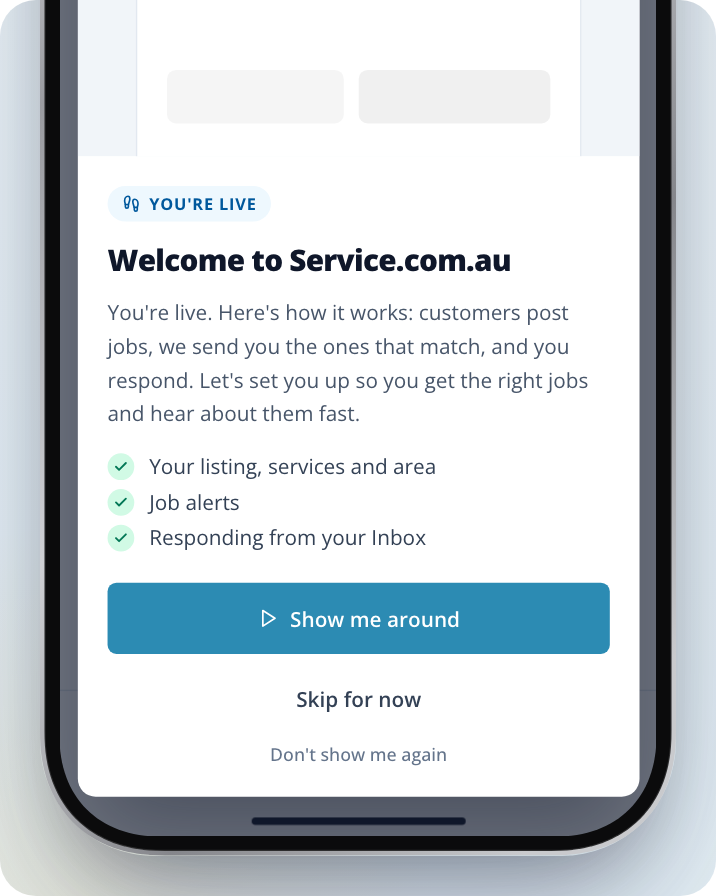
Walkthroughs are for businesses signed in to their dashboard. The first time you reach a page that has a walkthrough, a pop-up shows you what the tour covers. From there you can:
- Get Started to begin the tour (the welcome tour for Premium listings says Show me around)
- Skip for now to close it. It comes back the next time you open that page.
- Don't show me again to hide it for good. You can still run it from Walkthroughs later.
Once you finish a walkthrough, or choose Don't show me again, it won't start on its own again.
The walkthroughs you'll see
Which walkthroughs you get depends on your listing. On the Walkthroughs page, each walkthrough shows its name, a line about what it covers, and about how many minutes it takes.
- Welcome: for Basic listings. It covers your listing, photos of your work, and the services and area that decide your leads. It starts on your dashboard home.
- Getting set up: for Premium listings. The pop-up is titled "Welcome to Service.com.au" and covers your listing, services and area, job alerts and responding from your Inbox. It starts on your dashboard home.
- Winning work: for Premium listings, after Getting set up. The pop-up is titled "How to win work" and covers following up, marking a job Hired, earning badges and checking Insights.
- Your first job request: for Premium listings. The pop-up is titled "Here's how a job request works". It starts the first time you open a lead from your Inbox and shows how to respond or pass on it.
- Your first job: for Premium listings. The pop-up is titled "Every step, in one place". It starts the first time you open a job in Jobs.
- Read your Insights: for Premium listings that have an Insights report. The pop-up is titled "Find your way around Insights". Start it from the Walkthroughs page.
- Earn your Verified badge: for listings that don't have the Verified badge yet. The pop-up is titled "Get the Verified badge". It starts when you open the verification page of your listing.
- Find your way around Toolbox and Add your first job: for businesses with Toolbox. Start them from the Walkthroughs page.
If your listing was Premium before and you've come back, you may see a Welcome back tour on your dashboard home instead of Getting set up. It isn't listed on the Walkthroughs page.
Moving through a walkthrough
Each step shows a short note next to the part of the screen it's about. The note says which step you're on, for example "Step 8 of 14", and has a bar with one segment for each step.
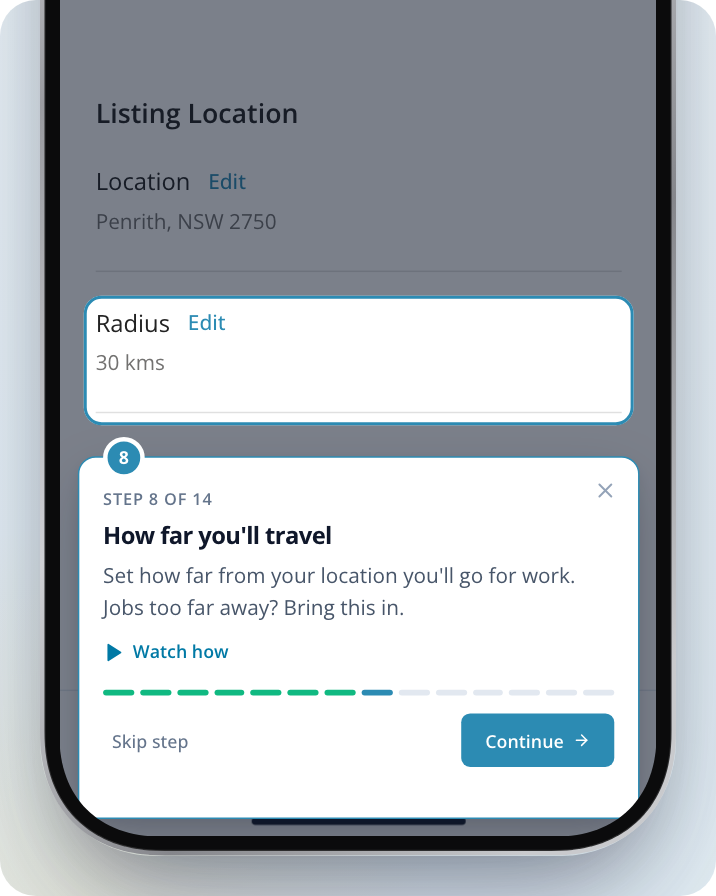
- Select Continue to go to the next step.
- Select Skip step to pass over a step. Some steps wait for you to do something, such as open a job, and don't have this option.
- Select the X (Exit walkthrough) on the note to leave. You'll be asked to Continue walkthrough, Exit walkthrough or choose Don't show me again. Your changes so far are saved either way. A walkthrough you leave partway through shows In progress on the Walkthroughs page.
Replay a walkthrough
Open your menu
On a computer, Click on the menu icon in the top right corner. On a phone, Tap Menu in the bottom bar.
Go to Walkthroughs
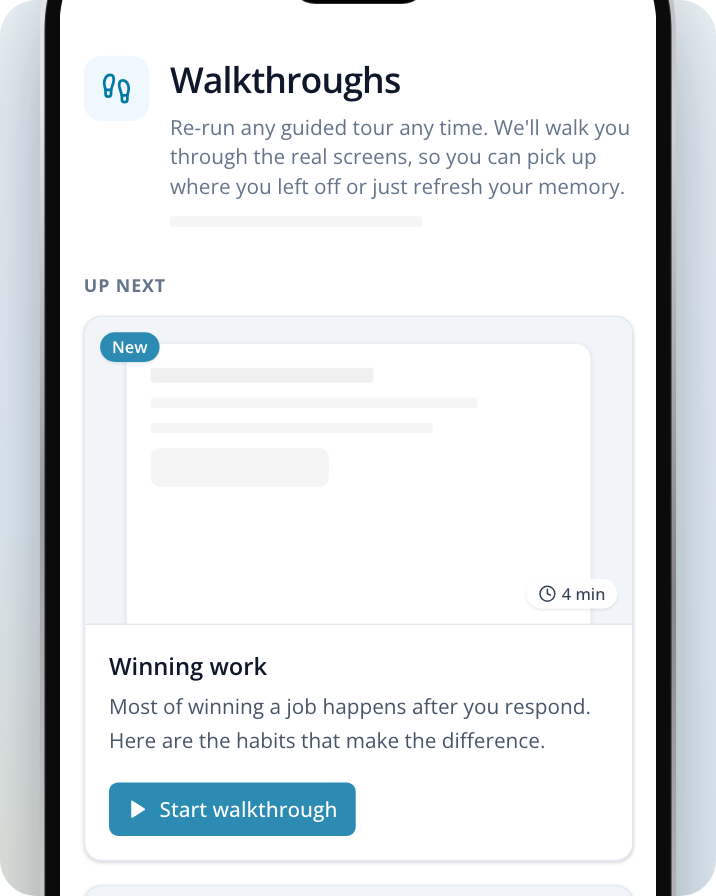
Select Walkthroughs. Walkthroughs waiting for you are marked New and listed first, under Up next.
Start the walkthrough
Select Start walkthrough on the one you want. It takes you to the right page and begins. When you start a walkthrough from this page, its pop-up doesn't offer Don't show me again. If you left a walkthrough partway through, its button may say Pick up where you left off or Start again.
Book a call with our team
If you'd rather someone showed you, the last screen of a walkthrough and the Leave the walkthrough? pop-up can offer a call.
- On a Premium listing, Select Book a call with our team to book an onboarding call. It opens a booking page in a new tab. See How to Book an Onboarding Call for what the call covers.
- On a Basic listing, Select Get a call from our sales team to ask us to call you about our plans.