To-dos are a Toolbox list for the things you need to remember, like a call-back or a follow-up. You can keep a to-do on its own or put it on a job, give it a date and time, and tick it off when it's done.
Where to find your to-dos
- On a computer: Click on Toolbox in the top bar, then To-dos. You can also open the menu icon in the top right corner and select To-dos under Toolbox. Your dashboard home also has a To-dos card under your listing, with All to-dos and its own Add to-do.
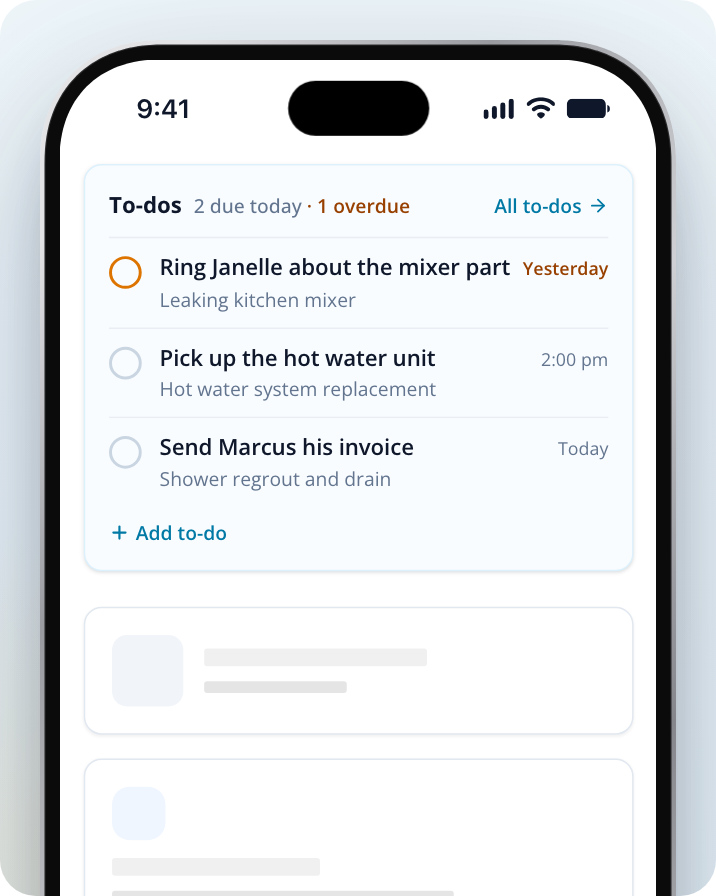
- On a phone or in the app: your dashboard home shows a To-dos card with what's due today and anything overdue. Until you've finished setting up Toolbox, the card sits under the setup checklist and only shows while something is due or overdue. Tap All to-dos to open the full list, or Add to-do to add one from the card.
- On a job: each job's overview has a To-dos section under the schedule, showing that job's to-dos.
If you don't have Toolbox, To-dos shows a lock, and selecting it shows you what Toolbox includes.
Add a to-do
Open your to-dos
Go to your To-dos page and click on Add to-do. On a phone, tap the + button at the top of the page.
Say what needs doing
Enter a title in What needs doing? Add any details under Notes.
Set when it's due
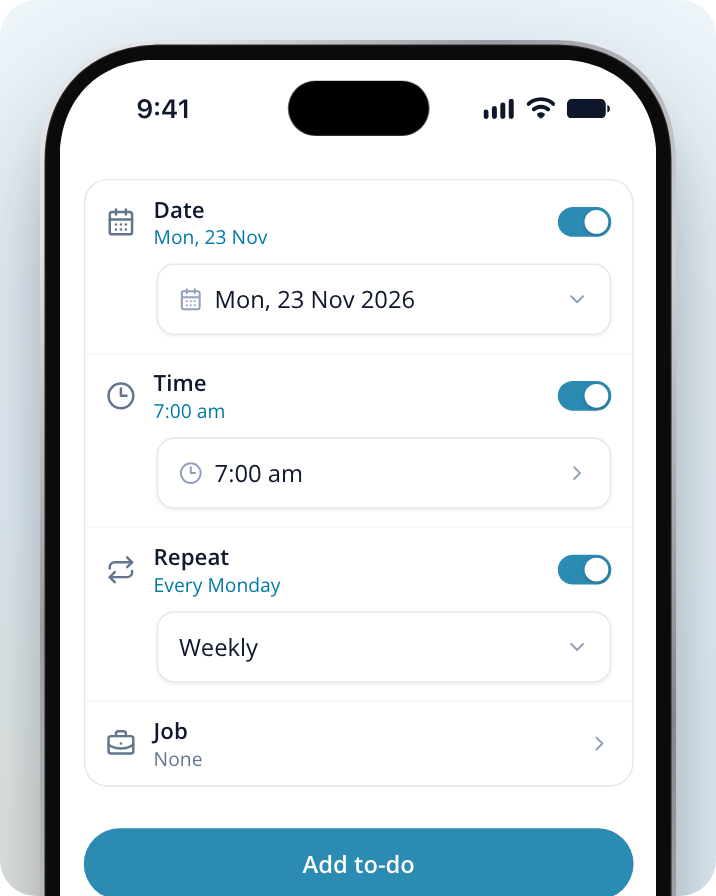
Turn on Date to pick a day, and Time if it's due at a set time. Turning on Time or Repeat turns Date on too, set to today, and turning Date off clears the time and repeat. Leave them all off for a to-do with no due date.
Make it repeat (optional)
Turn on Repeat and choose Daily, Weekly, Fortnightly, Monthly or Yearly. A repeating to-do keeps coming back until you delete it.
Put it on a job (optional)
Select Job and choose the job it belongs to, or None to keep it on its own.
Save it
Click on Add to-do. You'll see "To-do added".
Add a to-do to a job
Open the job
Go to Jobs and open the job.
Add the to-do
In the To-dos section, click on Add to-do. The to-do is already set to this job, so just add the title and when it's due, then click on Add to-do.
A to-do on a job shows in the job's To-dos section and on your To-dos page.
Tick off a to-do
Tick the circle next to a to-do to mark it done. You can also open it and click on Mark done.
A to-do you've ticked off today stays on your list until midnight, then moves to Done. To see older ones, select Done at the top of the To-dos page. Ticked one off by mistake? Tick it again to undo it.
Change or delete a to-do
Open the to-do
Click on the to-do in your list.
Make your changes
Change the title, notes, date, time, repeat or job, then click on Save changes.
Delete it (optional)
Click on the bin icon at the top of the to-do and confirm. For a repeating to-do, choose Skip this one to skip just this one, or Delete all to stop it repeating. Repeating to-dos you've already ticked off stay in Done.
Sort and search your list
- Group by Date shows your to-dos by when they're due, with overdue ones flagged. Group by Job shows them under each job.
- Click on the search icon to find a to-do by name.
Reminders
If you use the Service.com.au app, it sends you a notification when a to-do is due. A to-do with a time reminds you at that time. A to-do with only a date reminds you at 7 am that day. Tap the notification to open your to-dos. To-dos with no date don't send a reminder.