To create and send a quote, open the job and select Create quote. Add your prices, which can come from your price book, then send the quote by text message or email. The customer accepts it with one tap, and an accepted quote can be turned into the invoice.
Create a Quote From a Job
You can also start a quote from the Toolbox menu: Select Quotes, then the + button.
Open the job
Go to Jobs and Open the job you want to quote.
Start the quote
In the Quotes section, Select Create quote. If the job already has a quote, the button reads New quote.
Add your first line
Select Enter line items manually. The Add an item list opens, where you can search your price book or create a one-off item.
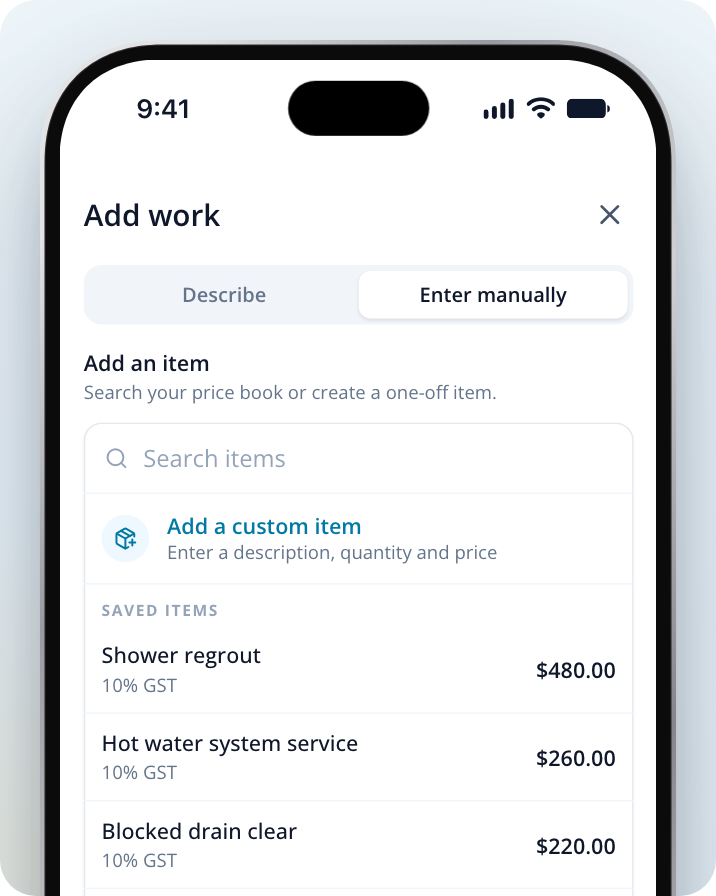
Pick a saved price or enter a new one
Select an item from your price book, or Select Add a custom item and type it in. Check the Item, Details (optional), Quantity, Unit price, Tax and Unit label (optional) fields.
Save the item to your price book
For a new item, tick Save this item to my price book so you don't have to type it again. If you changed the price of a saved item, the tickbox lets you update the price in your price book.
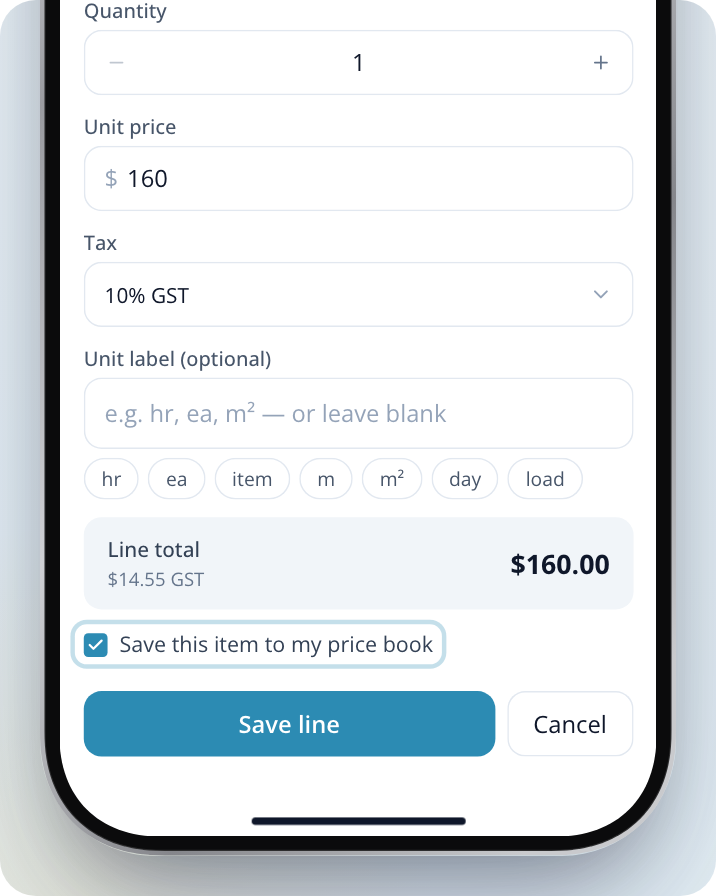
Save the line
Select Save line. To add more work, Select Add line and repeat.
Check what the customer will see
On a computer, the preview shows next to the quote. On a phone, tap the eye icon at the top of the quote to preview the customer's view.
Send the quote
Select Review & send. Choose Text message or Email, then Select Send by SMS or Send by email.
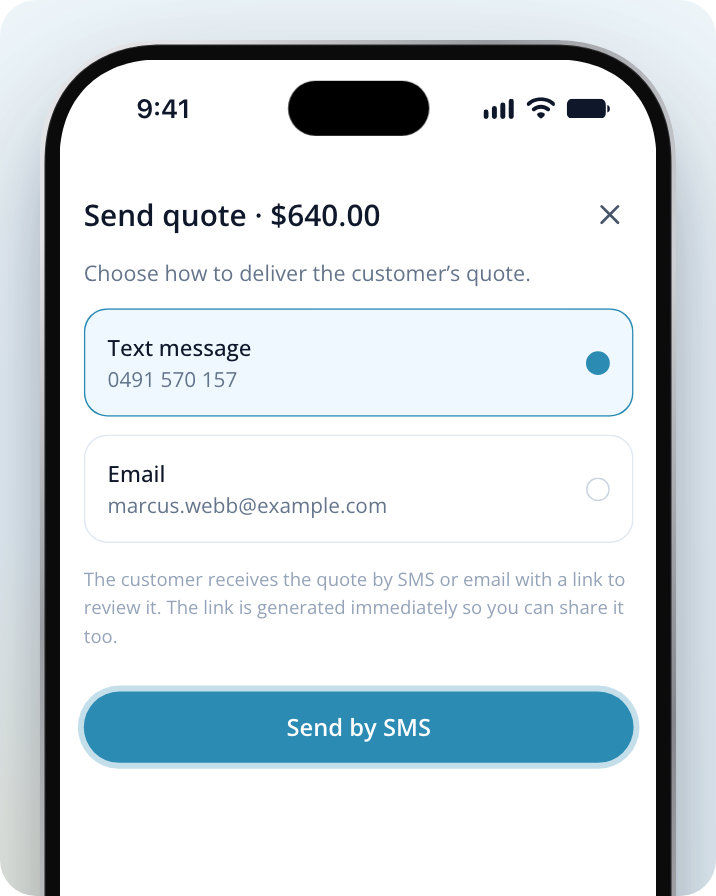
If Review & send is greyed out, check the message above it. Every line needs a price and the quote needs a customer. To send it, the customer needs a mobile number or an email address.
To finish later, Select Save & close. The draft stays in your quotes.
What Your Customer Sees
Your customer gets a text message or email with a link to the quote. The quote shows each line, the GST and the total, with your business name, ABN and contact details. The link is created as soon as you send the quote, so you can also share it yourself.
At the bottom of the quote are two buttons:
- Accept quote, with the total, if they're going ahead with you at that price
- No thanks, if they're not
The quote's status changes as your customer responds. You'll see Sent, Viewed, Accepted or Declined on the quote and in the job's Quotes section.
Change a Quote After Sending It
If your customer hasn't accepted or declined it yet, open the quote and Select Revise quote. Make your changes, then Select Publish update and choose how to let them know. Your customer keeps the same link and sees the new version.
Turn an Accepted Quote Into an Invoice
Open the accepted quote
Open the quote from the job's Quotes section. It shows Accepted.
Convert it
Select Convert to invoice. A new invoice opens, made from the accepted quote, ready to check and send.
Your Logo and ABN on Quotes
Your quotes use the details on your Business details page in Toolbox settings: your logo, ABN, address and document terms. Anything you leave blank there is filled in from your listing.
Your logo and brand colour show on quotes while you have Toolbox. Without it, quotes still show your business name, ABN and contact details, in the standard Service.com.au layout.
Quoting a Service.com.au Lead
When you first reply to a lead, you send a response with an optional estimate and a message. That's covered in How to Respond to a Lead and Send a Quote.
Once you've responded, the lead moves to Jobs. When you're ready to give a firm price, open the job and follow the steps above. You don't need Toolbox to create quotes on jobs that came from Service.com.au. For your own jobs, and to save items to a price book, you need Toolbox.