You can reset your password if you've forgotten it, or change it any time in your account settings.
Reset a forgotten password
1
Service.com.au homepage with the Sign in button in the top right-hand corner
Open the sign in page
Go to the Service.com.au homepage and click on Sign in in the top right-hand corner.
2
Sign in page showing the Forgot your password link below the password field
Open password reset
Under the Password field, click on Forgot your password.
3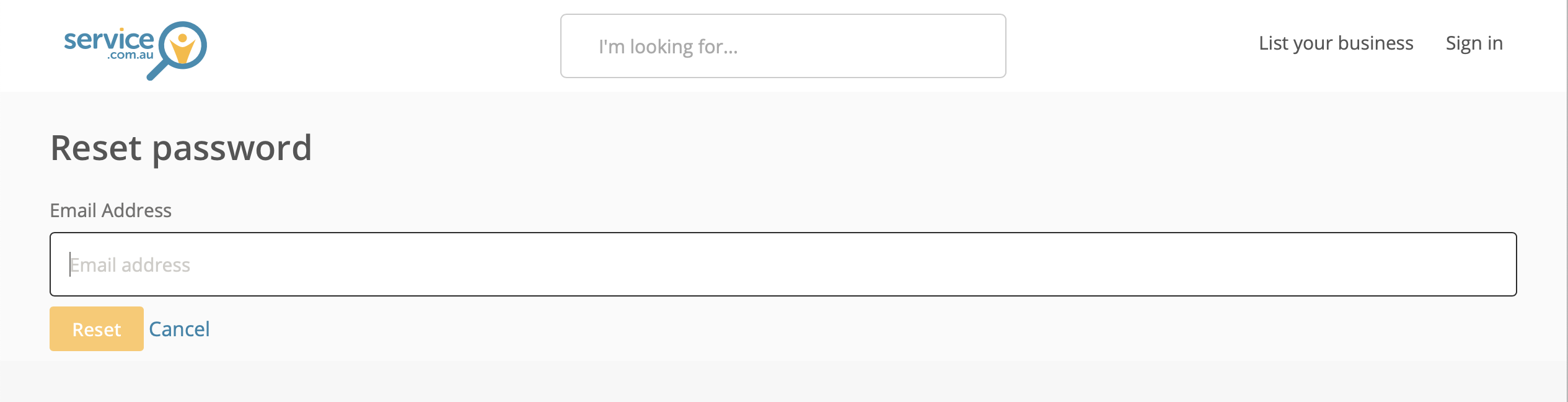
Password reset form where you enter your email address and submit the reset request
Enter your email address
Enter the email address linked to your account, then click on Reset.
4
Check your email
Open the password reset email and follow the prompts to create a new password.
Change your current password
1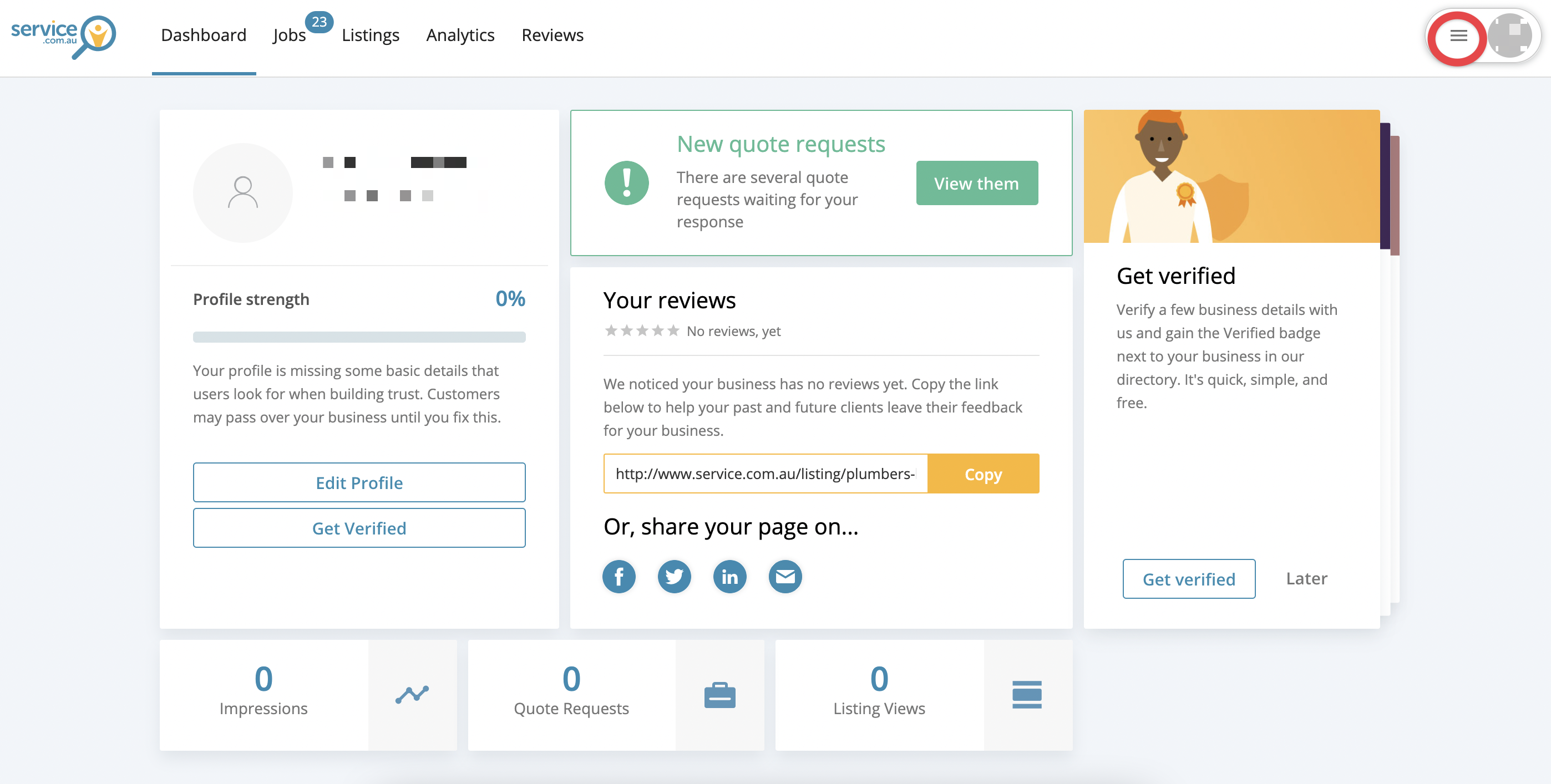
Business dashboard with the menu button visible in the top corner
Open your dashboard
Log in to your account dashboard and click on the Menu button in the top corner.
2
Account option selected from the dashboard menu
Go to account settings
Select Account from the menu.
3
Security and privacy section in account settings
Open security and privacy
Click on Security & privacy.
4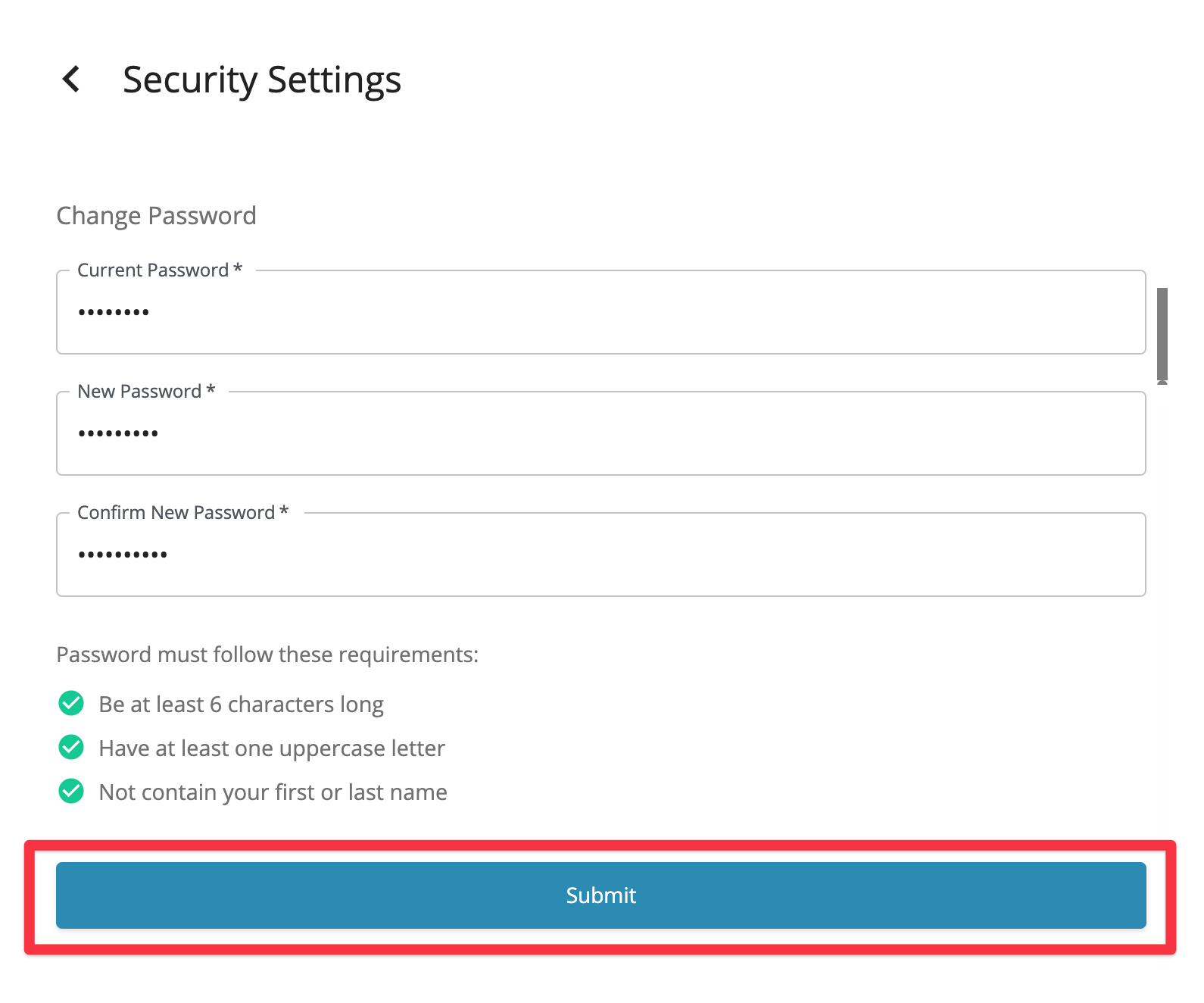
Password update form showing fields for current and new passwords with a submit button
Enter your new password
Enter your current password and new password, then click on Submit.
Need assistance?
If you need help, contact us at support@service.com.au or call 1300 523 787.