New leads come from homeowners who post a job on Service.com.au, and they arrive in your Inbox. If you're not seeing some jobs, or you're not getting new jobs in the app, check your categories, your service area and your notification settings below.
Where leads come from
When a homeowner posts a job, it goes to businesses whose listing has the job's category and whose service area covers the job's location. Those jobs are your Quote requests.
You can also get Direct enquiries. These come from your own booking forms: your link, your QR code, your website or your listing page.
Find your new leads
Log in to your dashboard
Log in to your account dashboard.
Open Inbox
Click on Inbox in the top menu. On a phone or in the app, tap Inbox at the bottom of the screen. On the website, a red badge on Inbox shows how many new leads are waiting.
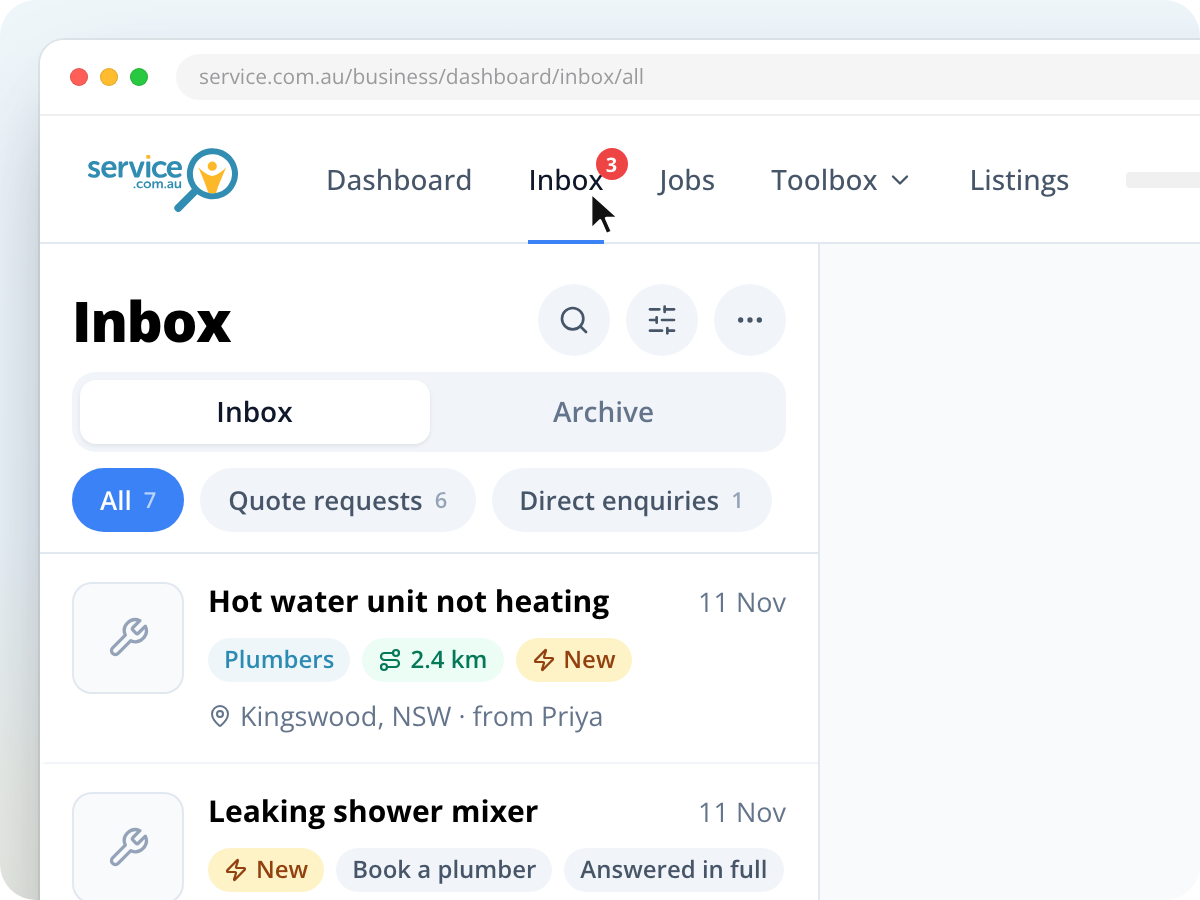
Choose a view
Select Quote requests to see jobs from homeowners, or Direct enquiries to see enquiries from your booking forms. All shows both.
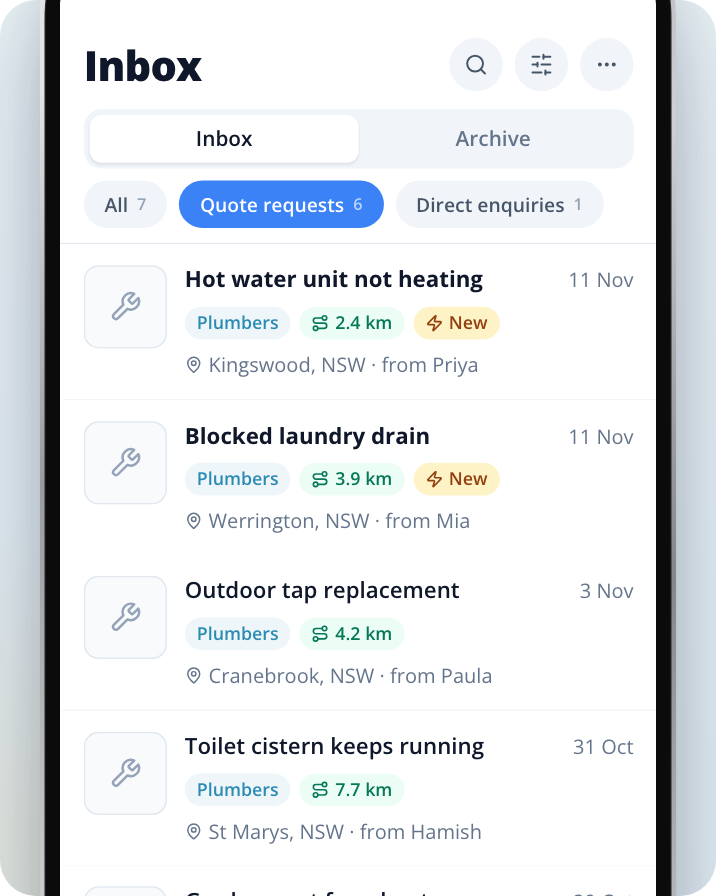
Once you respond to a quote request, it moves to Jobs, with your conversation. Jobs is where you manage the work you've taken on. Direct enquiries work differently: they stay in your Inbox until you close them or make them into a job, and then they move to Archive.
Why you're not seeing some jobs
A job only reaches you when all of these are true:
- The category matches. The job's category has to be one you've selected on your listing. If you choose a main category but tick only some of its sub-categories, you'll only get jobs in the sub-categories you ticked.
- The job is inside your service area. The job's location has to be within the Radius you've set around your Listing Location.
- Your listing is active. Suspended listings don't get new jobs.
If you have more than one listing, each job goes to only one of them. Your Premium listing gets it ahead of a Basic one.
Check your categories and service area
Open your listing
Click on Listings and open the listing you want to change.
Go to your categories and location
On a computer, select Categories & Location in the side menu. On a phone, tap Services in the row of tabs at the top.
Check your categories
Under Categories, make sure every type of work you do is selected, including the sub-categories.
Check your radius
Under Listing Location, check your suburb, then click on Edit next to Radius to cover more area.
If you have a Premium listing, Insights has a Jobs within reach card. It shows how many jobs in your categories were posted in your area recently, and how many more a wider radius would have reached. The card appears once your listing setup is complete, or after your first 21 days.
Why you're not getting new jobs in the app
New leads always arrive in your Inbox. If your phone isn't alerting you to new jobs, check that App Notifications is turned on under Jobs.
Open your notification settings
On a computer, click on the menu icon in the top right corner, then Notifications. On a phone or in the app, tap Menu, then Notification settings.
Turn on App Notifications for Jobs
Under Jobs, turn on App Notifications. You can also choose Email and Text Messages here.
If you haven't got the app yet, download the Service.com.au app.
If the homeowner stops responding
Homeowners often hear from several businesses and choose one. Not every homeowner replies to every response. Your conversation is in Jobs. In Inbox, move leads you don't want to quote on to Archive.
Need Assistance?
If you have questions, contact us at support@service.com.au or call 1300 523 787. Our team is here to help!