You get your verification badge by adding your ABN, a description, photos, FAQ answers and reviews to your listing. This article also covers why your ABN or licence number might not be accepted, what we check, and whether Google reviews count. There are 3 badges, Verified, Trusted and Recommended, and you earn them in that order from the Verification tab of your listing.
Get Verified
Open your listing
Go to Listings and click on your listing's name. On a computer, Listings is in the top bar. On a phone, it's a tab at the bottom of the screen. You can also use the shortcut on your Dashboard (Home in the app). Your listing card there has Edit profile and Get verified. Once you've earned a badge, Get verified changes to Get trusted and then Get recommended, and it takes you straight to the Verification tab.
Open the Verification tab
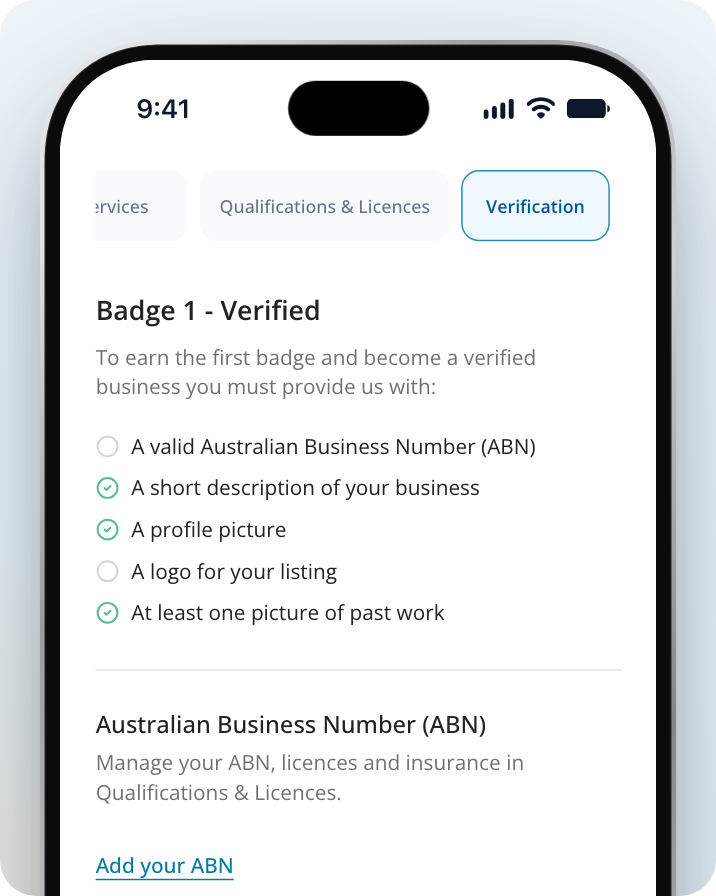
Select Verification. On a phone, the listing tabs are along the top of the page. Verification is the last one, so swipe the tabs to the left to find it. The page shows the next badge you can earn, for example "Badge 1 - Verified", and a checklist of what it needs. Items you've finished show a green tick.
Add your ABN
Click on Add your ABN in the Australian Business Number (ABN) section. This opens Qualifications & Licences. The steps are in Add your ABN below.
Add your listing description
Enter a short description of your business in Listing Description, then save it.
Upload your images
Add a profile picture, a logo for your listing and at least 1 picture of your past work. You can upload all three on the Verification tab. The profile picture is your own photo, not your logo, and it's the same one shown under Profile (on a phone, Personal information) in your account settings. The logo and pictures go on your listing.
How badges are given
Badges are given automatically. You don't need our team to approve them. When every item on the checklist is ticked, the page shows "You've completed all requirements for Badge 1! Your badge will be updated shortly." Your badge then moves up to the next level. Once you earn a badge, it appears next to your business name in the directory and on your profile.
Requirements for each badge
Verified
- A valid Australian Business Number (ABN)
- A short description of your business
- A profile picture
- A logo for your listing
- At least one picture of past work
Trusted
- Everything for the Verified badge
- At least 2 customer reviews
- Answers to at least 4 FAQs
- At least 2 gallery images
Recommended
- Everything for the Trusted badge
- At least 5 customer reviews
- A verified website backlink, which is a link to your Service.com.au listing on your own website
- Answers to all 8 FAQs
- At least 5 gallery images
You can answer your FAQs and check your backlink on the Verification tab when you're working on those badges.
Do Google reviews count towards my badge?
No. The Trusted and Recommended badges only count approved reviews that homeowners leave on your Service.com.au listing. The Verification tab shows how many you have, for example "At least 2 customer reviews (1/2)". Reviews on Google or other sites aren't counted.
Add your ABN
Your ABN is checked with the Australian Business Register (ABR) before it's added to your listing. The check gets your registered legal entity name from the ABR.
Open Qualifications & Licences
Select Qualifications & Licences in your listing, or click on Add your ABN on the Verification tab.
Start adding your ABN
Click on Add ABN.
Enter and check your ABN
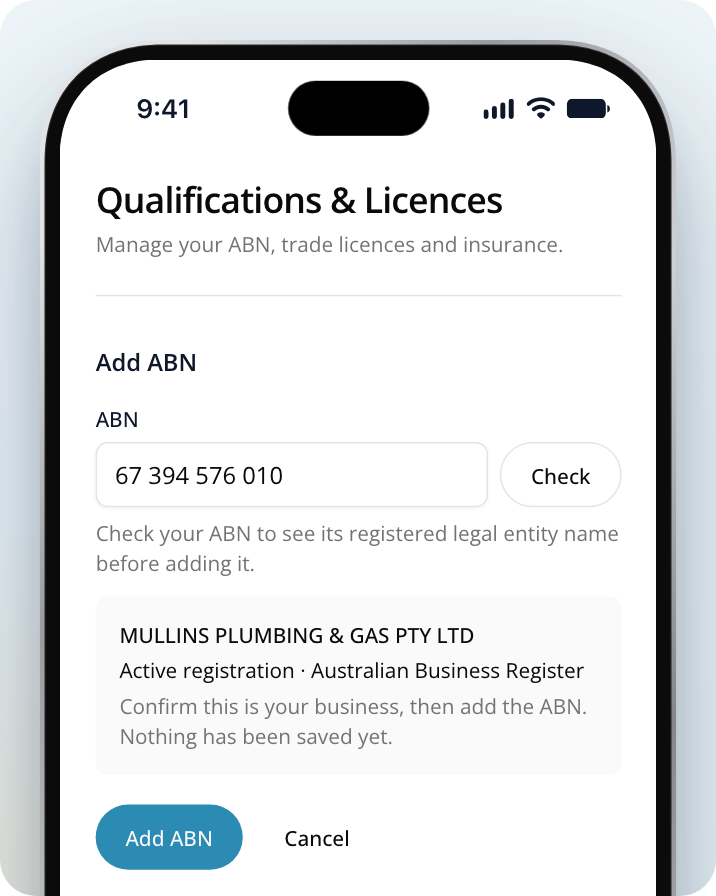
Enter your 11-digit ABN and click on Check. The registered legal entity name from the ABR appears so you can confirm it's your business.
Add it to your listing
If the details are right and the ABN is active, click on Add ABN. Nothing is saved until you do.
Why won't my ABN be accepted?
You can only add an ABN that the ABR shows as active. If your ABN isn't accepted, you'll see one of these messages:
- "Enter a valid 11-digit ABN". The number isn't 11 digits, or it has a typo. Check it against your ABN registration and enter it again.
- "ABR has no record of this ABN. Check the number and try again. Nothing has been saved." The ABR can't find that number. Check for a typo.
- "ABR doesn’t show a legal entity name for this ABN, so we can’t check it automatically. Contact support and we’ll add it for you. Nothing has been saved." Contact us and our team will add it.
- "We couldn’t check this ABN with ABR. Please try again. Nothing has been saved." The check didn't go through. Try again a little later.
- "Please wait before checking another ABN." You've checked several numbers in a short time. Wait a moment, then try again.
- "Check an active ABN before adding it to the listing." Check the number and get an active result before you add it. If you change the number after checking, check it again.
- "The previous check found different entity details. Check the ABN and retry." The ABR's details don't match what was saved before. Check the number and try again.
- "This ABN is cancelled. Check the number or use your current ABN." The ABN you checked has been cancelled, so you can't add it. Enter your current ABN.
- "ABR reports this registration as cancelled." An ABN already on your listing has been cancelled. Click on Edit / check ABN and replace it with your current ABN.
Add a licence or qualification
Start a new detail
In Qualifications & Licences, click on Add business detail.
Add a photo or PDF of your licence
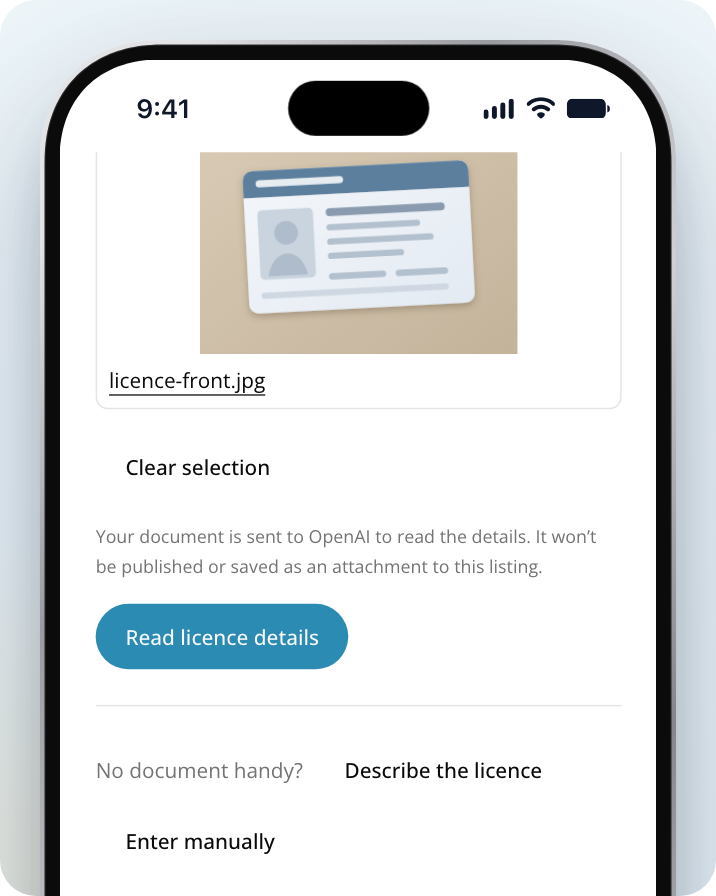
Click on Upload photo or PDF, or Take a photo on your phone. Add one licence at a time, with the front and back if needed.
Read your licence details
Click on Read licence details. This can take up to a minute, and nothing is saved yet. The details are filled in for you to review.
Check the details and save
Check each detail, including the State or territory and Licence type, against your licence. Tick I’ve checked these details against the document., then click on Confirm and save licence.
If you don't have your licence with you, click on Enter manually under "No document handy?" and type the details in yourself. You may also see Describe the licence there.
Why won't my licence be accepted?
- The file can't be used. Use a JPEG, PNG, WebP or PDF. Add up to two photos or one PDF, no more than 10 MB in total. For HEIC photos from an iPhone, export a JPEG first.
- The document couldn't be read. Try a clearer copy, or click on Enter manually and type the details yourself.
- The licence has expired. A licence with a past Valid to date shows "expired, hidden from public listing" and isn't shown on your listing. Add your renewed licence if you have one.
- Support asked for a correction. You'll see "Please correct these details" with a message from our team. Click on Edit, update the details and save. If the licence was already showing, it stays on your listing while you update it.
- It was removed from your listing. You'll see "Removed from your listing. Update the details for support to review." Update the details, and it stays off your listing until our team reviews it again.
What do you check?
Your ABN is checked with the ABR when you add it. It confirms the ABN is active and gets its registered legal entity name. On your listing, it shows "Verified on" the date of the check "with ABR".
Licences and qualifications go on your listing as soon as you save them. We don't check them against a register first. An automatic check runs afterwards, and our support team may ask you to correct a licence or remove it from your listing. On your listing, a licence shows as "Provided by the business".
A licence isn't needed for any verification badge, but adding one shows homeowners what you're qualified to do.
Need Assistance?
If you have questions, contact us at support@service.com.au or call 1300 523 787. Our team is here to help!